Update Godot Launcher
Godot Launcher checks for updates automatically by default. You choose when to download an update and restart to install it.
When an update is available, select Update in the sidebar to open the update panel. The panel shows the update status and available actions. Select Read release notes to open the notes for that exact version on the Godot Launcher documentation site in your browser. This link appears when the update includes an exact release version.
Close the panel with its close button, press Esc, or click outside it. Closing the panel does not skip the update or cancel a download.
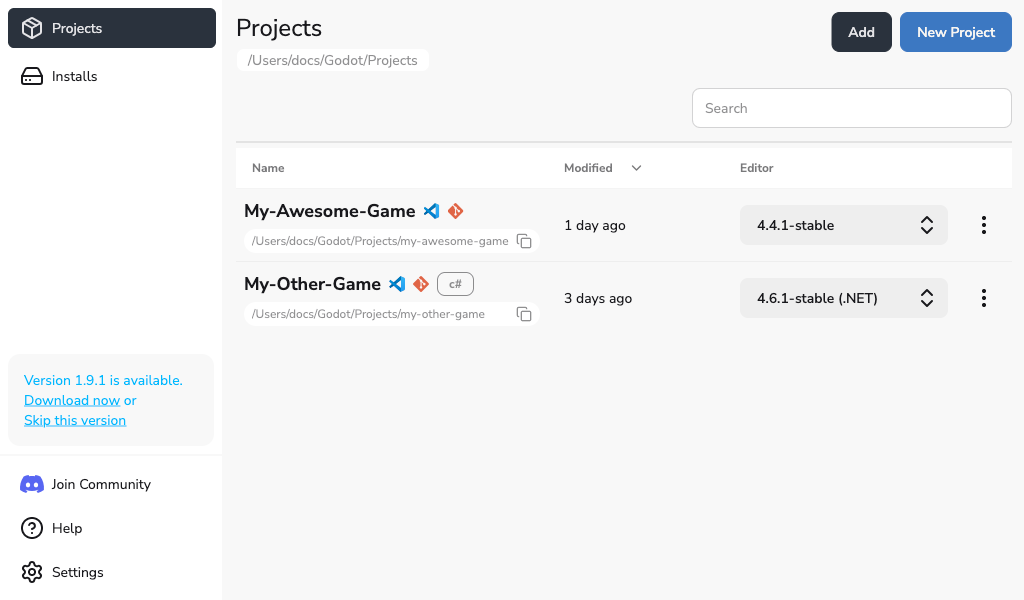
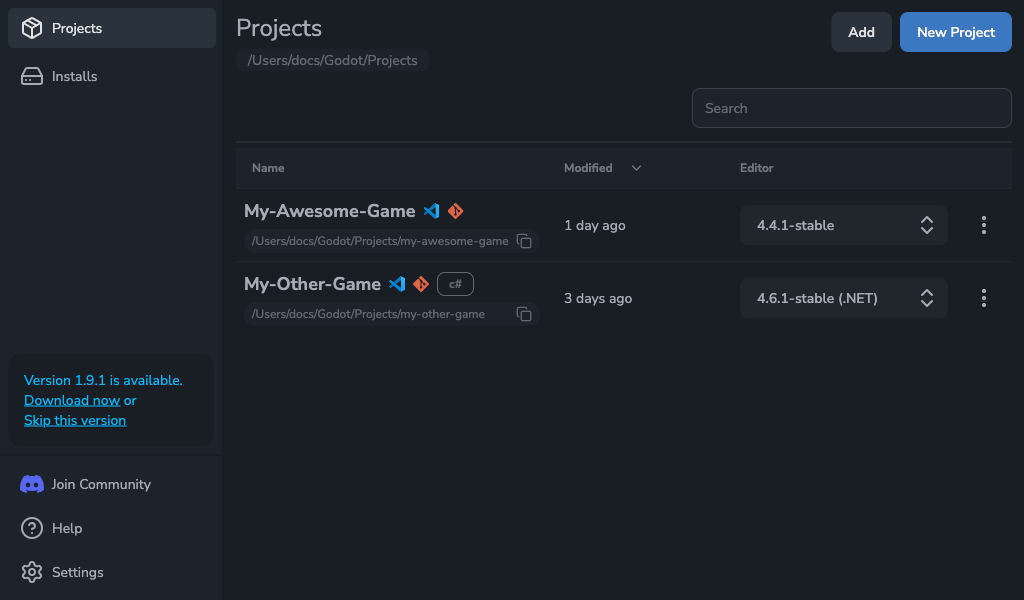
Check for an update
- Open Settings > Updates.
- Select Check for updates.
- Wait for the result. If a newer version is available, select Download update to download it or Skip this version to dismiss it.
To check only when you choose, turn off Automatically check for updates. Automatic checks do not download or install updates.
Download and install
Select Download update in the update panel or Settings > Updates. During the download, the sidebar shows Downloading and a percentage when progress is known. Open the panel to see the download progress.
When the download finishes, open Update and select Restart and install. You can also select Restart now in Settings > Updates. Both actions restart Godot Launcher and install the downloaded update.
Select Later in the panel to close it and continue using Godot Launcher. This does not cancel or remove the downloaded update. Open Update again when you are ready to restart.
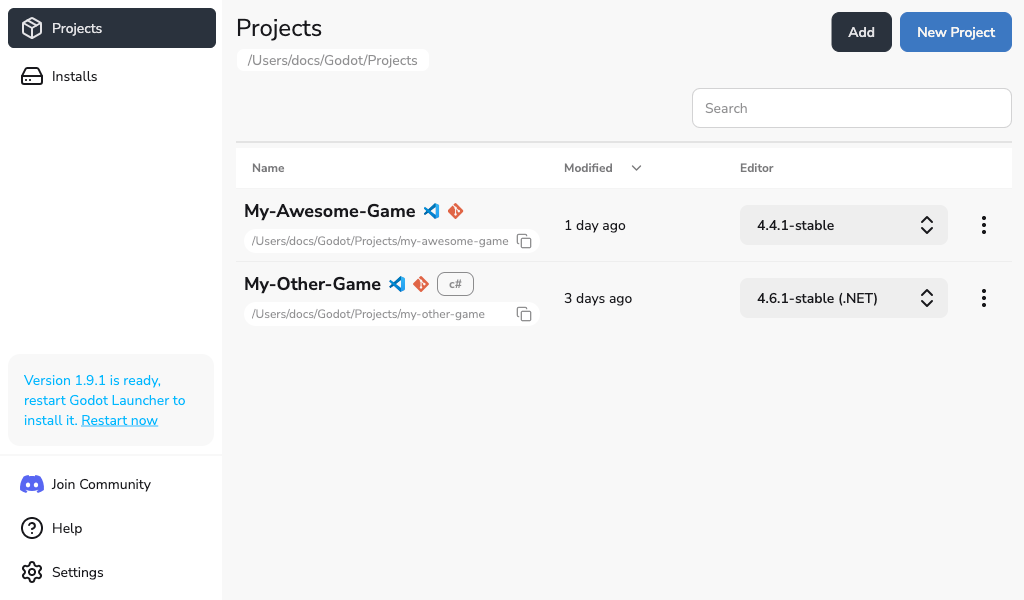
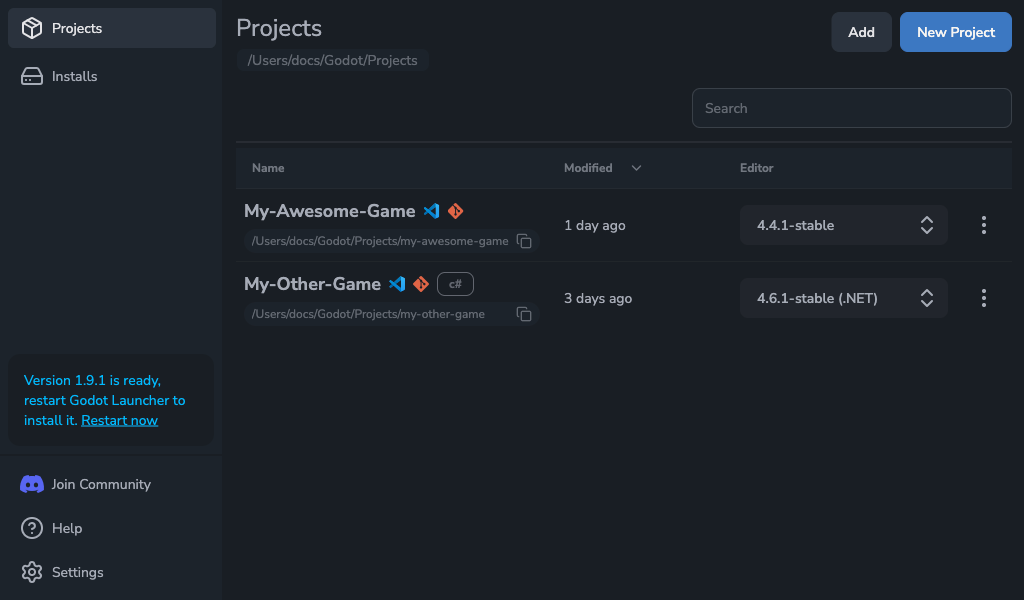
Skip a version
Select Skip this version to stop background checks from prompting you about that release. Newer versions can still be offered.
To install a skipped version, select Check for updates in Settings > Updates. A manual check can offer the skipped release again. To remove the saved skip choice and allow background reminders for it, select Unskip skipped update.
Beta updates
Stable releases are offered by default. Enable Receive beta updates in Settings > Updates to include beta builds, which may be less stable. Turn it off to return future checks to stable releases; this does not downgrade the version already installed.
Manual updates on rpm-ostree
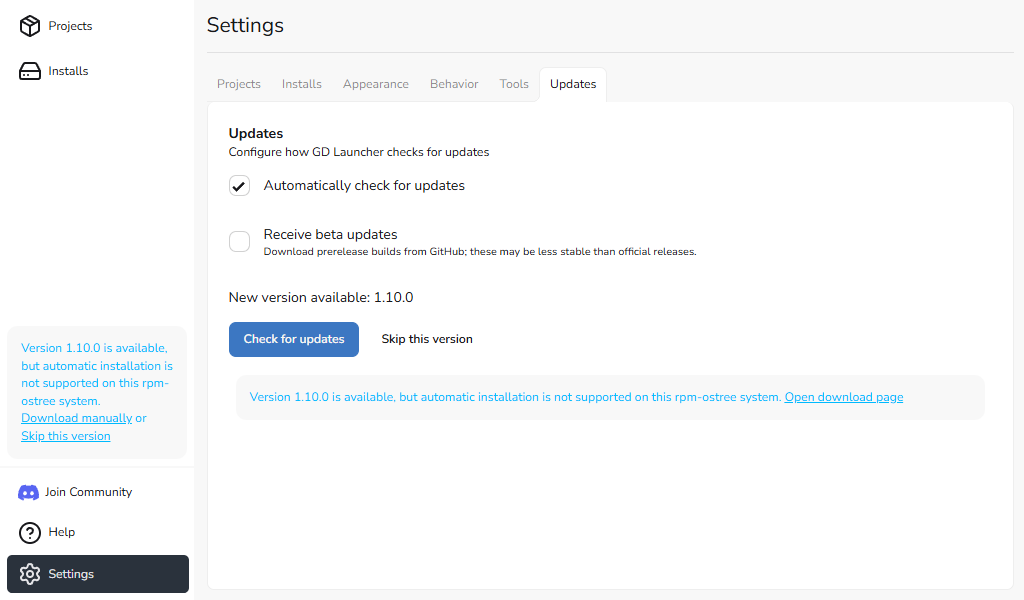
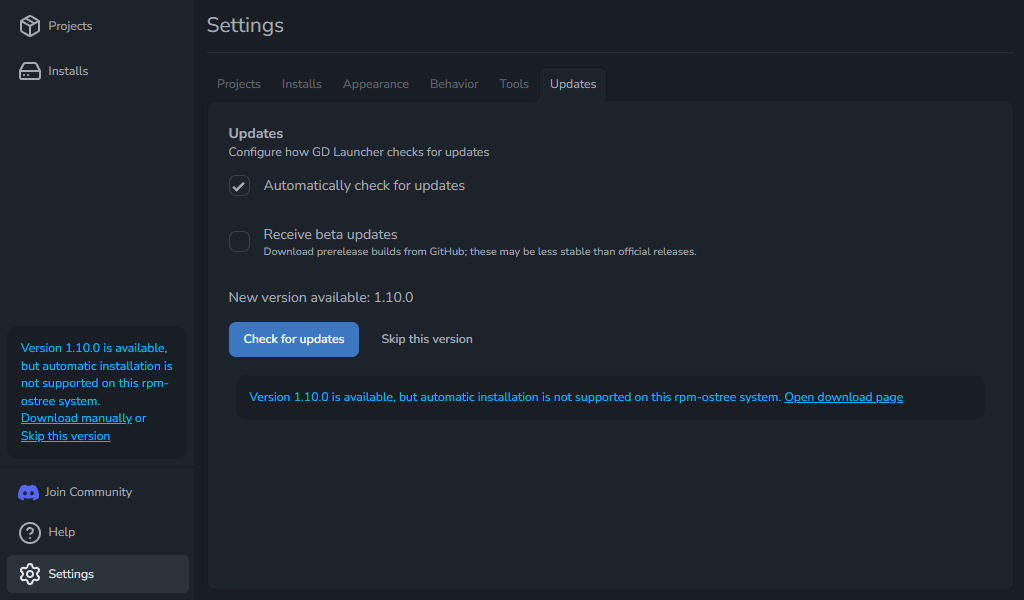
On rpm-ostree Linux systems, Godot Launcher can check for updates but cannot install them through the app. Select Download manually in the update panel or Open download page in Settings > Updates, then download and install the appropriate package manually. You can still use Skip this version when the update's version is shown.
Errors and retry
If an update error appears, open Update in the sidebar to read it. When Retry is available, it repeats the failed operation: checking for updates, downloading the update, or installing the downloaded update. Retrying installation restarts Godot Launcher to install the update.
If the failed operation is unknown, the panel does not show Retry. Use Check for updates in Settings > Updates to start a new check.
If updating through the app continues to fail, download and install the appropriate package from the Godot Launcher download page.
Related
- Godot Launcher Update States explains each update message.
- Godot Launcher Settings covers other launcher preferences.