Code Editor Settings
Godot Launcher supports Visual Studio Code and VSCodium. Use Settings > Code Editors to make either editor available to projects and choose the default for new projects.
Godot Launcher does not install either code editor. Install it separately, then return to this tab to set it up.
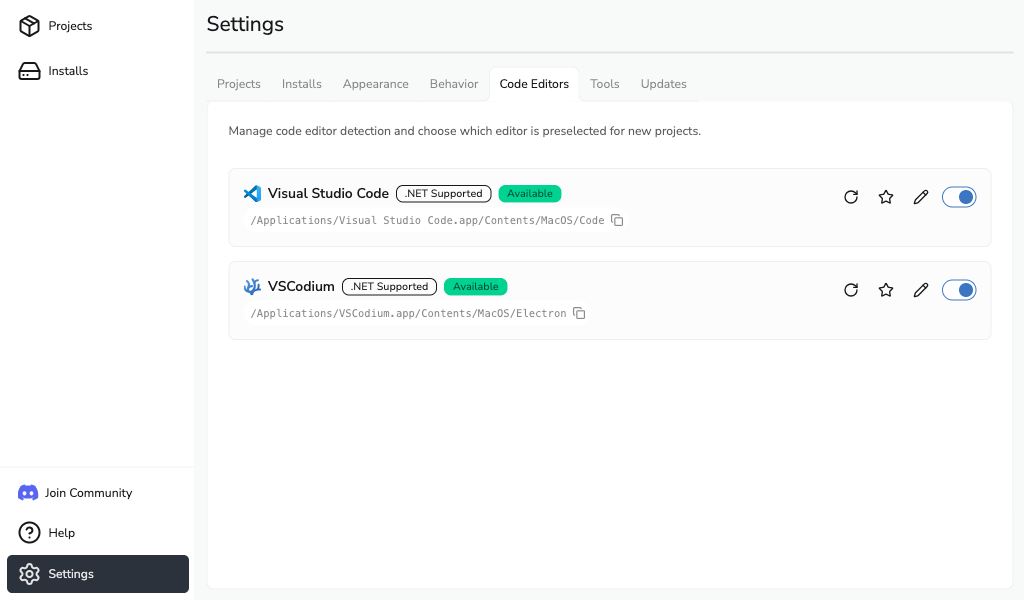
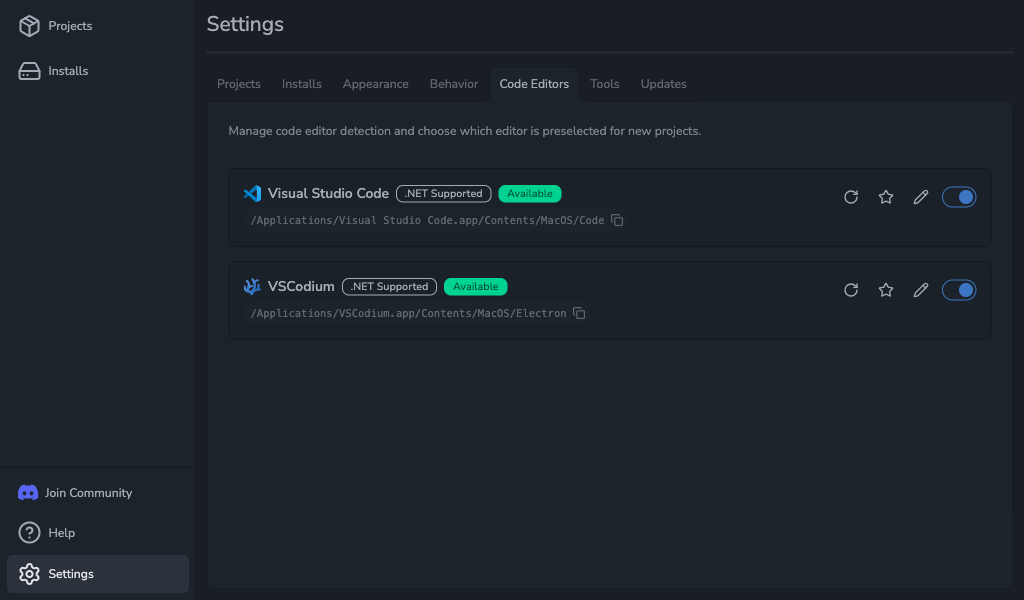
Make an editor available
Each editor card shows whether it is available, enabled, or selected as the default:
- Available means the launcher found the editor. Its location appears on the card.
- Enabled means you can choose the editor for a project.
- Default code editor is marked with a filled star and is preselected for new projects.
Godot Launcher checks common installation locations automatically. Select Rescan after you install, move, or update an editor.
If the editor is not found, see Troubleshooting.
Choose the default for new projects
Select the star on an enabled, available editor to make it the default. The Create Project drawer then preselects it.
If you have not set a default and only one editor is enabled and available, the launcher preselects it. You can still choose another editor or None while creating a project.
Existing projects keep their current code editor.
Enable or disable an editor
Use the toggle on an editor card to show or hide it as a choice for new and imported projects.
Disabling an editor removes it from new choices. Projects that already use it keep their current choice and can continue to use it while it is installed.
Use a custom executable path
Use a custom path for an installation outside the usual locations:
- Open Settings > Code Editors and select Edit on the enabled editor's card.
- Enter the Executable path, or select Browse to choose its executable or application bundle.
- Select Save.
Godot Launcher checks the path before saving it. If the path is invalid, choose the installed editor's executable and try again.
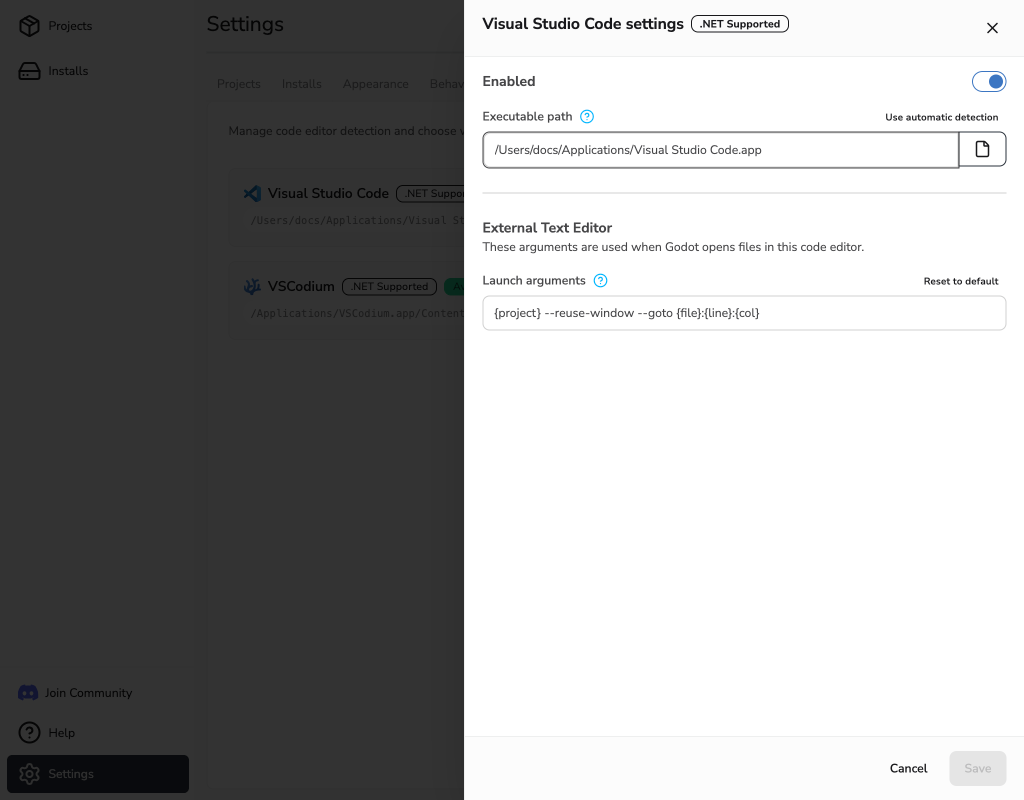
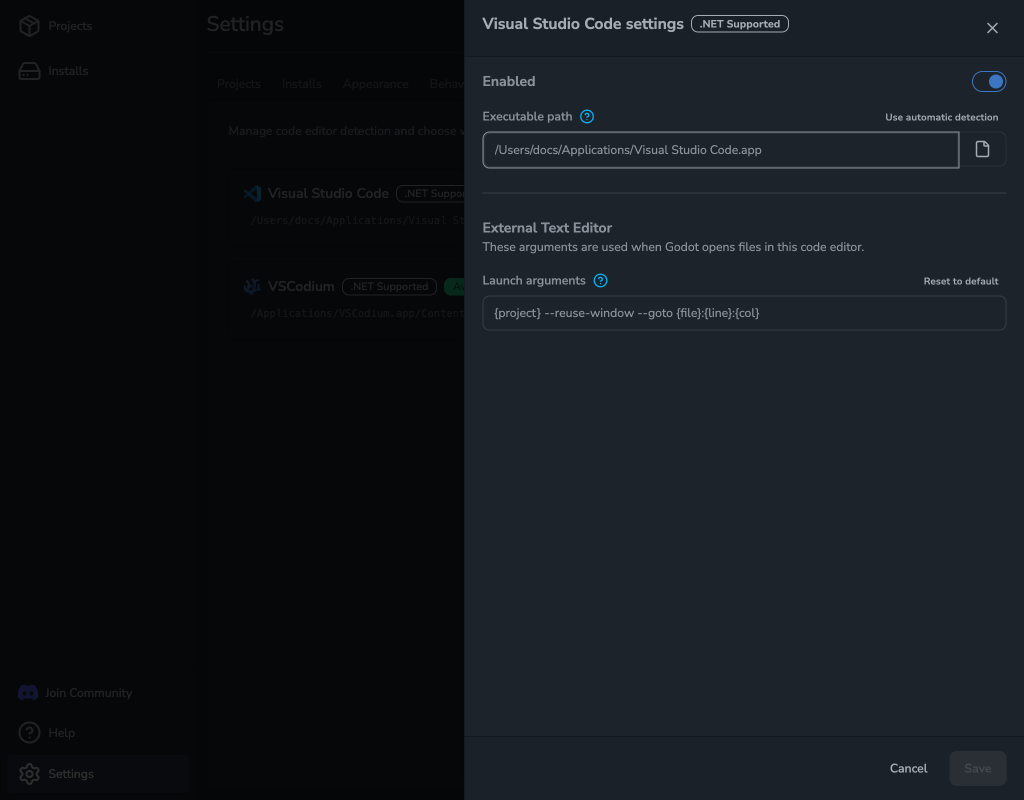
To return to automatic detection, select Use automatic detection, then Save.
Override launch arguments
Launch arguments controls how Godot opens files in the code editor. Keep the built-in arguments unless your setup needs different ones.
- Open Settings > Code Editors and select Edit on the enabled editor's card.
- Change Launch arguments under External Text Editor.
- Select Save.
You can use these Godot placeholders:
{project}- project path.{file}- file path.{line}- line number.{col}- column number.
Leaving the field empty saves an empty override. To restore the built-in arguments, select Reset to default, then Save.
For unavailable editors, launch warnings, and project setup recovery, see Troubleshooting.