Connect GitHub to Godot Launcher
Connect GitHub to browse and import repositories you can access, including private repositories, or publish a new project to a private repository. Manage your connections in Settings > Connections or use the Connections shortcut in the sidebar.
You do not need a GitHub connection to clone a public Git repository.
Connect GitHub
- Open Settings > Connections and select Connect GitHub.
- Select Continue in browser. Authorise Godot Launcher on GitHub, choose the repositories the GitHub App can access, then return to the launcher.
- Select the personal account or organisation installations you want to connect. Use Select all to choose every available installation. If an account or organisation is missing, select Manage access on GitHub.
- Select Connect selected. The button includes the number of selected connections. Once saved, they appear in Settings > Connections.
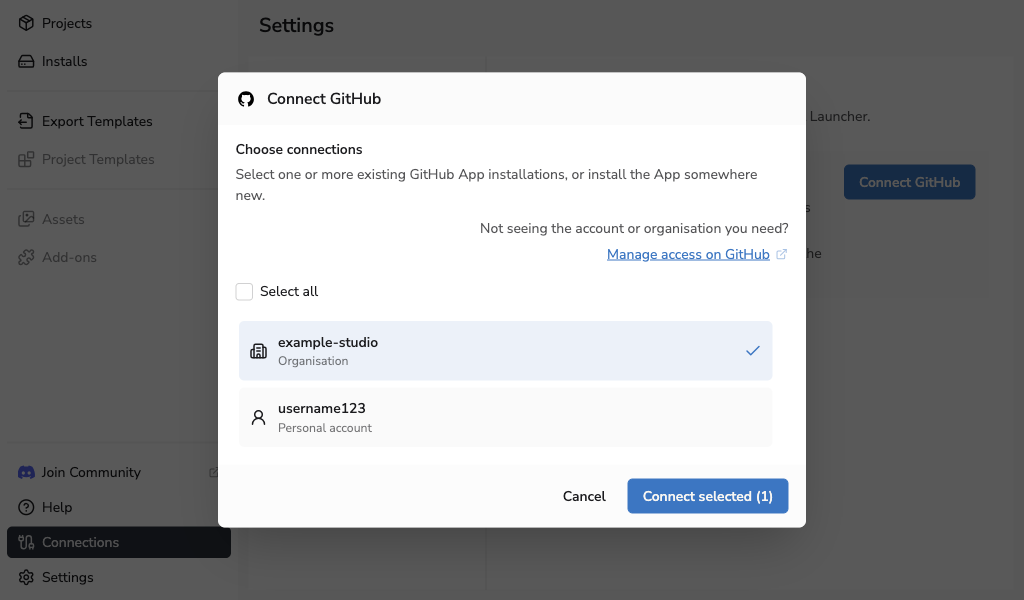
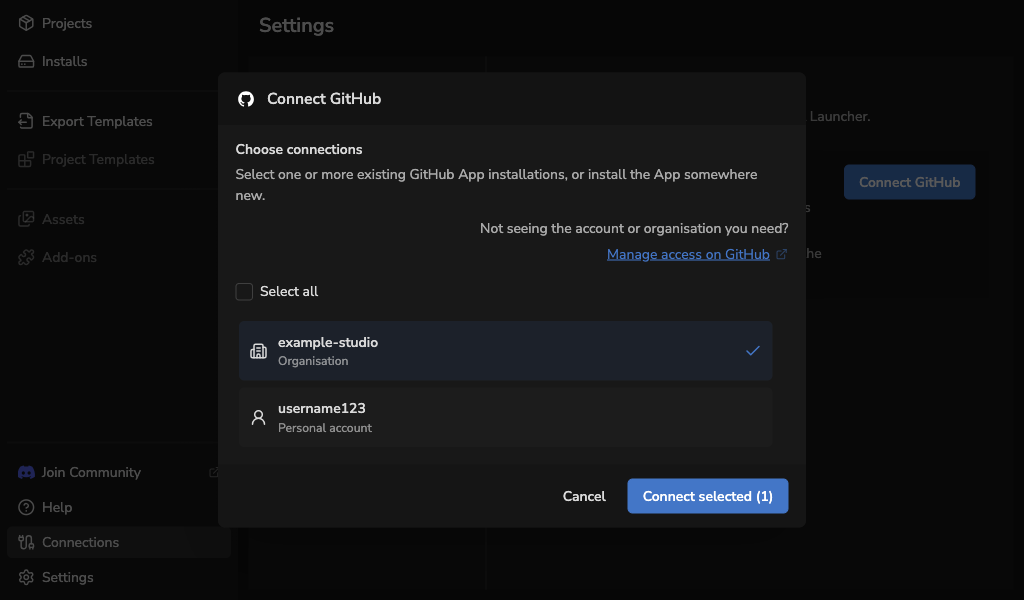
Use Add connection to connect another GitHub account or installation. Connections are grouped under the GitHub account that authorised them.
Cancelling before you select Connect selected leaves existing connections unchanged. Closing the dialog after saving has started does not cancel the save.
Manage repository access
In Settings > Connections, select Manage GitHub connections. Select Manage repository access beside an installation to change its repository selection on GitHub. Hover over an action icon or focus it with the keyboard to see its label.
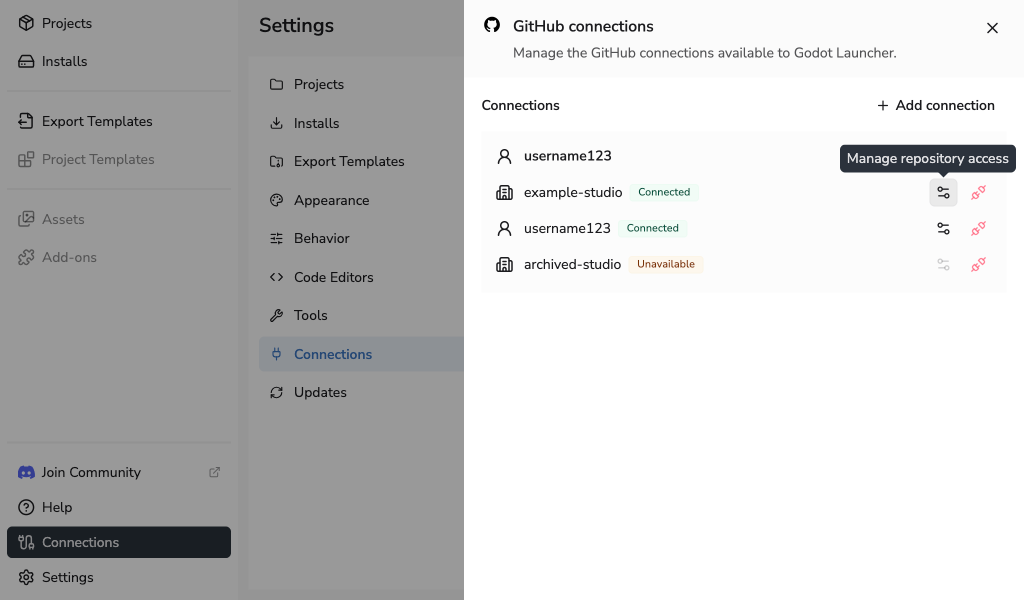
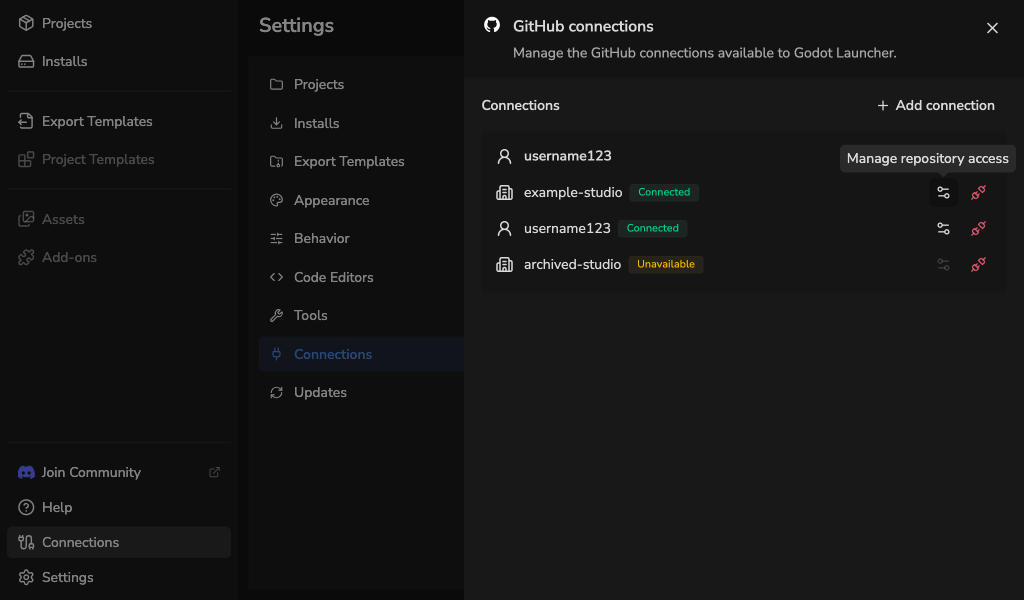
Disconnect GitHub
Select Disconnect beside an installation, then confirm. When removing the last connection for a GitHub account, select Disconnect this device to remove it locally.
Local disconnection leaves the GitHub App installed and does not change repository access or project remotes. When removing the last connection for an account, you can also select the revocation checkbox and Revoke and disconnect. This revokes that account's GitHub authorisation on all Godot Launcher devices, which will need to reconnect.
See Disconnecting and revoking access for the scope of each choice.
Connection recovery
- Reconnect required: Select Reconnect and complete the browser flow with the same GitHub account.
- Unavailable: Check that the GitHub App is still installed and has access to the repositories you need. Use Manage repository access where available to review the installation on GitHub.
- If updated permissions are needed, follow the connection action offered when importing or publishing, then review the requested permissions on GitHub. Import access may remain available while publishing is disabled. You can complete the connection dialog and return to your current task.
- Secure storage unavailable: Set up or unlock your system keyring, fully restart Godot Launcher, then try again. The launcher cannot save a connection without secure credential storage.
Linux credential storage
On Linux, expand Credential storage in Settings > Connections. Automatic is the default. You can choose Secret Service if a compatible Secret Service keyring is running in your desktop session.
- Choose Automatic or Secret Service.
- Select Save choice and confirm. Existing credentials are kept, but you may need to reconnect GitHub after the change.
- If prompted, select Restart now to apply the choice. Not now leaves the choice saved until you fully quit Godot Launcher, including its system tray process, and open it again.
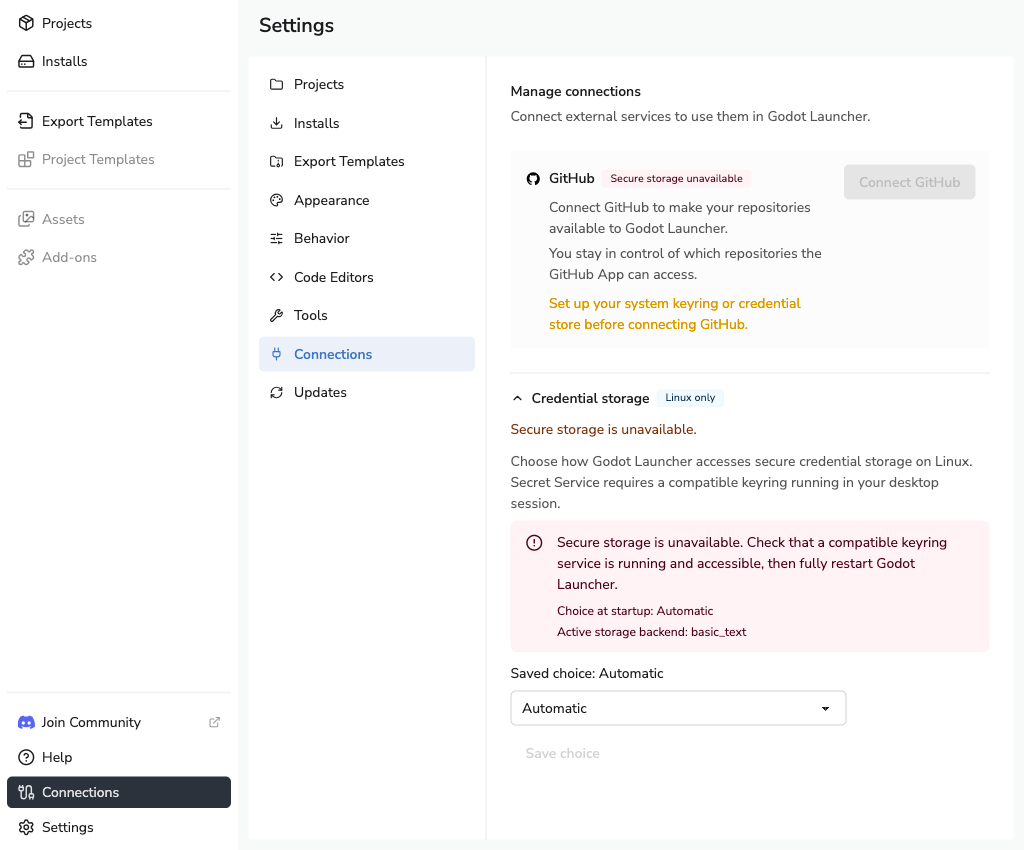
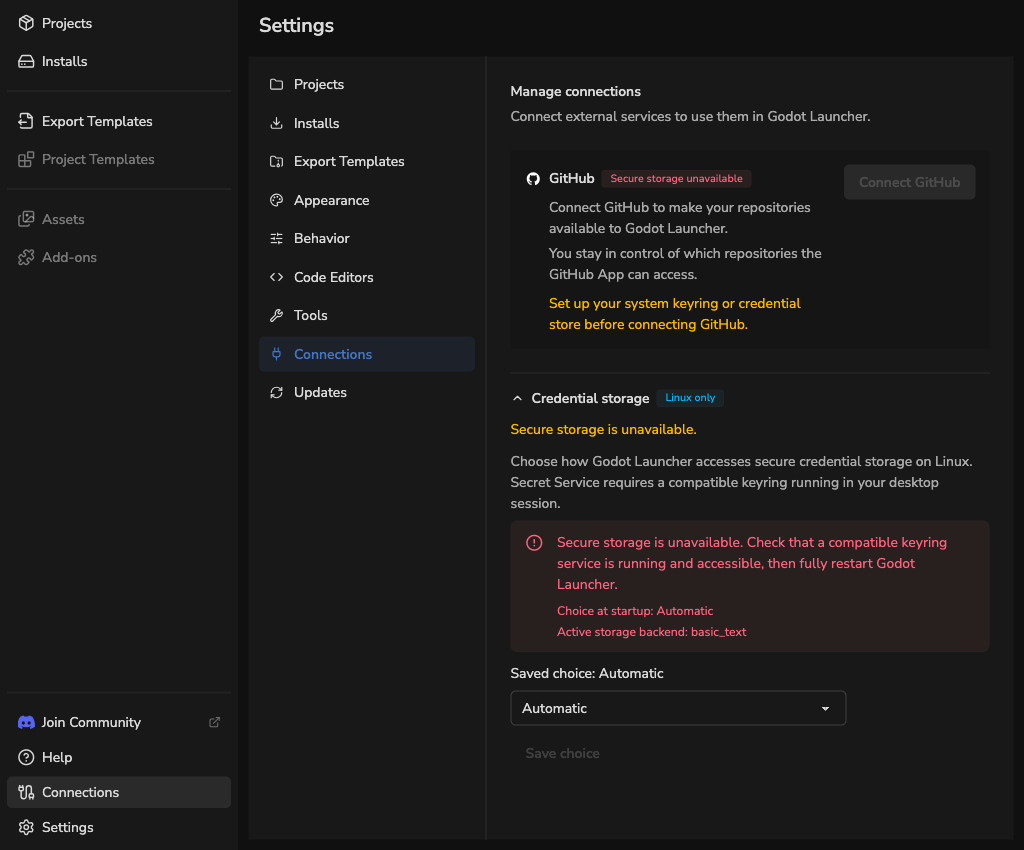
See Linux credential storage troubleshooting if storage remains unavailable, saving fails, or a launch flag overrides your choice.
For permission and storage details, see Godot Launcher GitHub permissions. To use a connection, import a repository or publish a new project.