Godot Launcher Troubleshooting
Find the symptom that matches your problem. Each section gives recovery steps and links to the relevant guide.
Installation and startup
Windows blocks or warns about the installer
Download the installer from the official Godot Launcher download page. To check its signature:
- Right-click the downloaded
.exeand choose Properties. - Open Digital Signatures.
- Select the signature and confirm that Windows reports it as valid.
For winget installation and upgrade problems, see Install Godot Launcher with winget.
Linux package or startup problems
- If a
.debinstallation reports missing dependencies, runsudo apt --fix-broken install. - If an AppImage does not start, confirm that FUSE is available and that the file is executable.
- If the error mentions
chrome-sandboxor the Chromium sandbox, see Fix Godot Launcher Sandbox Errors on Linux.
See Installation for the normal steps for each platform.
Godot editor installation and availability
The editor list cannot refresh
If a saved editor list is available, you can continue using it. Wait a few minutes, check your connection, then select Refresh again.
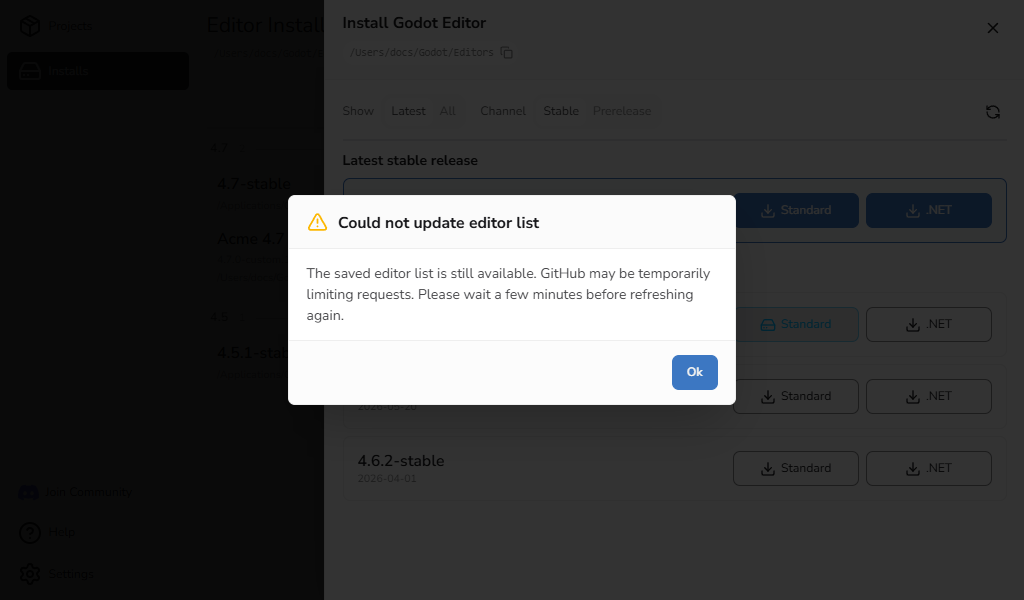
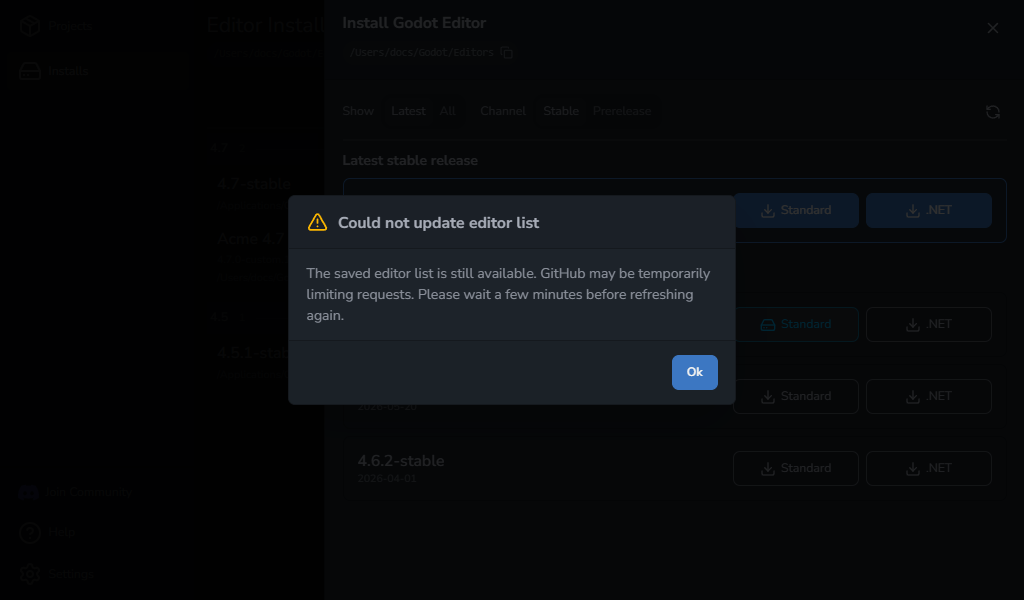
If no saved list is available, the launcher needs a working connection before it can show official releases.
An editor download fails
Check your connection and select the same Standard or .NET download action again. If GitHub is limiting requests or temporarily unavailable, wait a few minutes before retrying.
An editor archive cannot be verified
Godot Launcher verifies official editor archives before extracting them. If the checksum information is unavailable or the downloaded file does not match, the installation stops and partial files are removed.
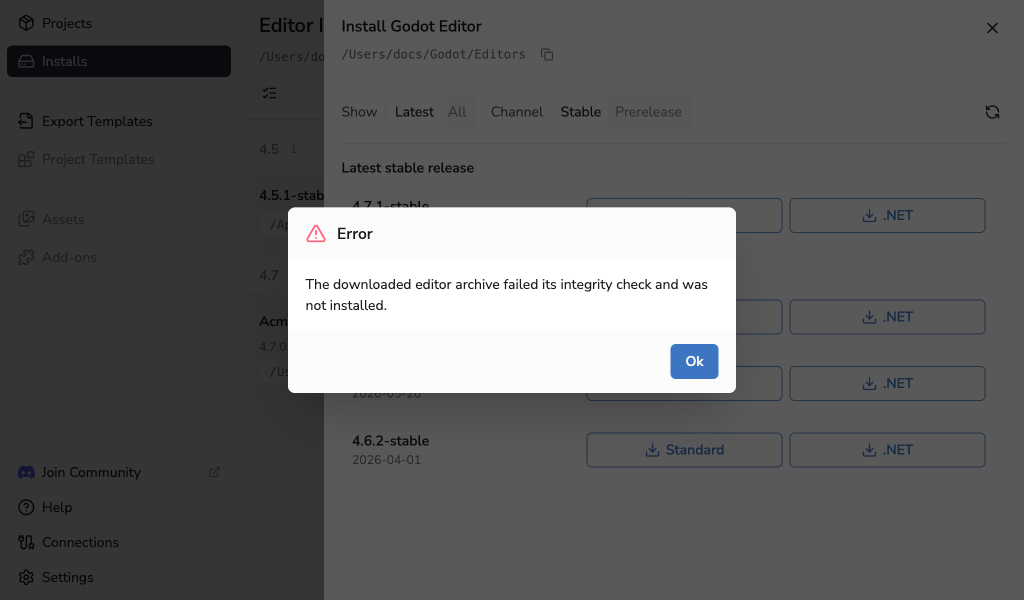
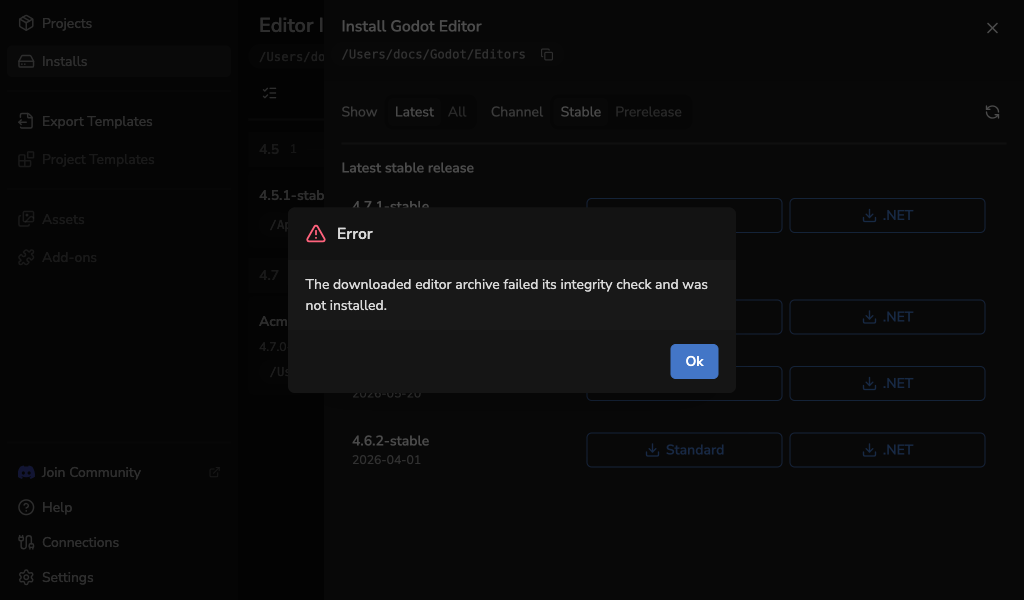
- Check your connection and select Refresh in the Install Editor drawer.
- Select the same Standard or .NET download action again.
- If the error continues, update Godot Launcher to the latest release and try again later.
Do not extract or register the failed download manually. If the same release continues to fail, report the problem with its version and the Godot Launcher logs.
An editor archive or installed executable is rejected
The launcher stops an installation when the archive cannot be extracted safely or the resulting editor executable is not valid inside its managed install directory. Partial installation files are removed automatically.
Retry the installation once. If the same release fails again, report the problem with its version, your operating system and architecture, and the Godot Launcher logs. Use another verified release compatible with your project until the problem is resolved.
An installed editor is unavailable
Open Installs and use the action that matches the problem:
- Retry checks the saved location again after you restore or reconnect it.
- Reinstall downloads an official release again.
- Remove removes an unavailable entry from the launcher.
Removing a custom editor registration does not delete its files. See Install a Godot Editor or Custom-Built Godot Editors for more detail.
Project editor selection
An added project needs a Godot editor
Choose an installed or downloadable editor from the import review. If you need to restore or register an editor first, choose Add With Missing Editor. The project is added, but Edit in Godot remains unavailable until its editor is available.
If the editor download fails, the selected version stays saved. Select Install required editor on the project to retry. For a custom build, restore its location or register the editor.
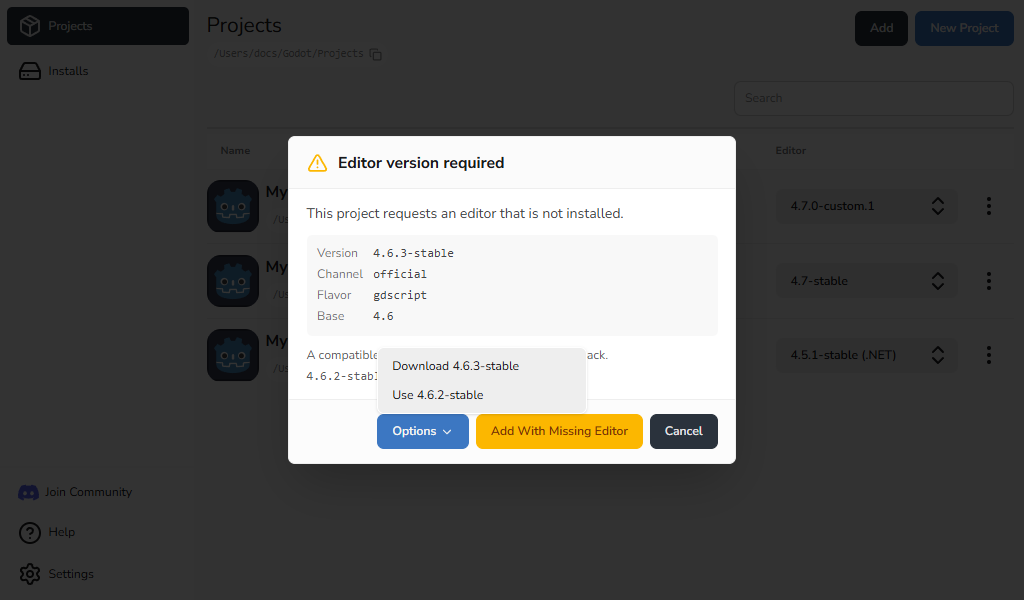
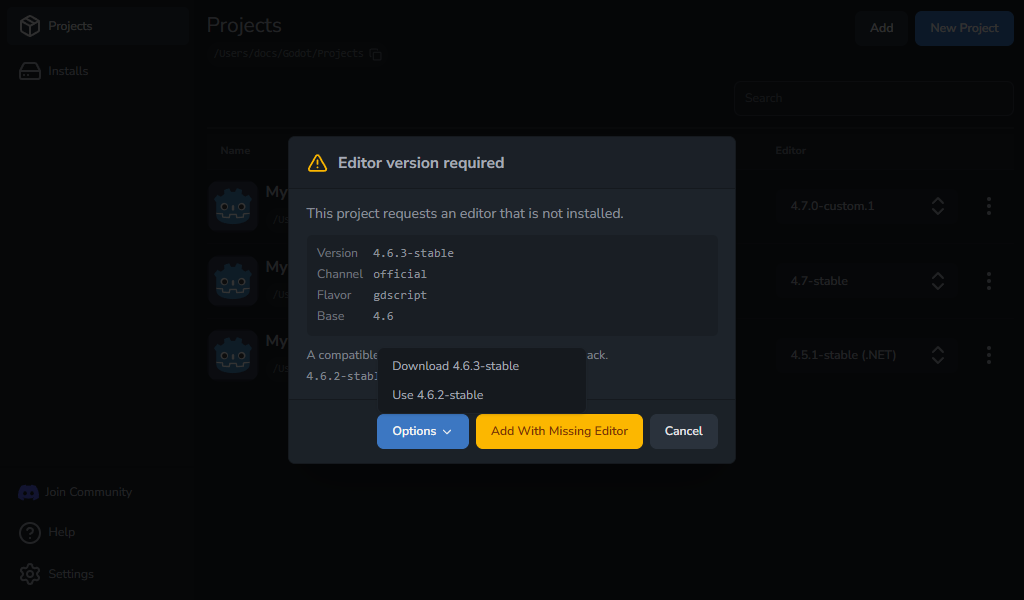
See Add an Existing Godot Project for how the review chooses compatible editors, or Change Project Editor Version to choose a replacement after import.
A project card shows an editor warning
- If the Godot editor is missing, reconnect its location, reinstall it, or choose another editor from the same major version in Project Settings.
- If
project.godotis missing, restore the project folder or remove the entry and add the project again from its current location. - If the project needs a custom build, restore that build or register its replacement.
Godot Launcher can save an editor change only within the project's current Godot major version, even if the picker lists a different major version. Choose a release from the current major version and save again. See Change Project Editor Version for the steps.
To migrate a Godot 3 project to Godot 4, follow the official Godot upgrading guide. Changing the editor in Godot Launcher does not perform this migration.
Terminals
Godot cannot open in a terminal
On Linux, open Settings > Tools > Terminal, select Rescan, and choose Automatic or an available terminal. Retry opening the project. See Launch Godot in a Terminal for platform behaviour and recovery.
If output stops after Reload Current Project in Godot, close Godot and reopen the project from Godot Launcher.
Open Terminal Here does not work
Use Open terminal settings in the error message. Enable Enable terminal for project folders if it is off, then rescan or choose another available terminal. If the project folder is missing, restore it before retrying.
For an unsupported saved configuration, follow Reset unsupported terminal settings.
Code editors
Visual Studio Code or VSCodium is not found
- Confirm that the code editor is installed.
- Open Settings > Code Editors and select Rescan on its card.
- If it is installed outside the usual locations, enable its card, select Edit, choose its executable or application bundle, and select Save.
See Code Editor Settings for custom paths.
A selected code editor is unavailable when opening a project
Godot can still open the project. Choose the result you want:
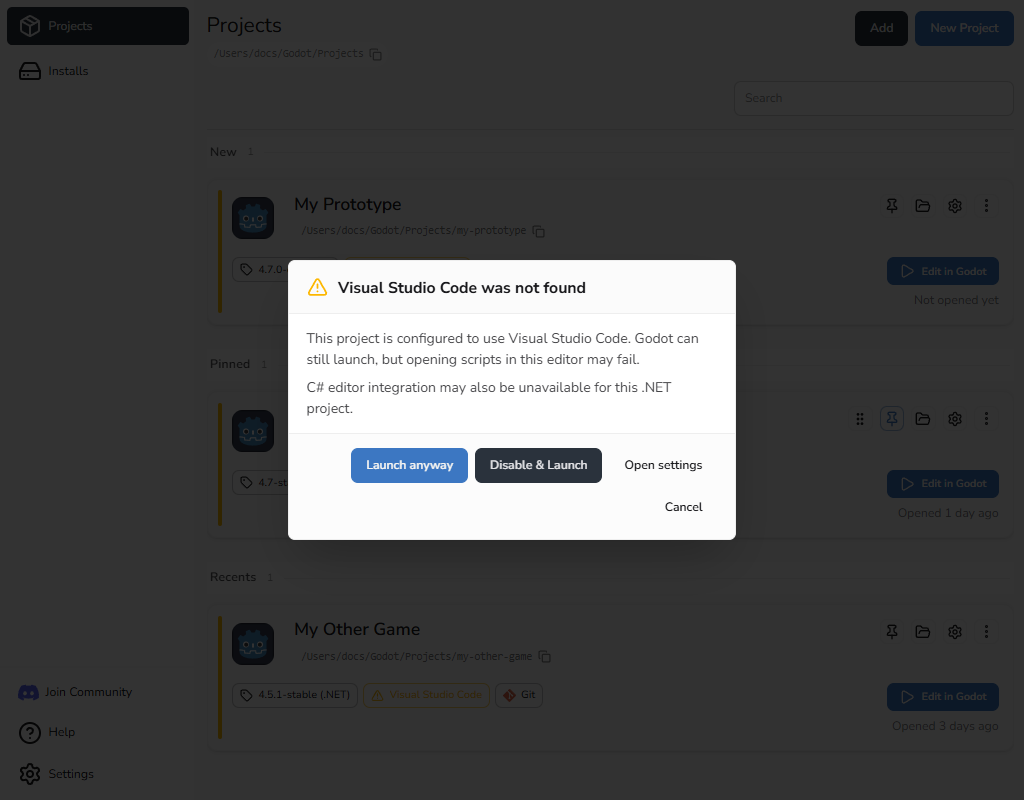
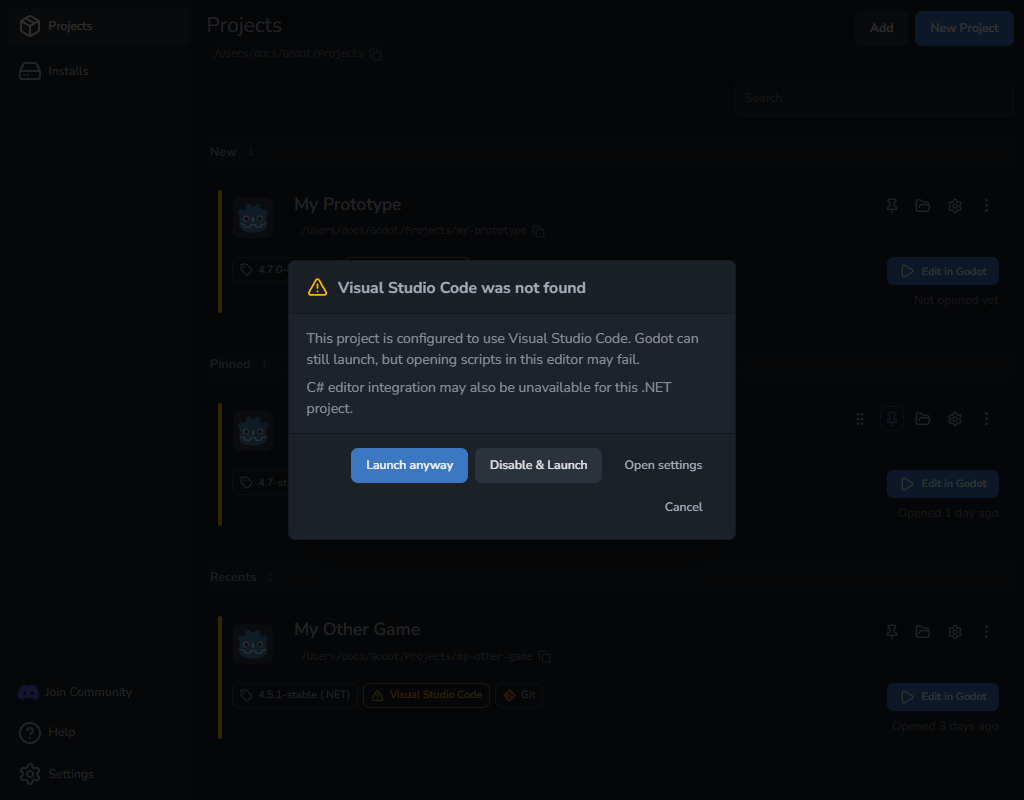
- Launch anyway opens Godot without changing the project.
- Disable & Launch stops using this code editor for the project, then opens Godot.
- Open settings lets you find the editor again or choose its location.
Godot does not open scripts in the selected code editor
Open Project Settings > Code Editor, select Reset config, then confirm with Reset config. This restores the project's code editor setup without changing the global Code Editor Settings.
If the launcher cannot read a managed .vscode file, it keeps the original as a timestamped .bad copy and creates a valid replacement. The warning lists the recovered files so you can compare or restore your custom content.
See Visual Studio Code Setup or VSCodium Setup for the files each editor uses.
Git
Git is not found
Install Git, then open Settings > Tools and select Rescan Git beside Git. Confirm that its status changes to Available. See Install Git for Godot Launcher for installation steps.
Git needs a name and email
Select Add Git identity and enter the missing name or email, or select Skip initial commit to create the local project without a first commit. Skipping the commit also prevents GitHub publishing.
See Choose a Git identity for where the identity is saved and how to configure it later.
A new project is inside another Git repository
Cancel the warning and choose a location outside the parent repository if you want a separate repository or want to publish the new project to GitHub.
If you continue at the current location, the launcher creates the project but skips Git initialisation, Git LFS setup, and GitHub publishing. See Choose the project folder for this warning.
GitHub publishing is unavailable
- Confirm that Initialize Git Repository is enabled and that Git is available in Settings > Tools.
- Use the connection action in the project form to connect GitHub, reconnect an unavailable installation, or approve updated publishing permissions without losing the form. You can also manage connections in Settings > Connections.
- Complete the Git identity when the launcher asks. Publishing needs the initial commit and cannot continue after Skip initial commit.
- If Git LFS is selected, confirm that Git LFS remains available.
You can turn off Publish to GitHub and create the project locally while resolving a connection or permission problem.
A project was created locally but GitHub publishing failed
The local project remains available. Use the recovery dialog to correct the owner or repository name and retry, or select Continue locally.
After an ambiguous network failure, use Check and retry. If GitHub already created an empty repository at the selected owner and name, the launcher may ask whether to use it. The launcher does not delete that remote repository automatically.
See Publish a new project to GitHub for the complete workflow.
Linux credential storage and GitHub connections
Secure storage is unavailable
Open Settings > Connections, expand Credential storage, and check the storage status. If you selected Secret Service, start or unlock a compatible Secret Service keyring in your desktop session. Choosing Secret Service does not install or unlock a keyring. Then fully quit Godot Launcher, including its system tray process, and open it again.
If secure storage remains unavailable, the launcher cannot save a new GitHub connection. Restore the keyring before connecting. Existing connection details are kept when you change the storage choice. If a saved connection needs to be authorised again after restarting, select Reconnect and complete the browser flow.
Saving the choice fails
The previous saved choice remains unchanged. Select the choice again and retry Save choice. Restarting will not apply a choice that could not be saved.
The saved choice does not take effect
The saved choice applies at the next full launch. Select Restart now after saving, or quit the launcher completely and reopen it. If restarting from the launcher fails, your choice is already saved; use the same manual restart.
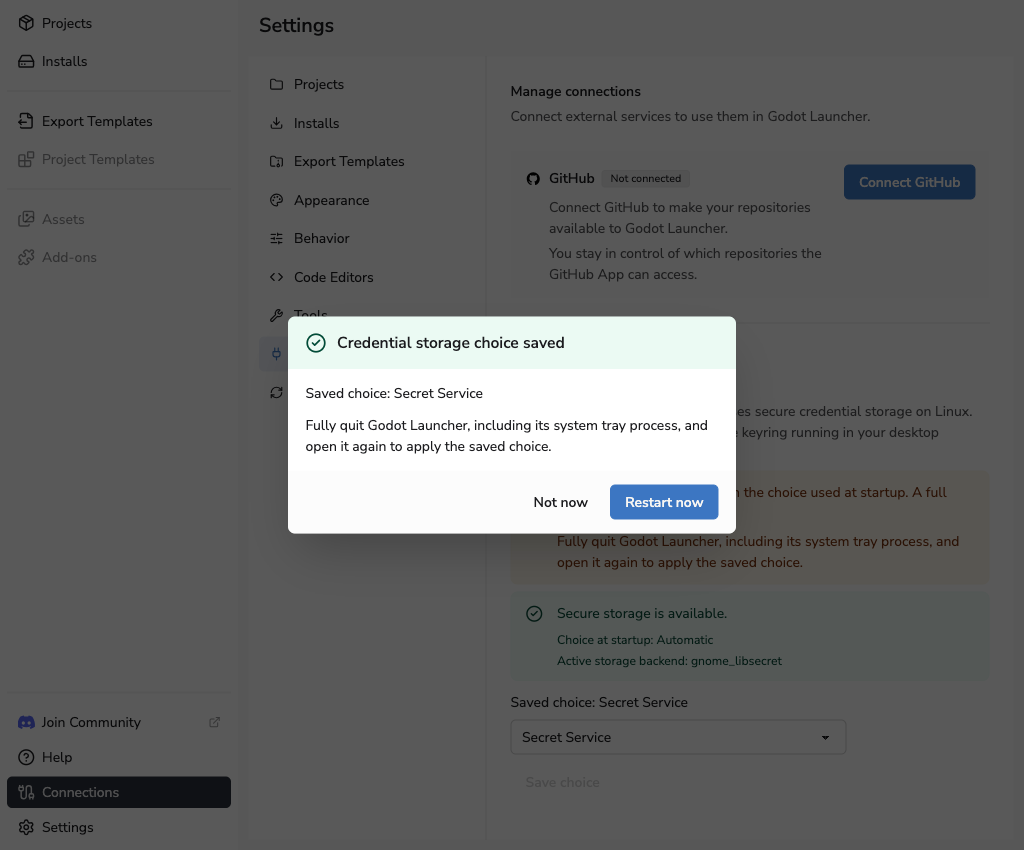
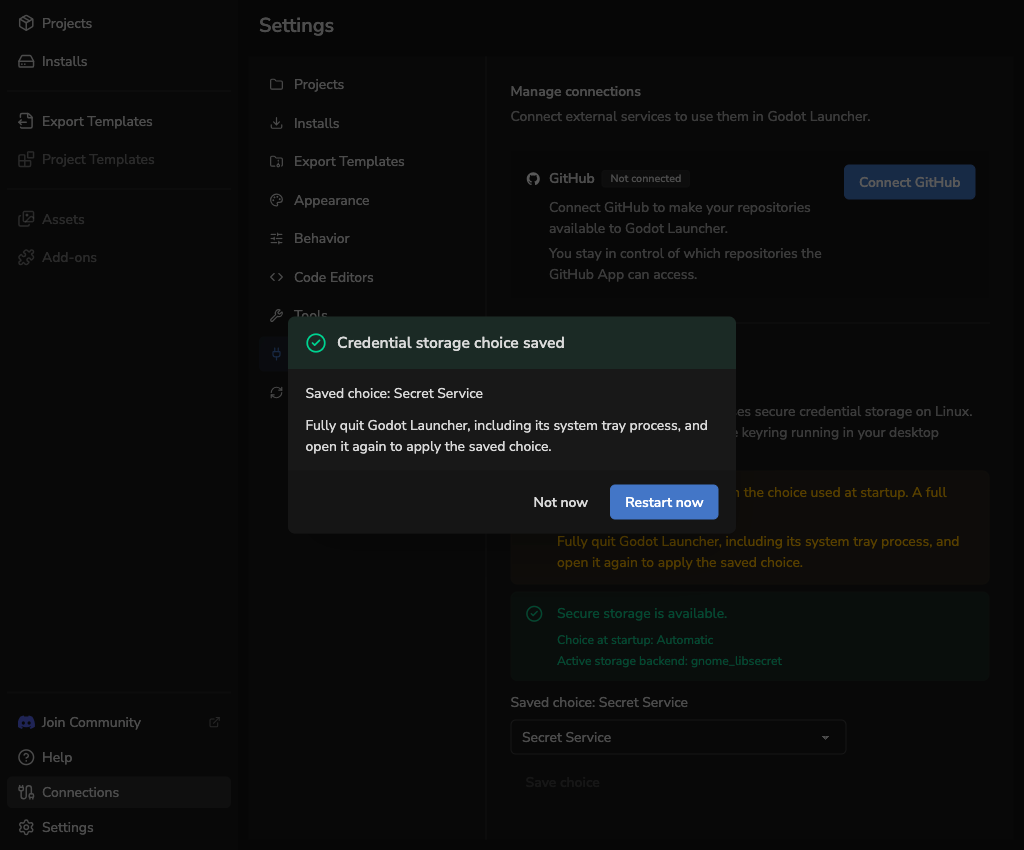
An explicit credential-storage launch flag takes precedence for the current session. Remove that flag and restart the launcher to use the saved choice.
Repository import
Remote import choices are disabled
Open Settings > Tools and confirm that Git is available. The local file option remains available while the launcher checks Git or when Git cannot be found.
No GitHub repositories are available
Select Manage accounts and access above the repository list. Connect or reconnect an account, or use Manage repository access to allow the GitHub App to access the repository. Return to the launcher and refresh the list. The connection flow keeps you in the import task. You can also manage connections in Settings > Connections.
The clone destination is rejected
Choose a parent folder that the launcher can create or write to. The repository's destination folder must not already exist; choose a different parent folder if it does. The launcher does not overwrite an existing destination.
Submodule initialisation stops
Check the activity list for the failed submodule. The launcher supports anonymous public submodules with absolute HTTPS URLs. Private, credentialed, relative, redirected, non-HTTPS, and private-network sources are not supported.
Retry a temporary failure, continue without the remaining submodules, or close the dialog and finish the clone with Git. Submodules that completed before the failure remain in place.
If you continue without submodules, projects or GDExtension files stored inside them may be unavailable. See Import a Godot Project from Git for the supported workflow.
No Godot projects were found
Open the retained clone and confirm that it contains a regular project.godot file. The scan skips symlinks, generated and dependency folders, malformed files, and locations beyond its scan limits. If the project is inside a submodule, initialise the supported submodules before continuing to project review.
Delete clone and close permanently removes the cloned folder, including files you added. Copy out any work you need first. See Recover a retained clone for the available choices.
This action is available only when no project from the clone was added. If deletion fails, inspect the remaining files and close applications using the folder before retrying. If the folder has been replaced since import, the launcher will not delete it; inspect its contents before removing it yourself.
Only some projects were added
Review the result shown for each project. For a conflicting name, return to the review and choose another name shown in Godot Launcher, or skip that project. A project whose folder is already registered must be skipped. The review does not rename project.godot or its folder.
Select Review and retry to try failed projects again. Projects that were added successfully remain added. When at least one project was added, the launcher keeps the clone because the registered project depends on that folder.
See Import a Godot Project from Git for the complete workflow.
System tray
System tray support varies across Linux desktops. When the launcher cannot use the tray:
- Closing the main window quits the launcher instead of hiding it.
- Close to system tray leaves the window visible after opening a project.
- A request to start hidden opens a normal window.
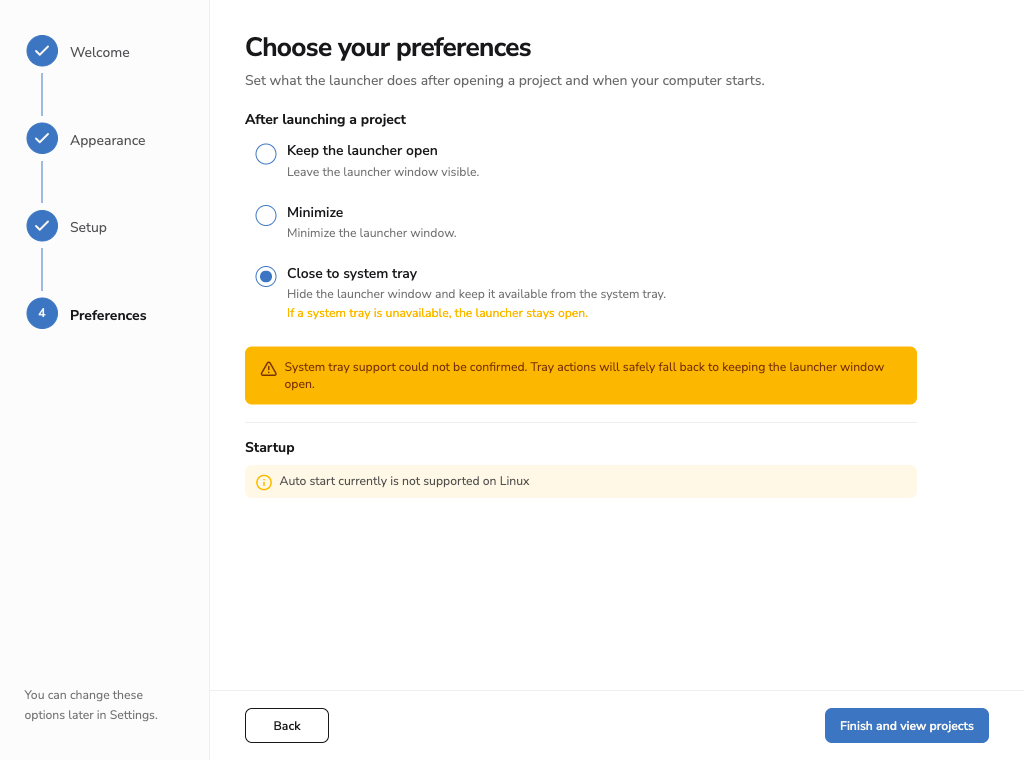
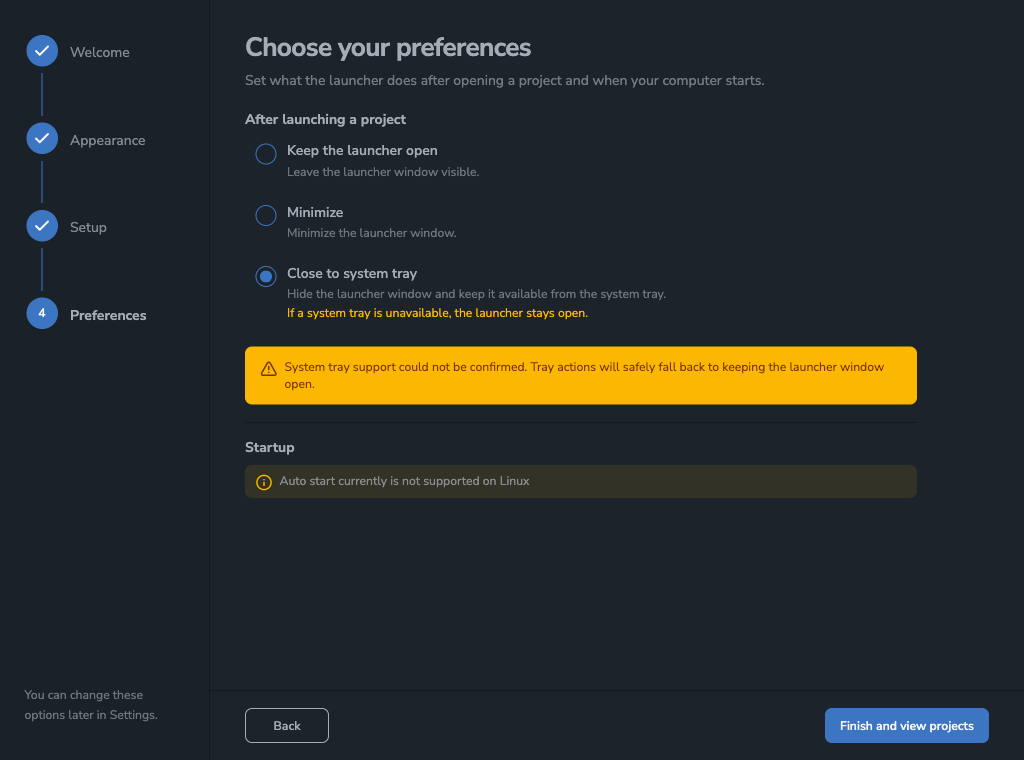
The saved preference does not change. The launcher can use it again when a tray becomes available. See System Tray for normal tray behaviour.
Updates and platform options
- For launcher update download or retry problems, see Update Godot Launcher.
- For manual updates on rpm-ostree systems, see Update Godot Launcher.
- For Windows editor link or UAC problems, see Windows editor links.
- For winget package problems, see Install Godot Launcher with winget.
Still need help?
Use Help & Support to report a reproducible bug, or ask the community. Include the Godot Launcher version, operating system, steps to reproduce the problem, and any relevant editor version or error message.
Before sharing logs, remove project names, local paths, usernames, and other personal information. Never share passwords, access tokens, or other credentials.