Manage Godot Export Templates
Use Godot Launcher to download or import export templates and reuse them across projects. Each project keeps its own editor settings. Open Export Templates in the sidebar to manage:
- Official collections: choose which files to install for a Godot version and edition. Projects using Official share those files.
- Imported builds: import a complete TPZ package, give it a name and select it for the projects that need it.
The displayed sizes and file counts include files installed through Godot and system metadata. Platform badges are based on filenames; they do not guarantee that every template for that platform is installed. An Official collection can contain only the files you need, and you can add more later.
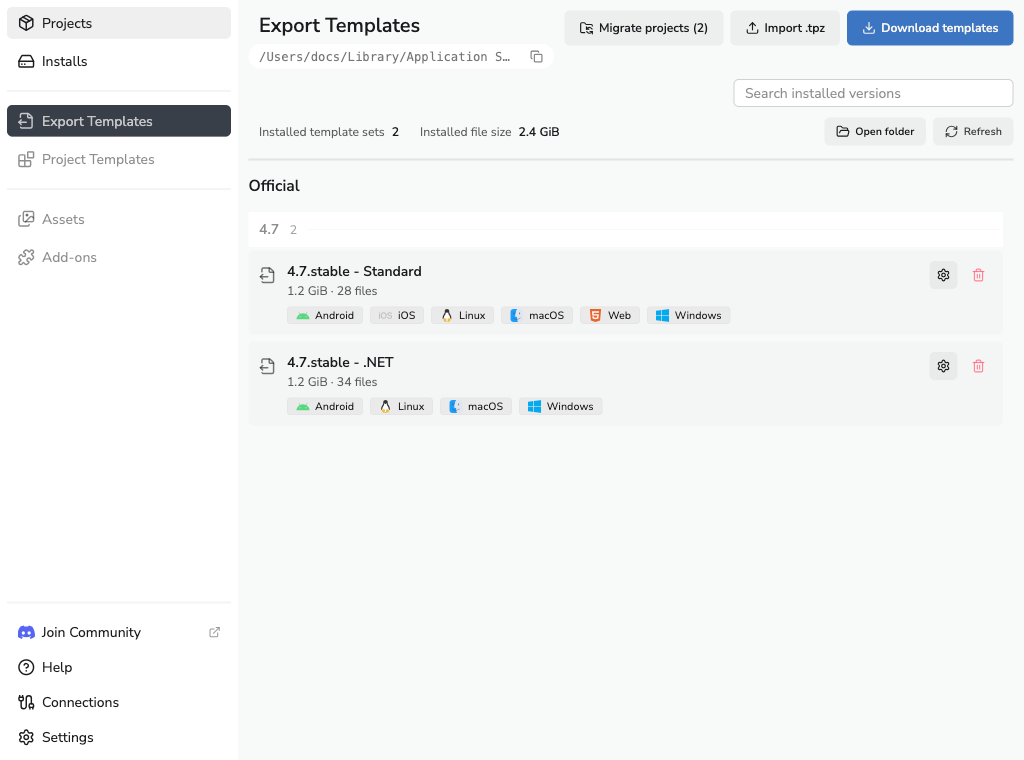
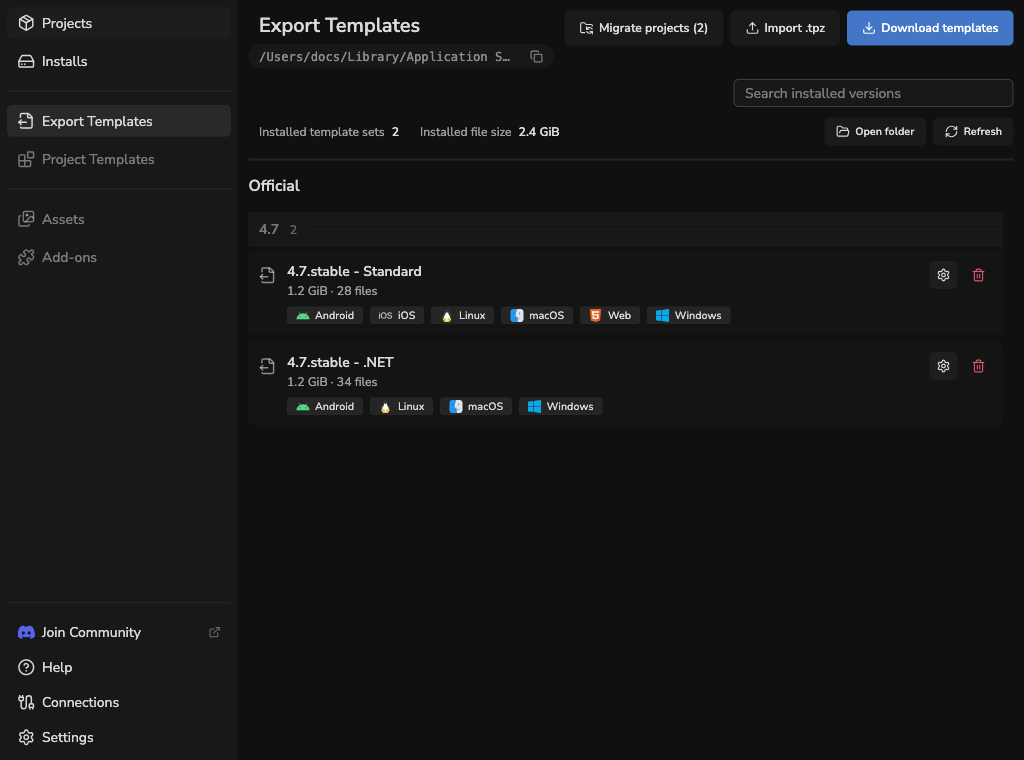
Download official export templates
Saving a selection that removes installed files permanently deletes those files. Godot Launcher keeps no backup. Keep your own copy of any files you may need before removing them.
- Choose Download templates and select a Godot version and edition. Use the channel and installed-editor filters to find the release.
- Select the template files you need. Review the files to add or remove.
- Choose Save changes. You can also open Manage templates on an existing collection to change its installed files.
Standard and .NET collections are separate. Templates for one version and edition do not supply another. For Godot's export presets and platform requirements, see Exporting projects.
Adding or removing Official files affects every project using that version and edition's Official collection, including Godot editors opened outside Godot Launcher. This also applies when you manage Official files from Project Settings > Export Templates.
Import a named build
- Choose Import .tpz, then Choose TPZ file.
- Select the package and choose Next. Godot Launcher checks it and shows its version, edition, platform badges and file count.
- Enter a Name, such as
Cloud Build, then choose Save.
The named build appears in Imported. Use its folder action to view the files. The original TPZ archive stays where it is.
You can import several builds for the same Godot version and edition. Importing a build does not change any project's saved selection. Select the build for each project that needs it.
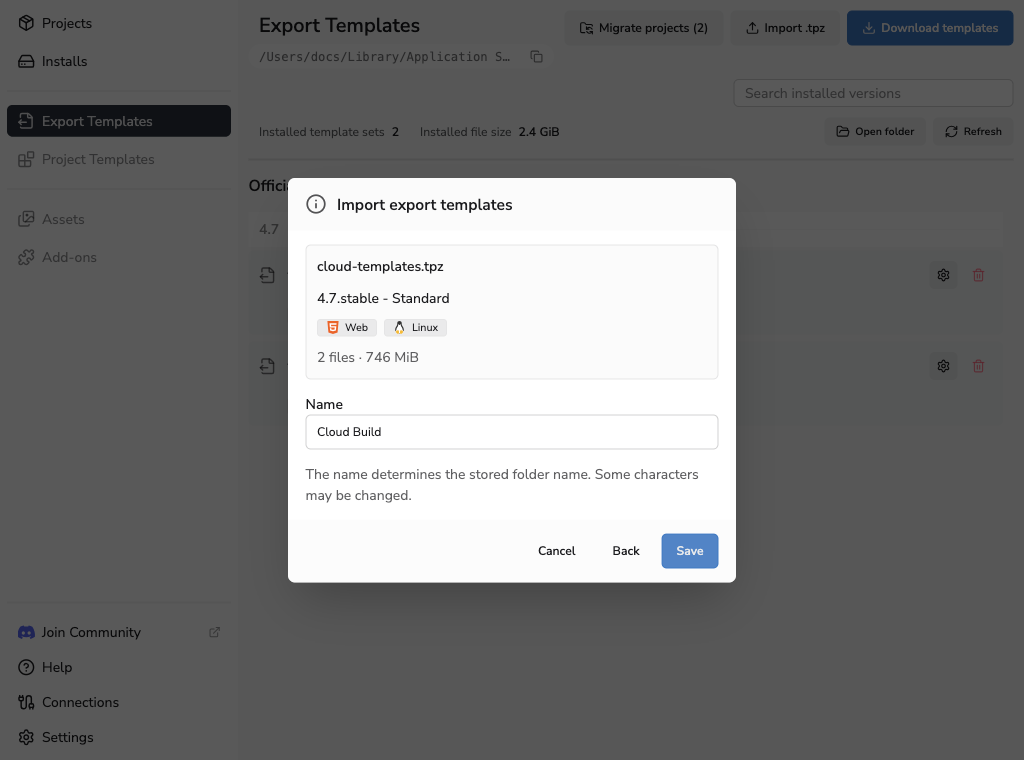
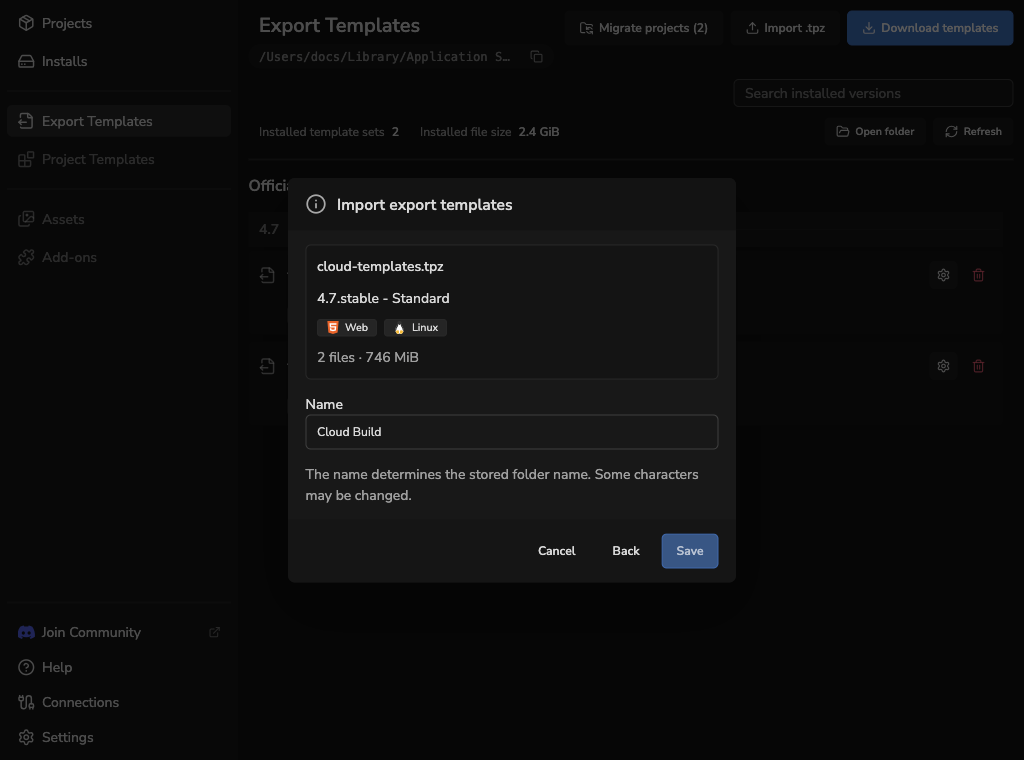
Package checks do not establish who created a build or whether it supports encryption or another custom capability. The build name is your description. Import packages from a source you trust.
Imported builds are managed as complete packages. Their individual files cannot be added or removed through Godot Launcher. See Rename, replace or delete an import to change a package.
Select a project's build
Open Project Settings > Export Templates and choose an Export template build for the selected Godot version and edition:
| Selection | Behaviour |
|---|---|
| Official | Uses the shared Official collection. This is the initial choice. |
| A named imported build | Uses that build's files from shared storage. Only builds matching the project's Godot version and edition are available. |
Choose Update to save. Orange indicators mark pending changes. Closing the drawer with unsaved changes offers to discard them or go back.
The project uses the selected build directly from shared storage. Switching back to Official uses the shared Official collection again. If the project still has local templates awaiting migration, complete the migration review first.
Build choices are saved separately for each Godot version and edition. They are not included in the project's portable .godotlauncher metadata. Custom editor environments are managed separately; manage their export templates in Godot.
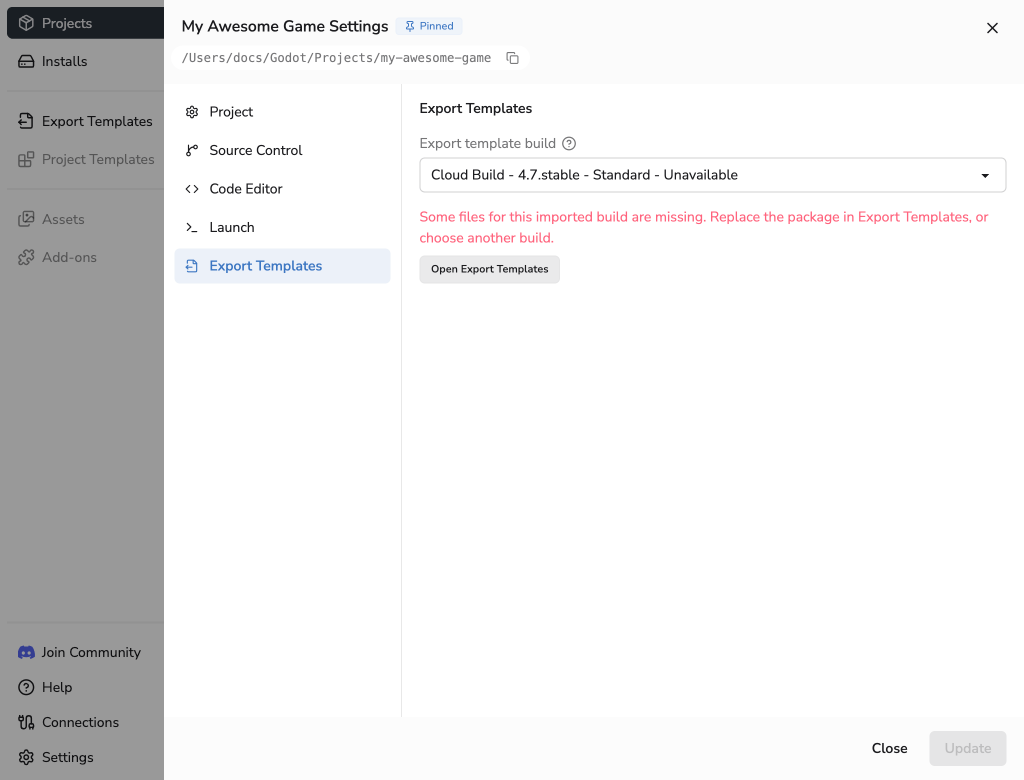
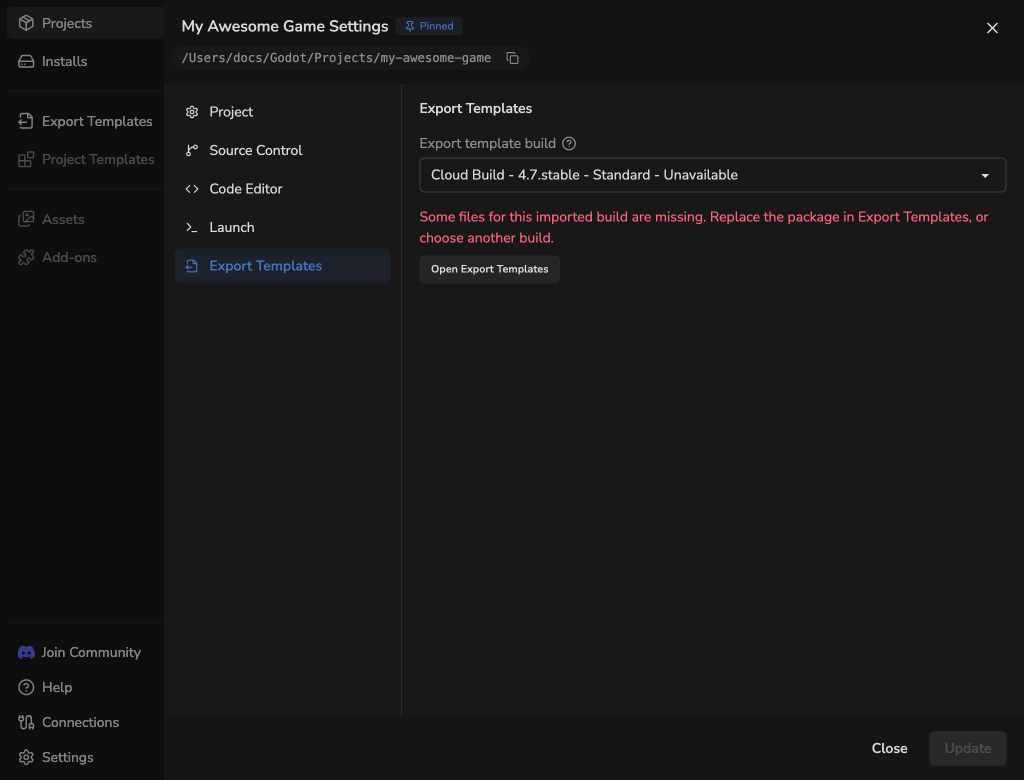
When a selected build is unavailable
A build with missing files is marked Unavailable and cannot be selected. If it was already selected, its name stays visible with a warning. Godot Launcher does not silently switch the project to Official.
Choose Open Export Templates, then follow the replacement steps to restore the build's package. Alternatively, choose another matching build or Official in Project Settings and select Update. If Official has no templates for that version yet, download the required files before exporting.
If files disappear before you save a changed selection, the build stays visible with a warning so you can restore its files or choose another build.
Connect existing projects
Official editor environments with no local export template files use shared templates automatically. For projects with existing local files, open Migrate projects from Export Templates and review the project and its versions before choosing how to use those files.
After a successful migration, the original local files are permanently removed and no backup is retained. Switch to shared export templates keeps the shared copy when a filename already exists, so a different local file with that name is lost. Delete local export templates and use shared removes local files without copying them. Keep your own copy before migrating if you may need the originals later.
| Choice | What happens |
|---|---|
| Switch to shared export templates | Adds missing filenames to the shared collection, keeping the shared copy when a filename already exists. The project then uses shared templates. |
| Delete local export templates and use shared | Removes the local files without adding them to shared storage. The project uses Official, even if its version has no templates installed yet. |
| Save as imported templates | Saves each local version as a named imported package and uses the matching import for the project. Shared Official files stay unchanged. |
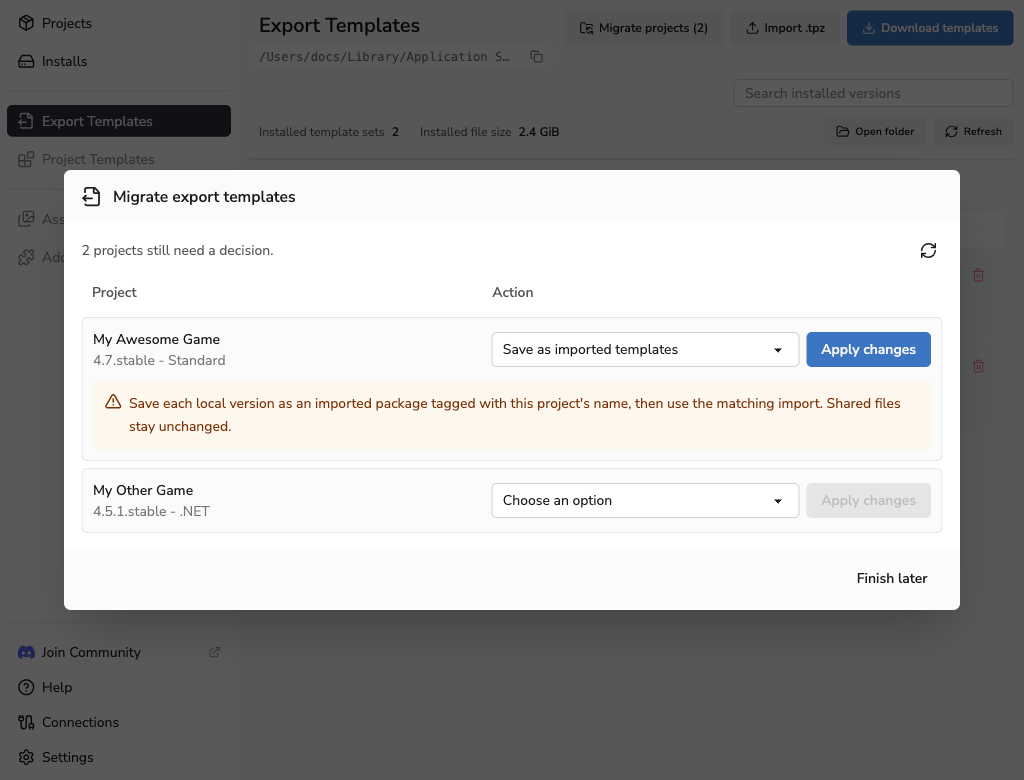
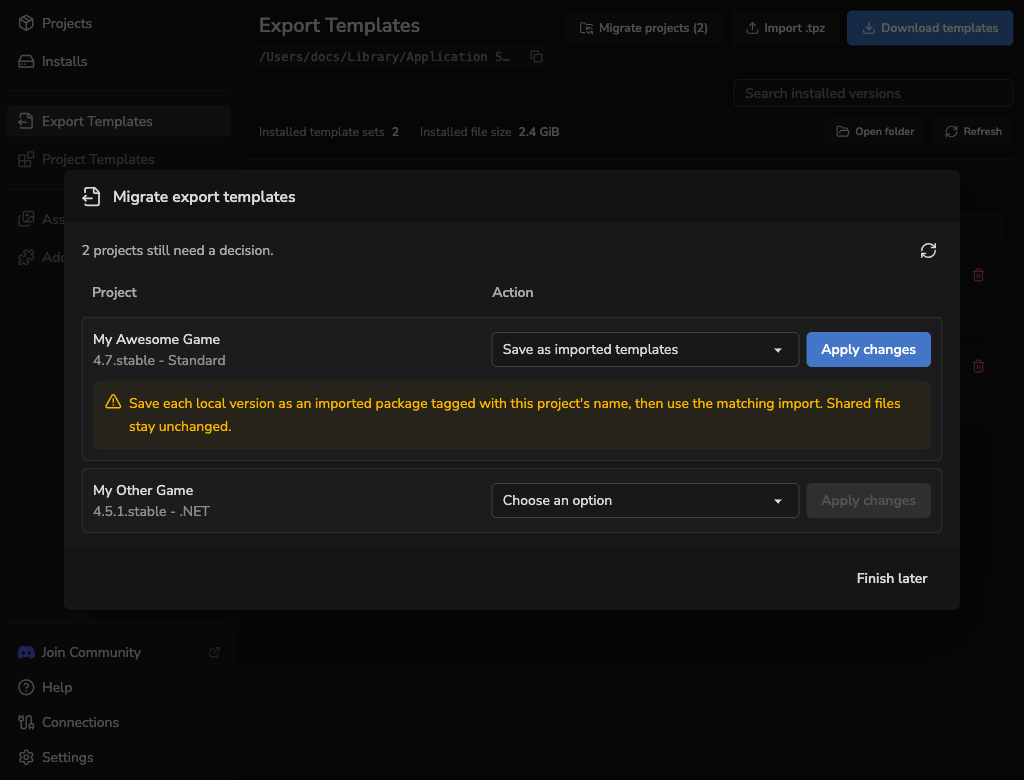
A folder's location or matching filenames do not prove that its files are official. Use Save as imported templates when you need to preserve a custom package independently of the shared collection.
Choose an option for each project, then select Apply changes beside it. Complete any further review the launcher shows.
Use Finish later to leave undecided projects pending and return to them from Export Templates. If an operation fails, review its result before retrying: files already added to the shared collection can remain there while the project's original local files are retained.
Rename, replace or delete an import
Close affected Godot editors and stop exports before changing connections, replacing packages or deleting templates. Other tools can still change the files while a template operation is running.
Use Rename to change a build's name and folder name. Saved project selections continue to refer to that build.
A successful replacement permanently removes the previous package files. Deleting an imported build permanently removes its stored package. Godot Launcher keeps no backup. Keep the original TPZ archive or your own copy if you may need those files later.
Use Replace TPZ to replace the whole package. The replacement must have the same Godot version and edition. Projects using the build will use its replacement files.
Use Delete imported build to remove a package. If projects use it now or remember it for another editor version, the confirmation lists those references. Choose a matching replacement or Official, then choose Switch and delete. Only the affected version's saved choice changes.
Change the Godot export template location
To move Godot export templates to another folder or drive, open Settings > Export Templates. You can change the locations for Official export templates and Imported custom templates independently.
- Close Godot editors and stop exports.
- Choose Move beside the collection, then select an empty, writable destination folder outside the existing template storage folders.
- Review the destination, data size and available space.
- Choose Move templates and keep Godot Launcher open until the move finishes.
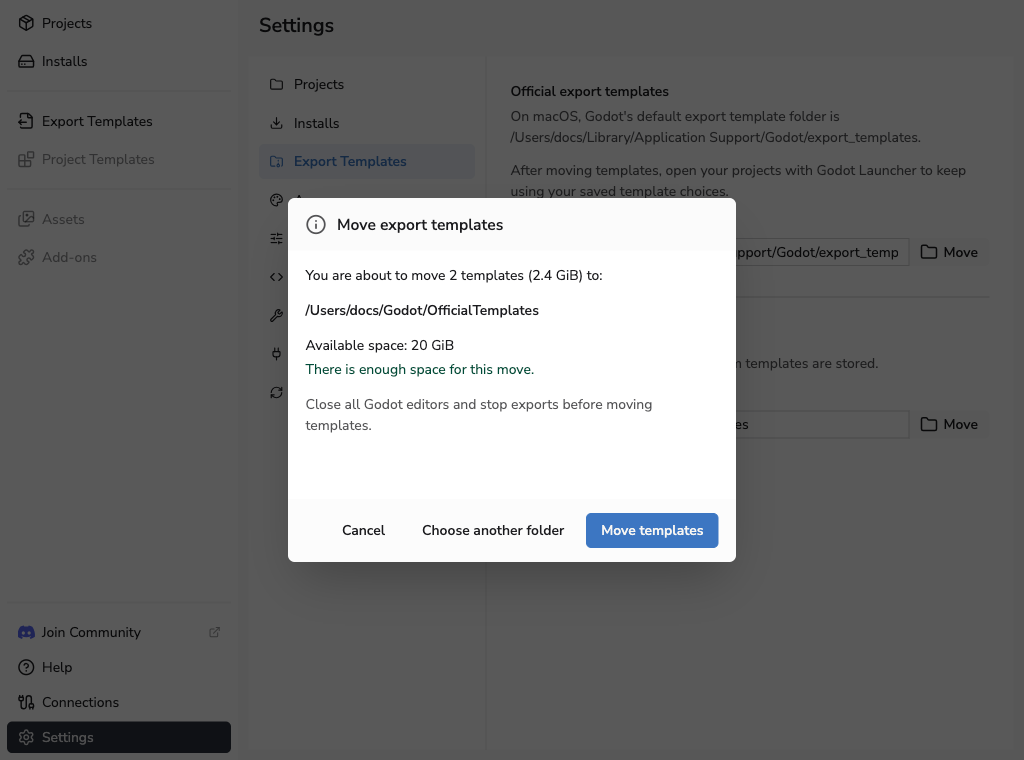
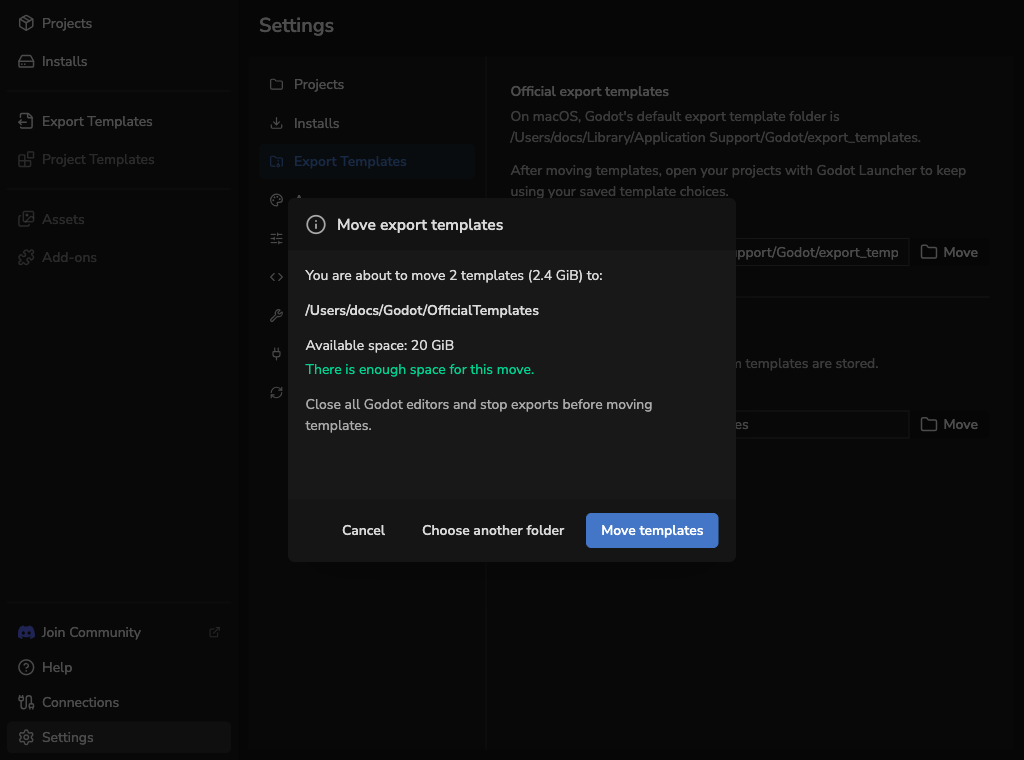
Godot Launcher relocates the stored Official files while keeping a connection at Godot's default template path. Project connections are updated as part of the move. Open projects through Godot Launcher to keep using their saved template choices.
Use Move back to Godot's default location to return relocated Official files. Changing the editor install location does not move template storage.
You can cancel while the move offers Cancel. If the selected drive is unavailable, reconnect it and retry. If an interrupted move requires recovery, close Godot and use Recover files before trying another move. For other storage errors, check the reported location and permissions before retrying.
Refresh and recover
Visible template views and open build selectors refresh when you return to the launcher window. Expanded folders and unsaved file selections are preserved. You can also use Refresh after external file changes.
If an interrupted template operation needs attention, close Godot and use Recover files. If recovery cannot finish because files have changed or a drive is missing, restore access and inspect the reported folders before retrying.
Recover files handles interrupted operations. It cannot restore files permanently removed by a completed migration, replacement or deletion.
See Storage Paths and Files for default locations and Godot Editor Settings per Project for editor settings.