Organise Projects with Tags
Use tags in Godot Launcher to organise projects by status, purpose or event. Tags are saved on this computer and do not change your Godot project files.
Add tags to a project
Select the tag icon beside a project name in Cards, Compact or List view. Up to three coloured dots appear beside the name, followed by a count of any additional tags. Hover or focus the tag control to see all assigned tags.
- Select an existing tag, or type a name and select Create.
- Select the cross on a tag to remove it from this project.
- Select a coloured dot to change the tag's colour across all projects that use it.
Changes save immediately. Removing a tag from a project keeps it available for other projects.
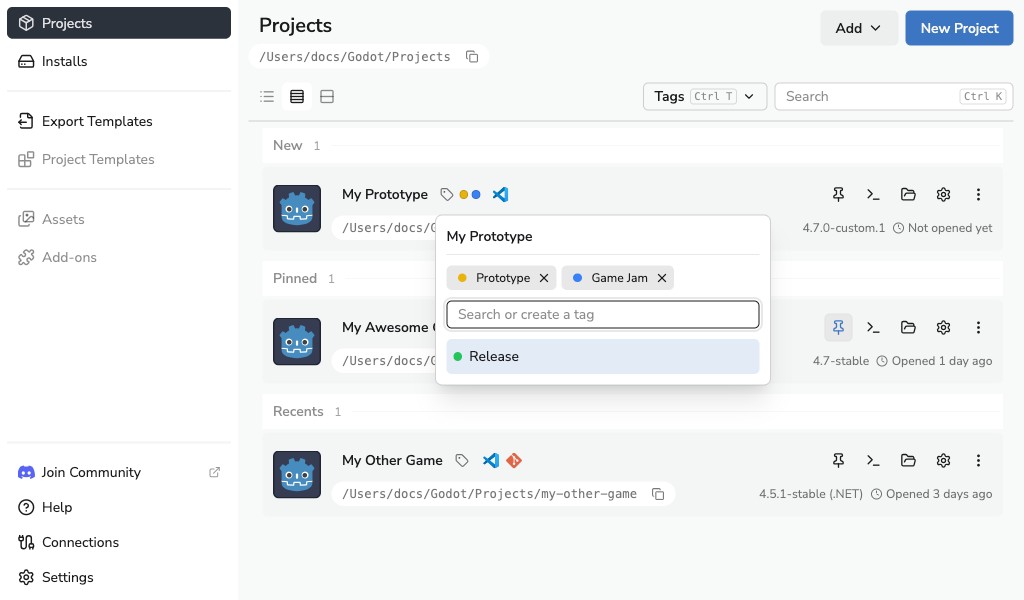
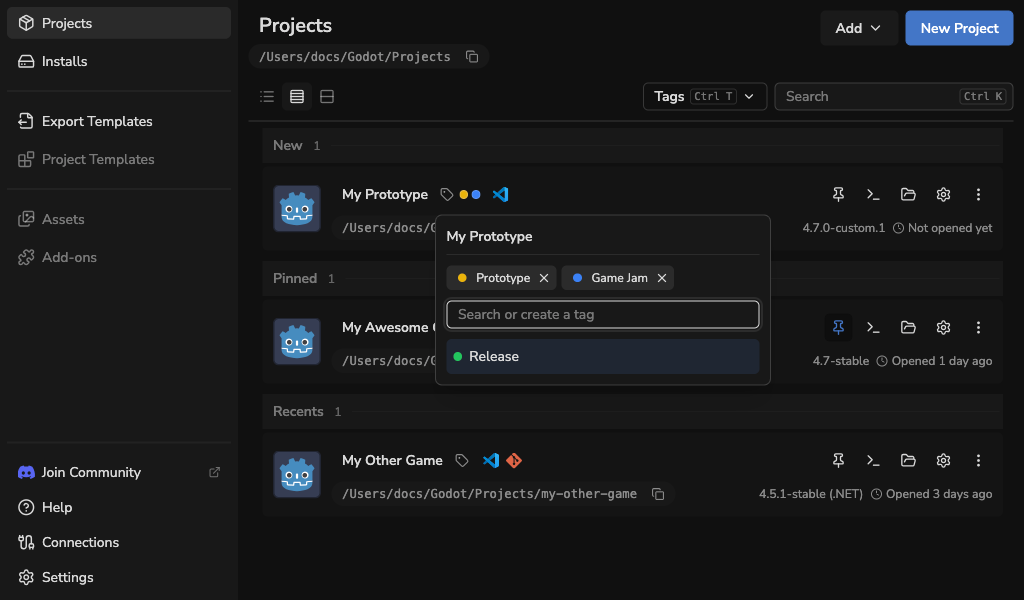
You can also edit tags in Project Settings, where Update saves your changes.
Filter projects by tag
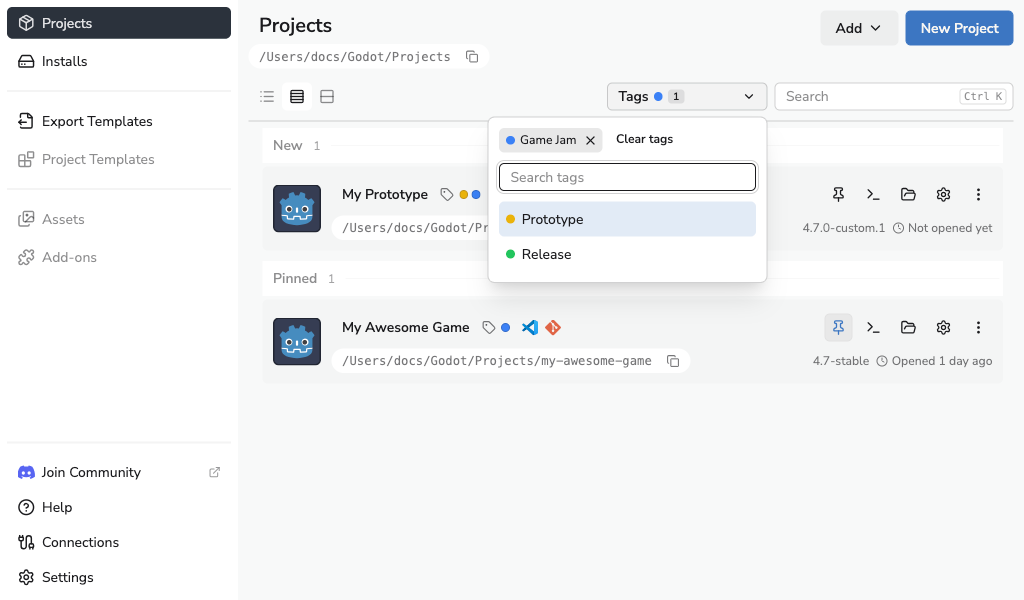
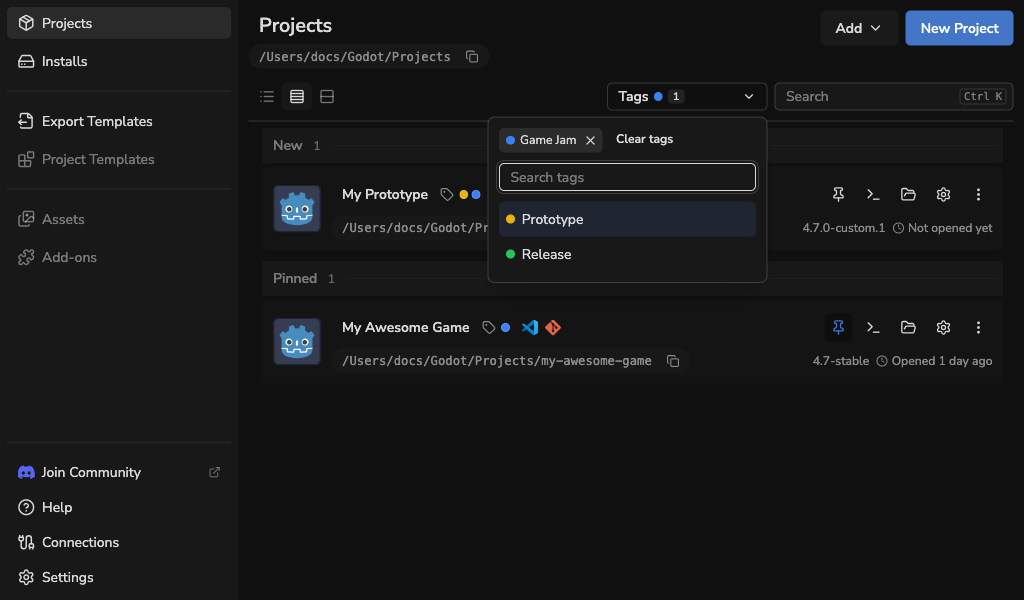
Open Tags beside Search and select one or more tags. Projects matching any selected tag remain visible. A text search narrows those results further. Tag filters are remembered when you close and reopen the app.
Select the cross beside a selected tag to remove it from the filter, or select Clear tags to remove all tag filters. Any text search still applies. When there are no results, Clear filters clears both the tag selection and text search.
Manage tags
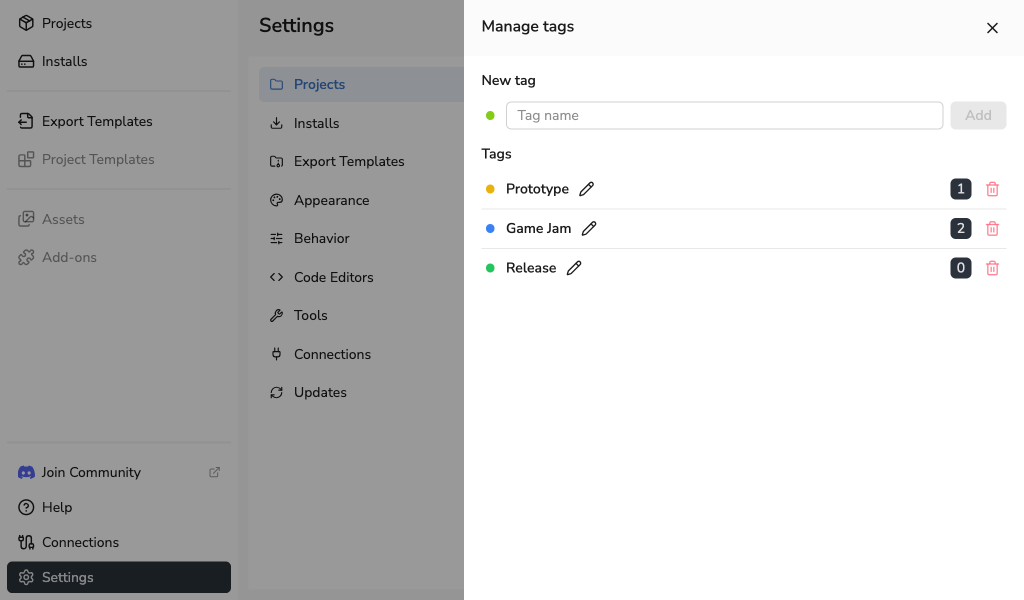
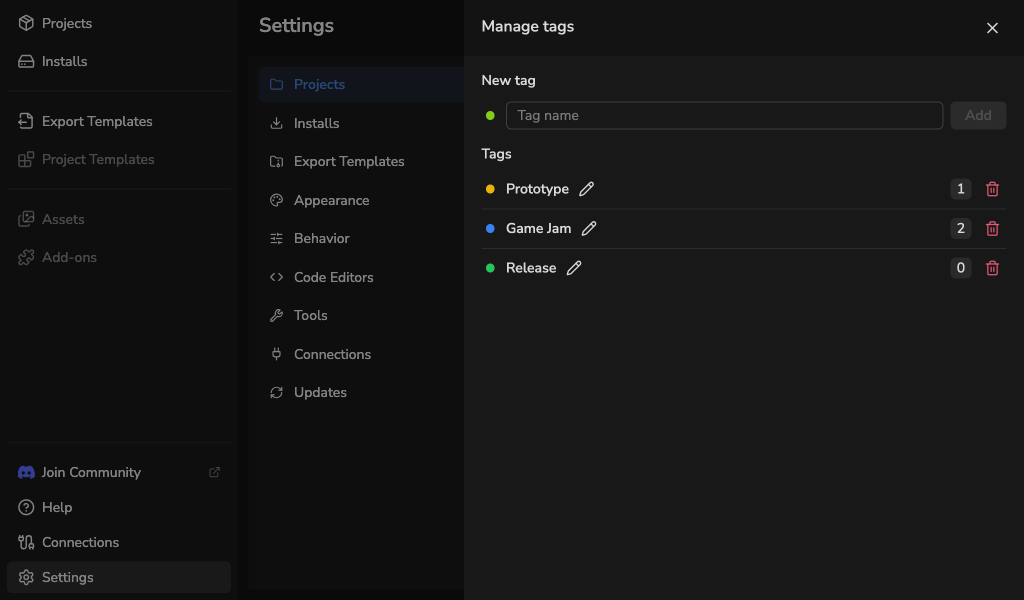
Open Settings > Projects > Manage tags. The number beside each tag shows how many projects use it.
- Enter a name and select Add to create a tag.
- Select the pencil to rename a tag, then the tick to save it.
- Select the coloured dot to change its colour.
- Select the bin, then confirm with Delete to delete a tag.
Name and colour changes apply everywhere the tag is used. Deleting a tag removes it from every project.
Keyboard shortcuts
In the Projects view:
| Action | macOS | Windows and Linux |
|---|---|---|
| Open the tag filter | Cmd+T | Ctrl+T |
| Focus Search | Cmd+K | Ctrl+K |
In a tag picker, use the arrow keys to choose an option, Enter to select it, and Escape to close it.