Godot Launcher Project Settings
Use Project Settings in Godot Launcher to rename or tag a project, choose its editors and export templates, set up Git, or change how Godot opens. These settings belong to Godot Launcher; game settings such as input actions and display size are configured in Godot.
Open Project Settings
- Open the Projects view.
- Select the project's settings button .
The drawer opens on the Project tab. The other tabs are Source Control, Code Editor, Launch, and Export Templates.
Rename a project
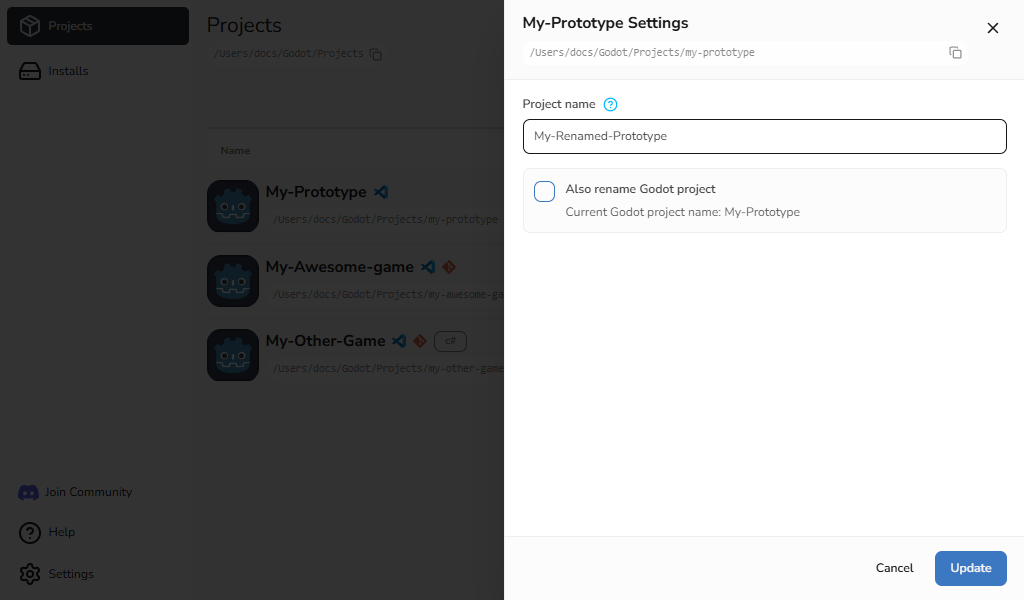
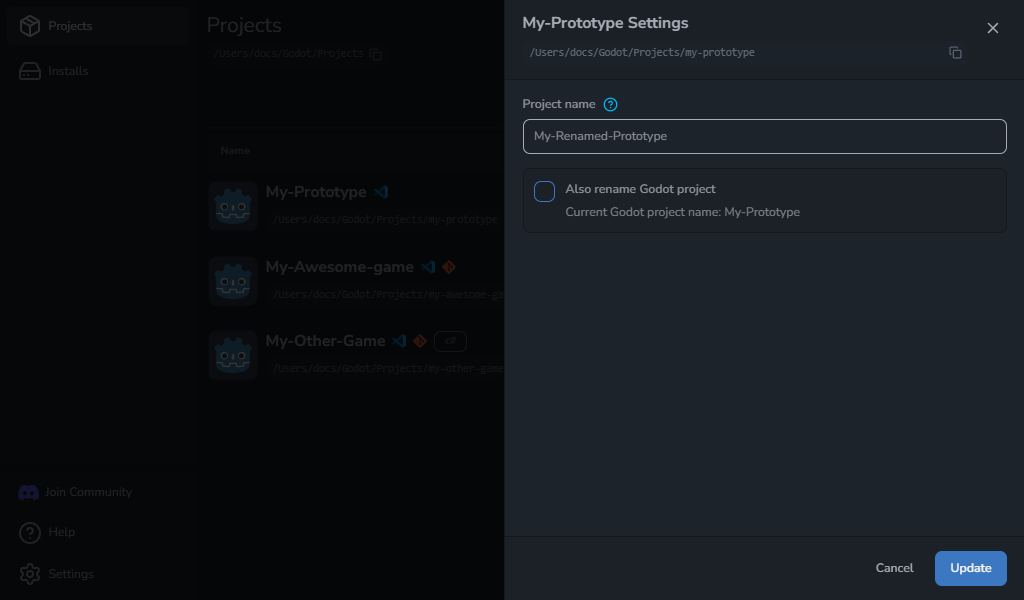
Edit Project name to change the name shown in Godot Launcher. The project folder on disk is not renamed.
Select Also rename Godot project if you also want to change the name stored in project.godot. Leave it off to change only the launcher entry.
The name must be unique in the launcher and cannot be empty. Select Update to save it.
Change the Godot editor
- In Project, choose an editor in Godot Editor, or select Browse releases to find an official download. Choose a release from the project's current Godot major version.
- Select Update for an installed editor, or Install and save for a download.
The saved editor is used the next time you open the project. For a download, the drawer closes and progress appears on the project. Keep Godot Launcher open until installation finishes.
If installation fails, the selected editor stays saved. Select Install required editor on the project to retry, or choose another installed editor in Project Settings.
Check project compatibility before opening it with another release. See Change Project Editor Version for same-major version changes, .NET editors, custom builds, and recovery.
Project tags
Open Tags below Godot Editor to choose existing tags or create new ones. Select Update to save, or Close, then Discard to cancel your changes. Tag colours are shared across projects.
See Project Tags for editing tags from the project list, filtering and tag management.
Add Git to an existing project
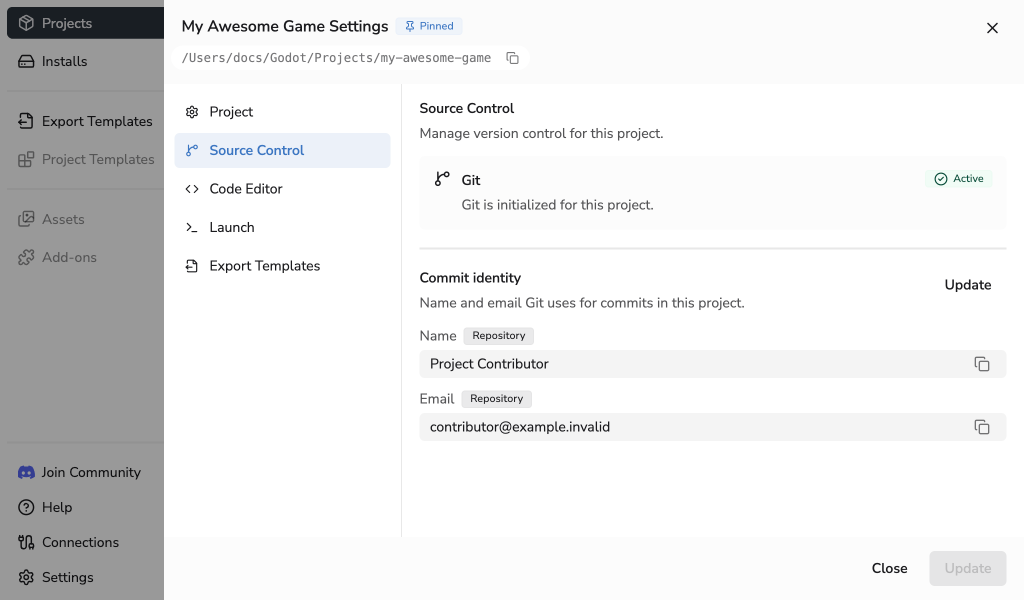
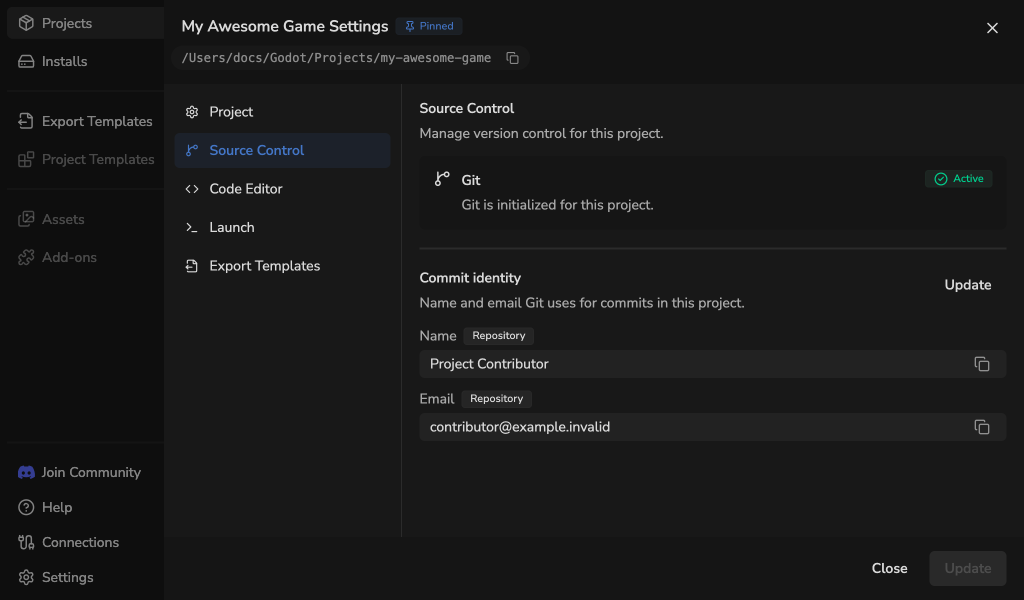
Open Source Control. If the project does not have a Git repository, select Initialize Git.
This creates the repository immediately. It does not add Git template files or create a first commit. See Using Git With Godot Launcher for new-project Git setup and help when Git is unavailable.
When Git is active, Commit identity shows the name and email for future commits. Select Update beside it, edit the name and email, then select Save identity to save them for this repository.
Projects inside a parent repository and linked worktrees show a read-only identity. See Using Git With Godot Launcher for identity scope and setup.
When Git is unavailable
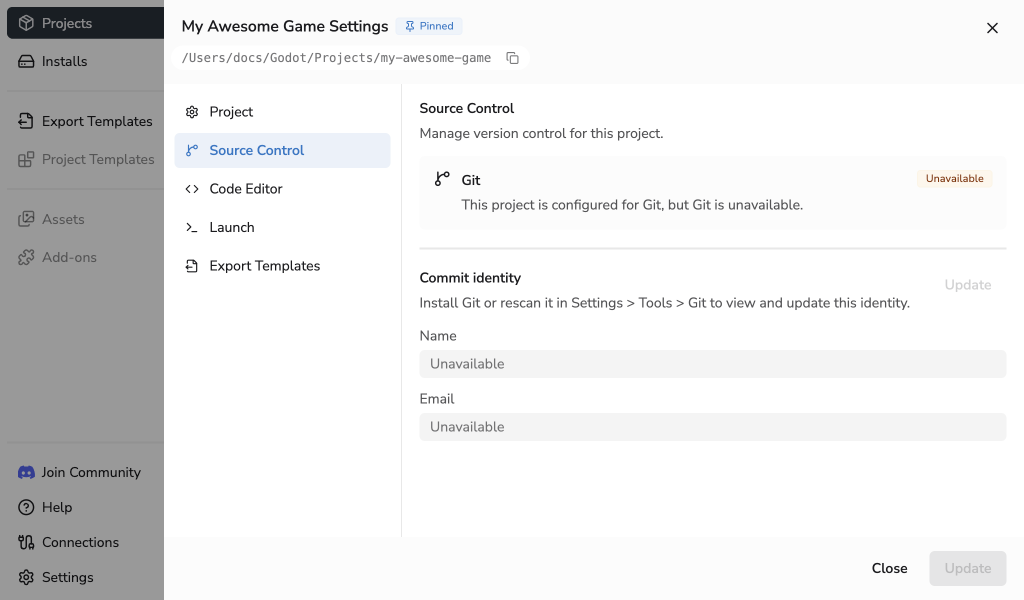
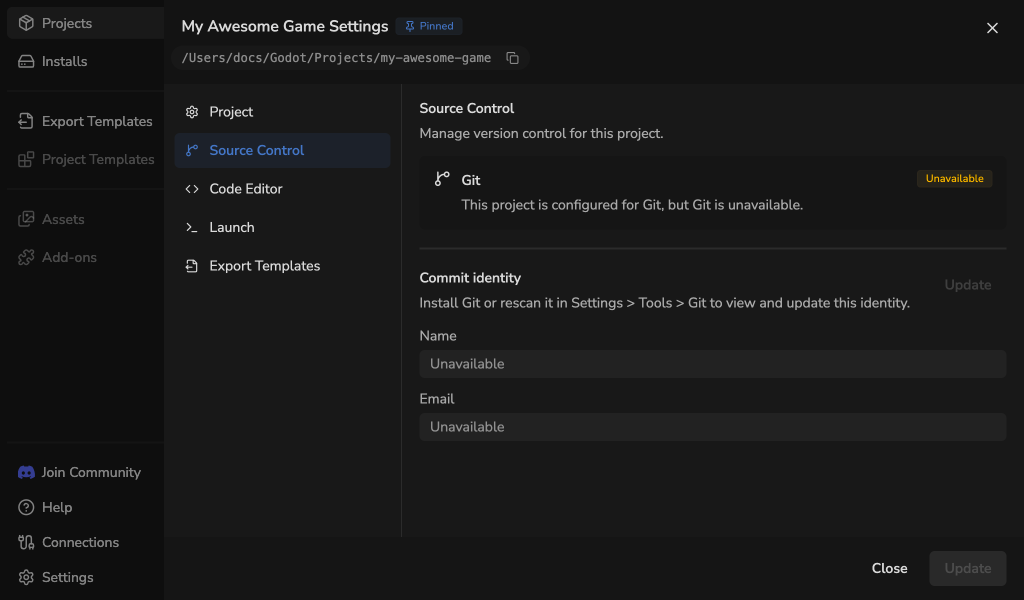
If a project is configured for Git but Godot Launcher cannot find Git, both the Git summary and commit identity show Unavailable, and Update is disabled. Install Git or open Settings > Tools > Git and rescan it, then return to Project Settings.
Choose a code editor
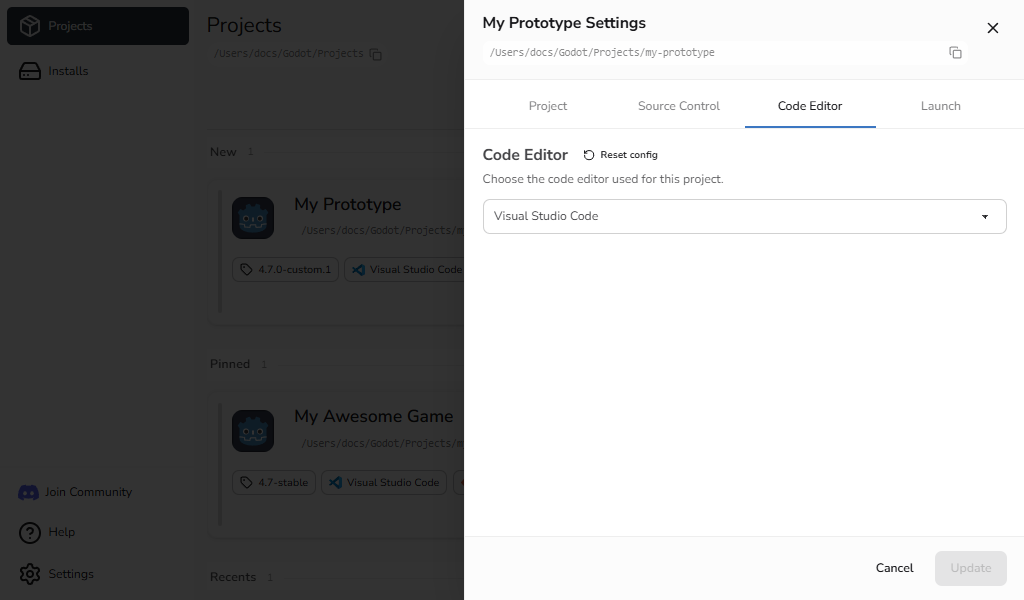
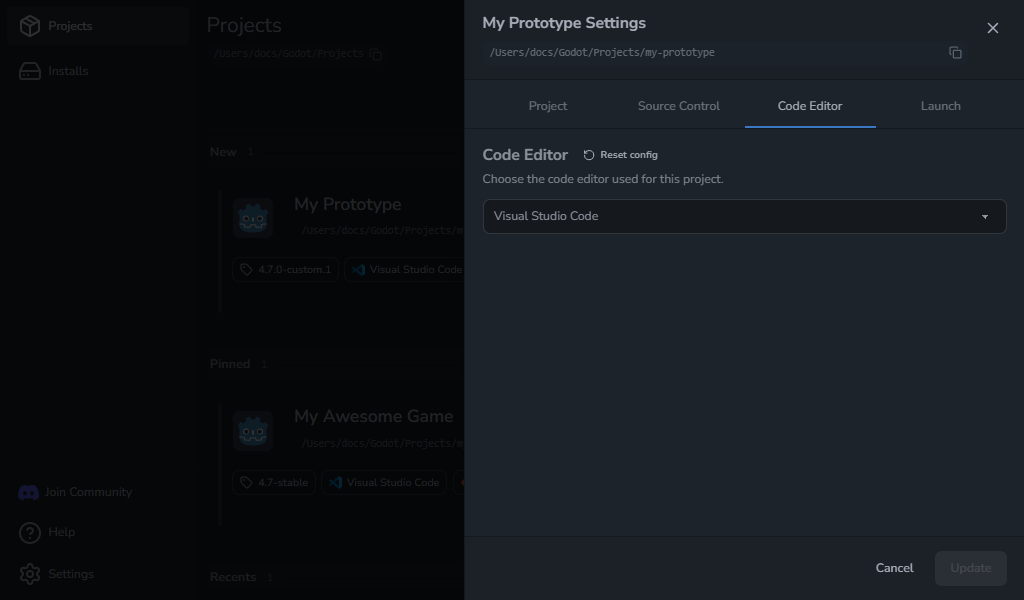
Open Code Editor and choose Visual Studio Code, VSCodium, or None. Select Update to save. This choice applies only on this computer. Godot opens project scripts in the selected editor.
Restore the code editor setup
If Godot stops opening scripts in the selected editor, select Reset config, then confirm with Reset config. This reapplies the project's code editor configuration. If the editor is unavailable or has moved, check Code Editor Settings.
Choose export templates
Open Export Templates to choose Official or a matching imported build for the project's selected Godot version and edition. Choose Update to save. The selection is remembered separately for each version and edition on this computer.
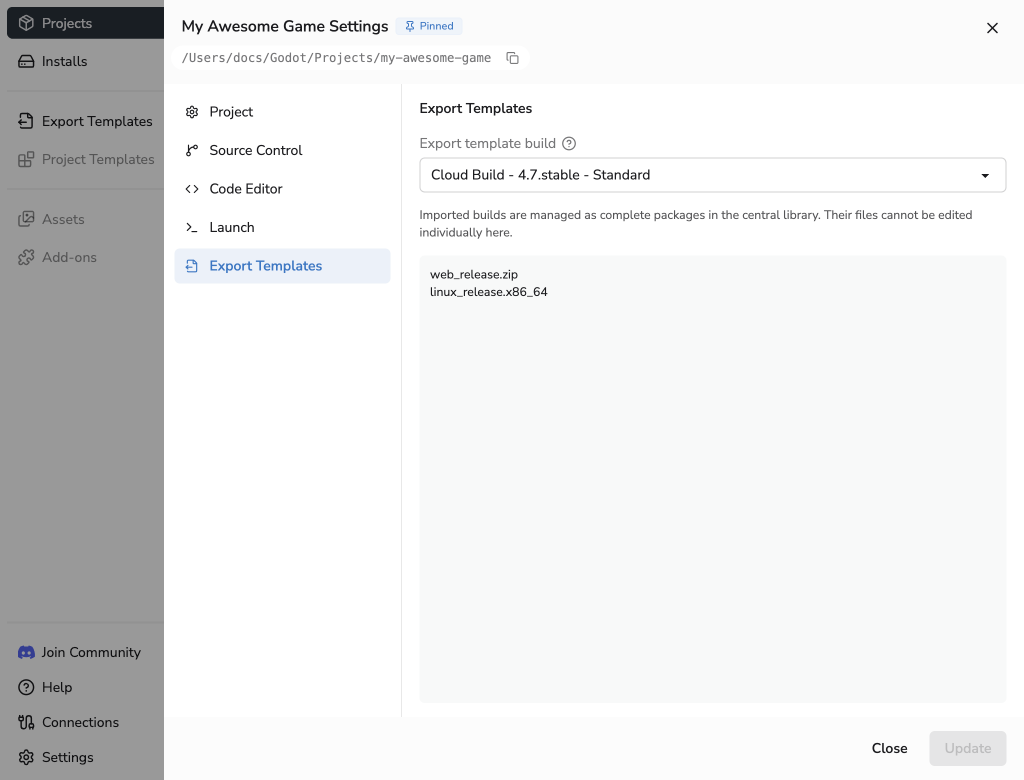
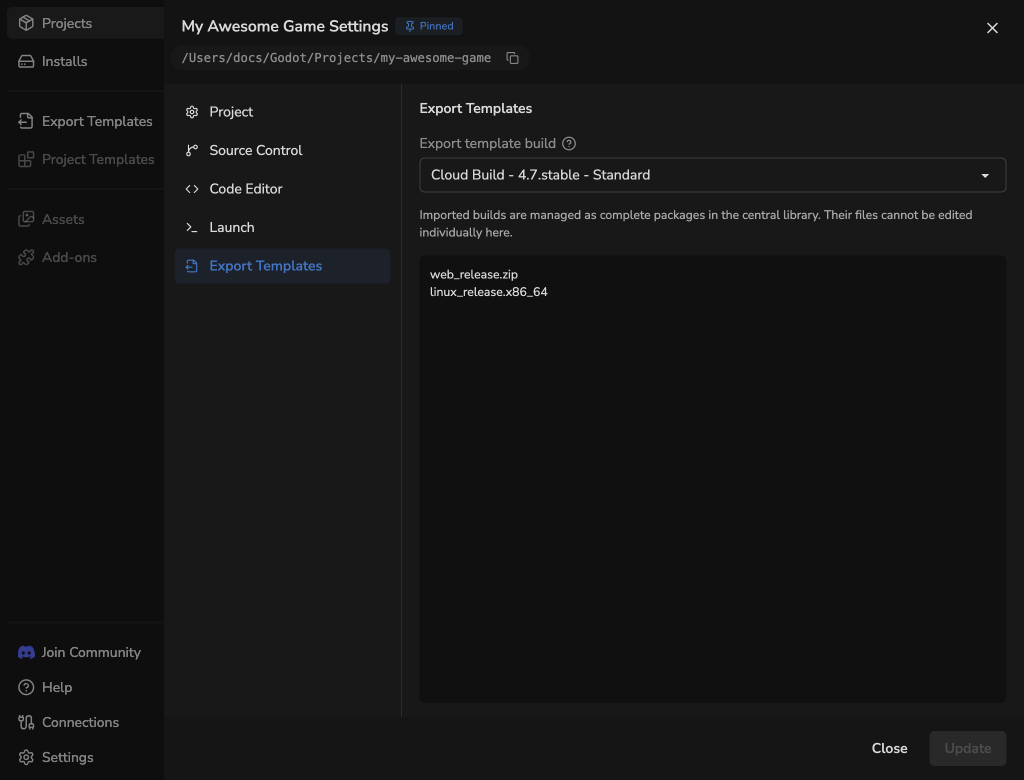
Adding or removing Official files here changes the shared collection for that version and edition. Other projects using that collection see the same changes. Imported builds are managed as complete packages from the Export Templates page.
If the selected build is Unavailable, its name stays selected and a warning explains the problem. Choose Open Export Templates to replace the package, or select another matching build or Official. The selected build is kept until you change it.
Projects with existing local templates must complete the migration review before choosing a build. Custom editor environments are managed in Godot.
See Export Templates for importing, migration and recovery.
Choose how Godot opens
Open Launch, set the options below, and select Update.
- Windowed editor: Start Godot in windowed mode. Leave it off to use Godot's normal startup window state.
- Launch in terminal: Show Godot's output and errors in a terminal that stays open after the editor closes. This is off by default.
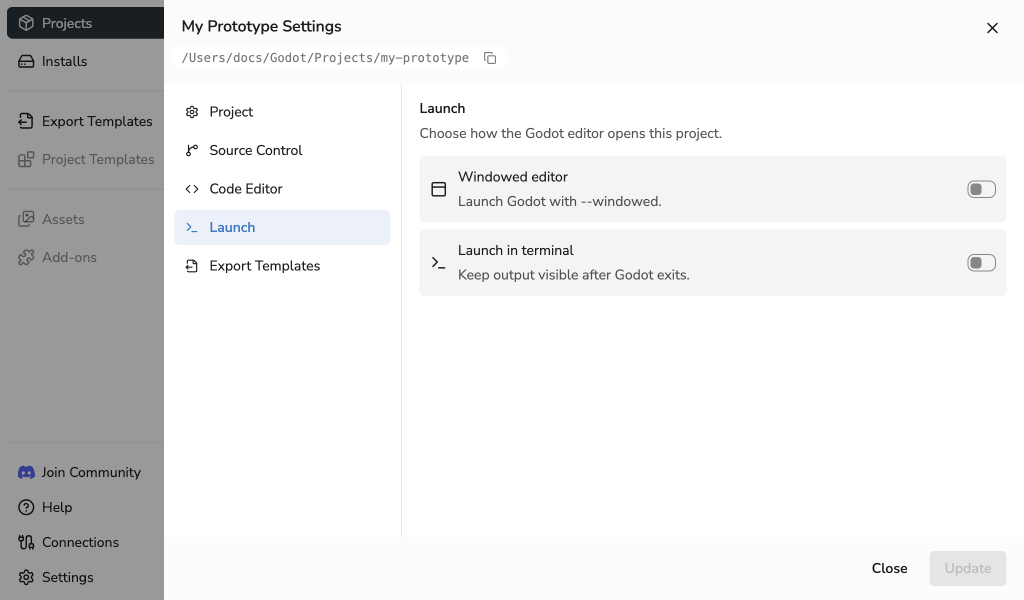
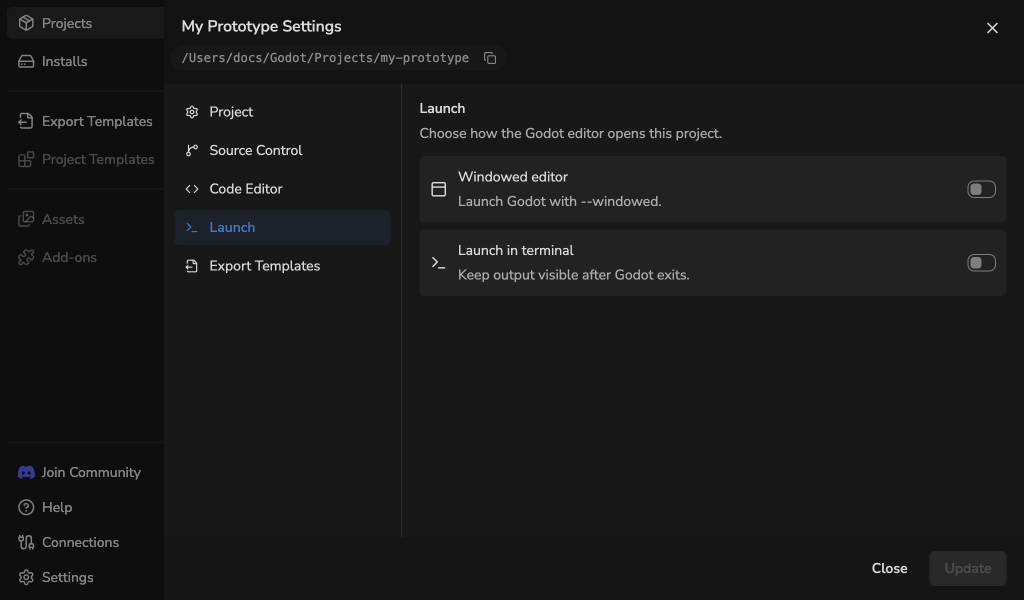
These choices apply to this project when opened from the main window or system tray. See Windowed Mode and Launch Godot in a Terminal for details.