VSCodium Setup for Godot
VSCodium is supported by Godot Launcher. Select it for a project to open scripts in VSCodium when you launch Godot through Godot Launcher. The launcher also maintains the project's VSCodium workspace files.
Godot Launcher does not install VSCodium or its extensions.
Install VSCodium
Install VSCodium separately by following the official VSCodium installation guide.
Then make it available in Godot Launcher:
- Open Settings > Code Editors.
- Find the VSCodium card and select Rescan.
- Keep the editor Enabled so you can choose it for projects.
Select the star on its card to make VSCodium the default for new projects. See Code Editor Settings for custom paths and launch arguments.
Choose VSCodium for a project
For a new project, select VSCodium from Code Editor in the New Project drawer.
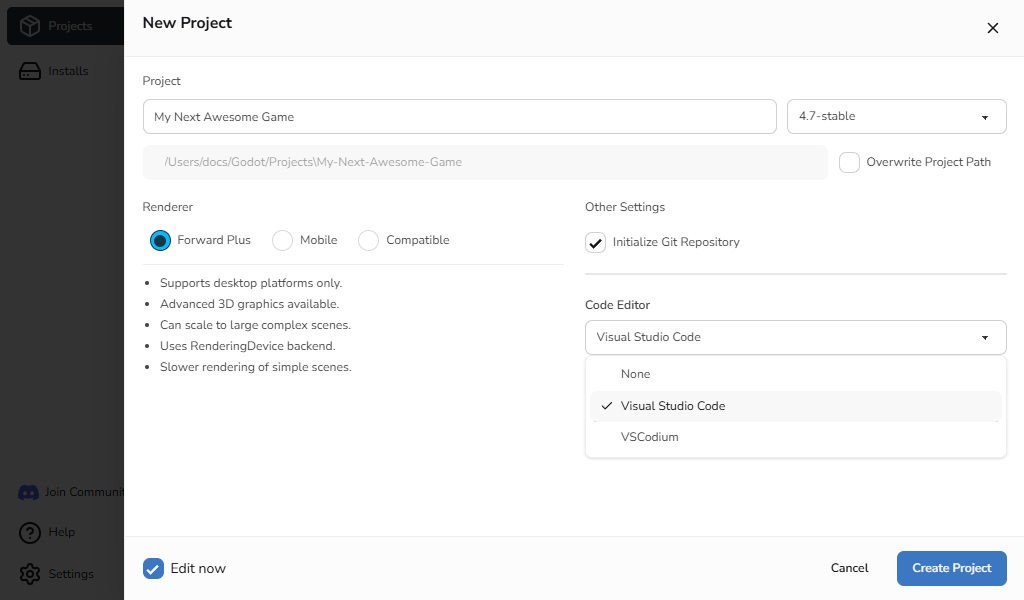
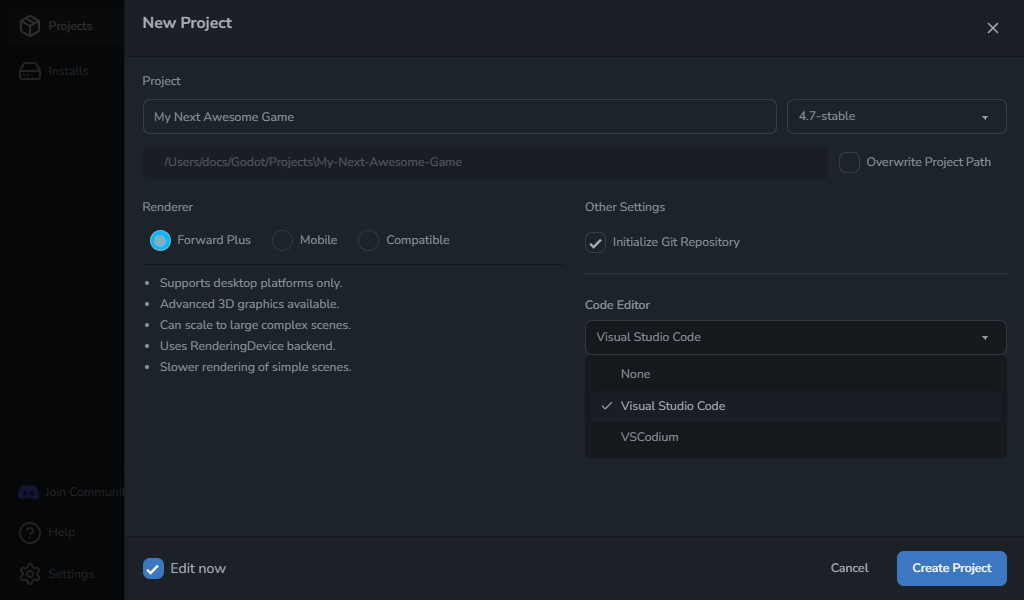
For an existing project:
- Select Project settings on the project card.
- Open the Code Editor tab.
- Choose VSCodium.
- Select Update.
The next time you launch Godot through Godot Launcher, opening a script uses VSCodium. The launcher creates or updates the .vscode files described below.
To stop using an external code editor, select None in the same tab and select Update. Existing .vscode files stay in place.
Workspace files and extension recommendations
Godot Launcher maintains these files under .vscode:
settings.jsonrecords the matching Godot editor path and related workspace defaults.extensions.jsonrecommends Godot Tools through Open VSX.- For a .NET project,
extensions.jsonalso recommends DotRush for C# through Open VSX. - For a .NET project,
tasks.jsonreceives a VSCodium-specific build task andlaunch.jsonreceives a VSCodium-specific attach configuration.
Selecting VSCodium adds extension recommendations; it does not install the extensions. Open the project folder in VSCodium and install the extensions you need from Open VSX.
When updating workspace files, Godot Launcher keeps settings and entries outside those it manages. Switching from Visual Studio Code replaces the entries managed for that editor, while keeping other valid recommendations, tasks, and launch configurations.
Imported projects
After importing a project, choose VSCodium from Project Settings > Code Editor if it is not already selected. A .vscode folder can be used by several editors, so the launcher does not select VSCodium from that folder alone.
For editor detection and project setup recovery, see Troubleshooting.