Change a Project's Godot Version
Each project in Godot Launcher can use a different Godot editor. Change it when a project needs another installed or registered release, a downloadable compatible official release, a .NET build, or a custom build.
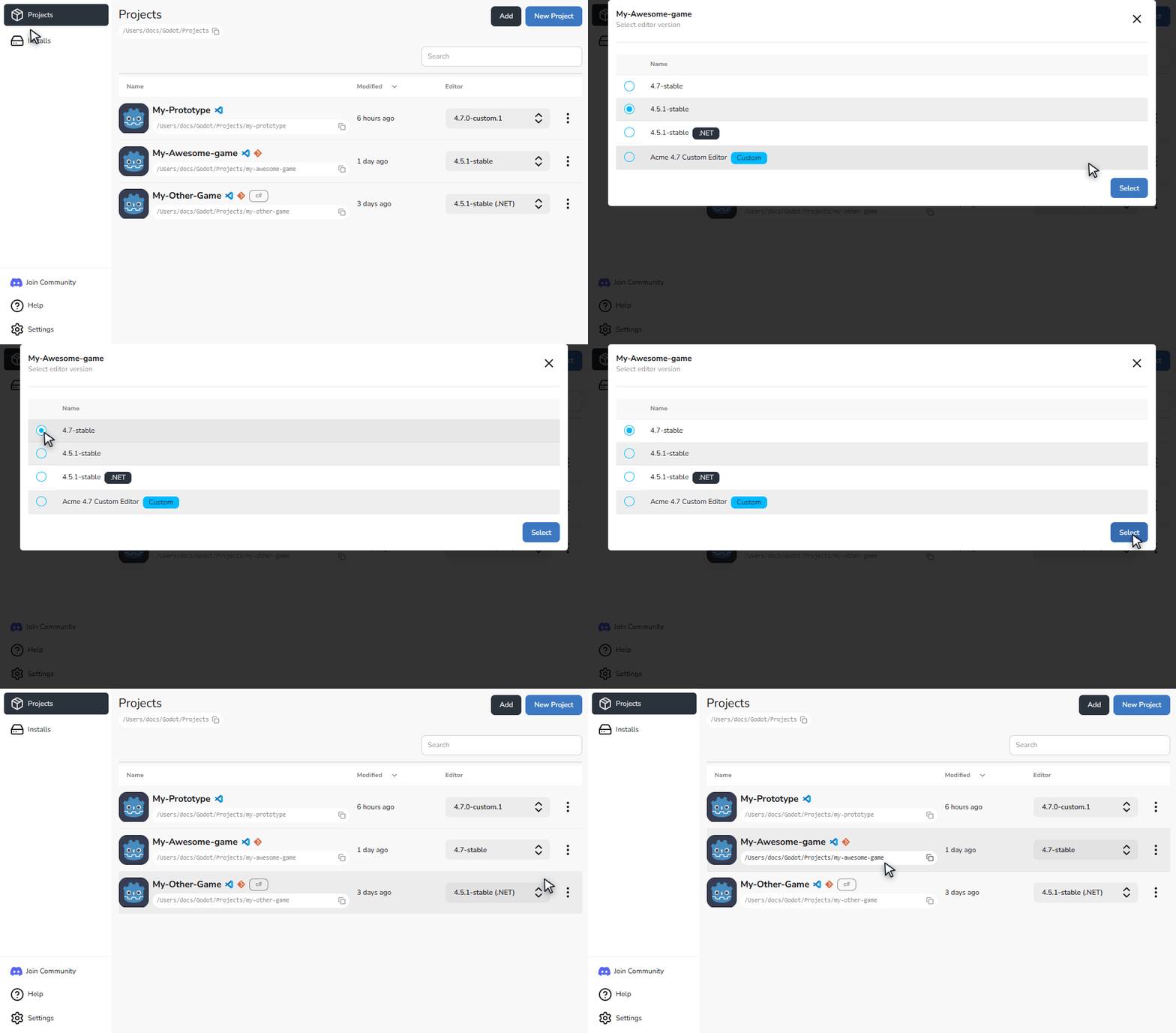
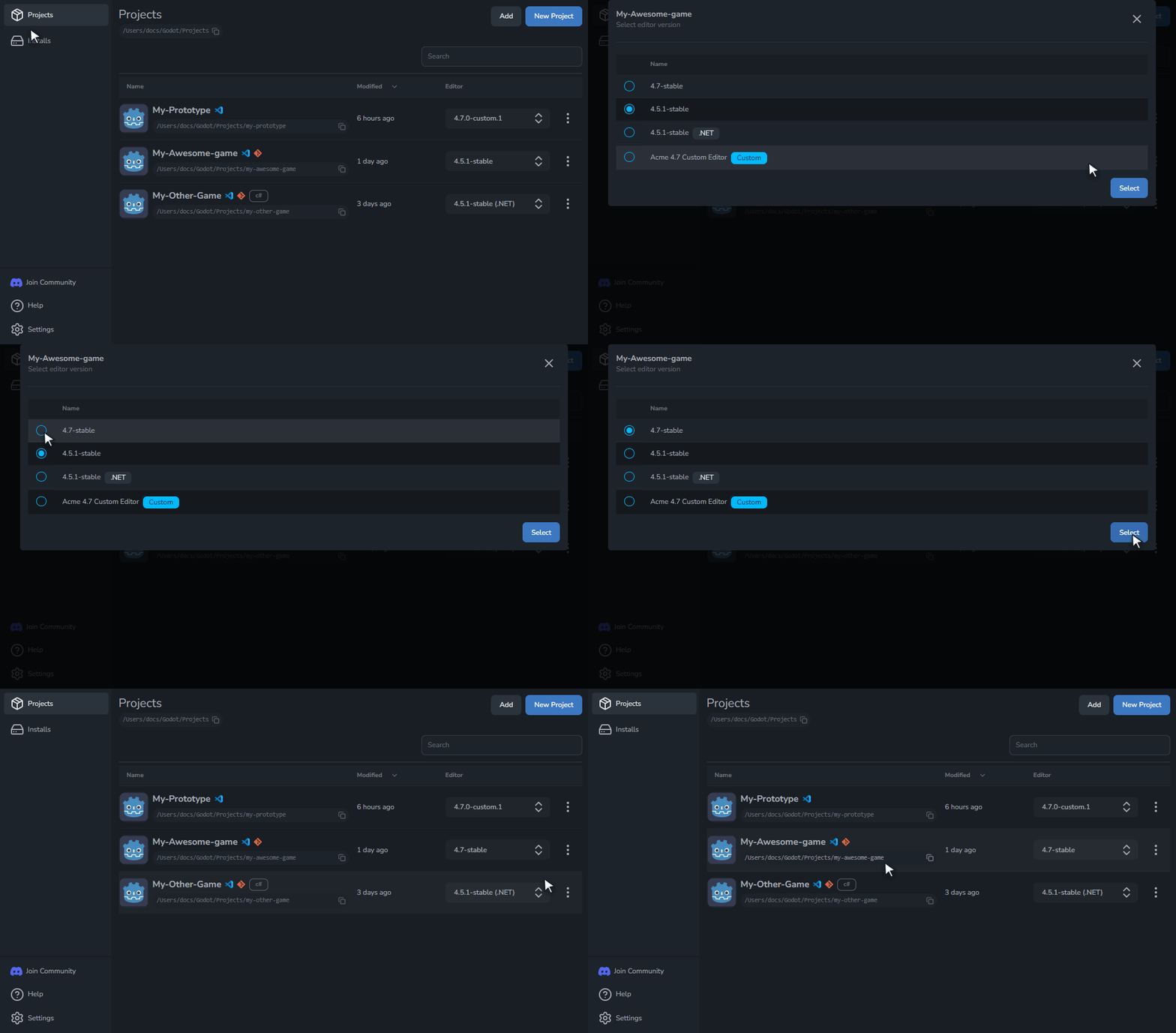
Choose another Godot editor
- Open the Projects view.
- Select Project settings on the project card.
- Stay on the Project tab.
- Choose an installed version from Godot Editor, or select Browse releases to choose a compatible official editor to download. Choose an editor from the project's current Godot major version.
- Select Update, or Install and save for an editor that is not yet installed.
The project uses the selected editor the next time you open it. Its folder and project.godot file do not move.
Install and save saves the editor choice and closes Project Settings while the download continues. You can reopen Project Settings during the download.
If installation fails, use Install required editor on the project to retry, or choose an installed editor. The saved choice stays in place after a failure, and a completed download does not overwrite a later choice.
Godot Launcher supports changing a project's editor within its current Godot major version. Check project compatibility before opening it with another release. To migrate a Godot 3 project to Godot 4, follow the official Godot upgrading guide; changing the editor in Godot Launcher does not perform this migration.
Use an official or custom build
Official releases and registered custom builds appear together in Godot Editor. The release browser shows compatible official releases from the stable and pre-release catalogues. Custom builds are useful for locally compiled or team-provided versions.
See Custom-Built Godot Editors to register or replace one.
Keep the code editor working
Changing the Godot editor does not change the project's Visual Studio Code or VSCodium choice.
If the project uses either editor and it is available, the launcher updates its project setup for the new Godot version. This includes supported build and debug setup when you choose a .NET editor.
To choose another code editor, open Project Settings > Code Editor.
If the selected editor is no longer available, see Troubleshooting.