Launch Godot in a Terminal
Enable Launch in terminal in Godot Launcher to see the editor's output and errors. The terminal stays open after Godot closes so you can read or copy the output.
Enable it for a project
- Open Projects and select the project's settings button.
- Open Launch.
- Enable Launch in terminal.
- Select Update.
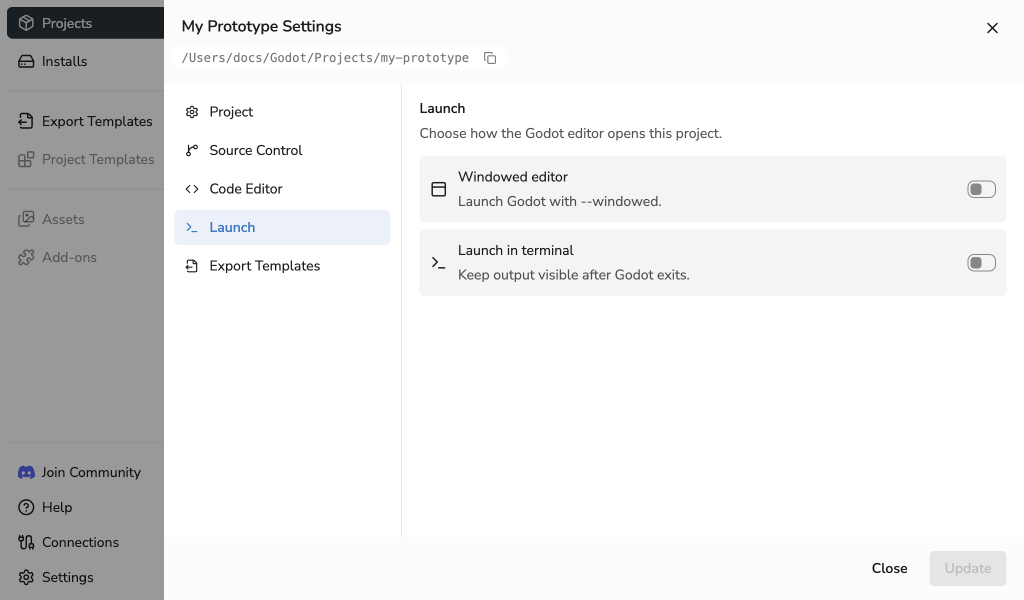
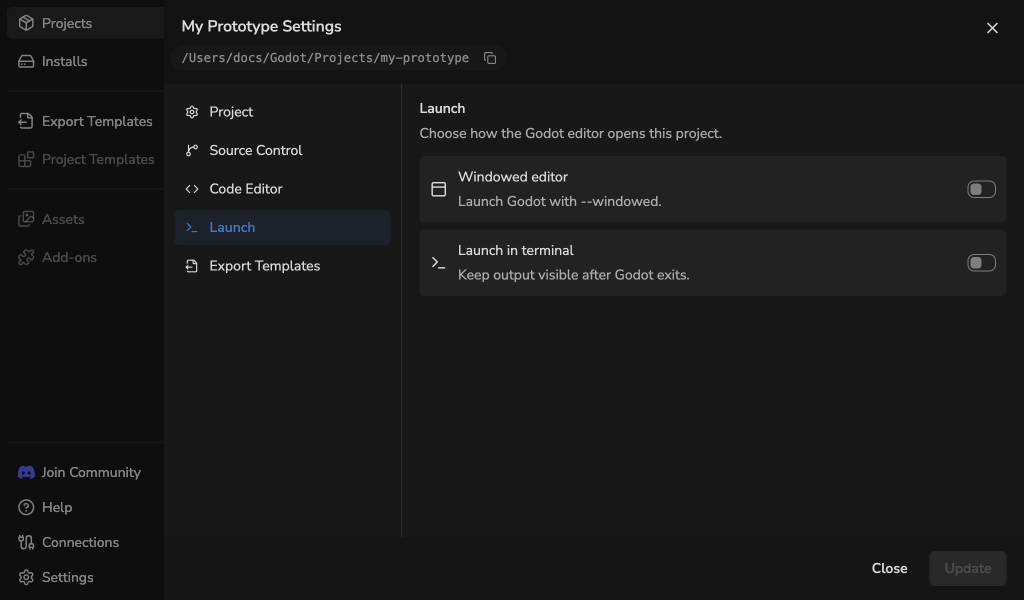
This setting is off by default and saved per project. It also applies when opening the project from the system tray.
After Godot closes
The terminal displays Godot's exit code and keeps the output visible. Read or copy the output, then press Return to finish the terminal session.
Which terminal opens
- Windows: Command Prompt.
- macOS: Terminal.app.
- Linux: The terminal selected in Tool Settings. Automatic chooses an available supported terminal.
If the terminal cannot open
Godot Launcher shows an error. If you launched from the system tray, the launcher window reopens to show it.
On Linux, check Settings > Tools > Terminal. Select Rescan after installing a supported terminal, then choose Automatic or an available terminal and try again. See Tool Settings for supported terminals.
Reloading the project in Godot
Using Reload Current Project in Godot may stop output reaching the terminal. To restore it, close Godot and reopen the project from Godot Launcher.