Custom-Built Godot Editors
Custom-built Godot editors let you use editor executables that are not part of the official release list. Use them for locally compiled Godot editors, team-distributed editors, or custom editor variants that your project depends on.
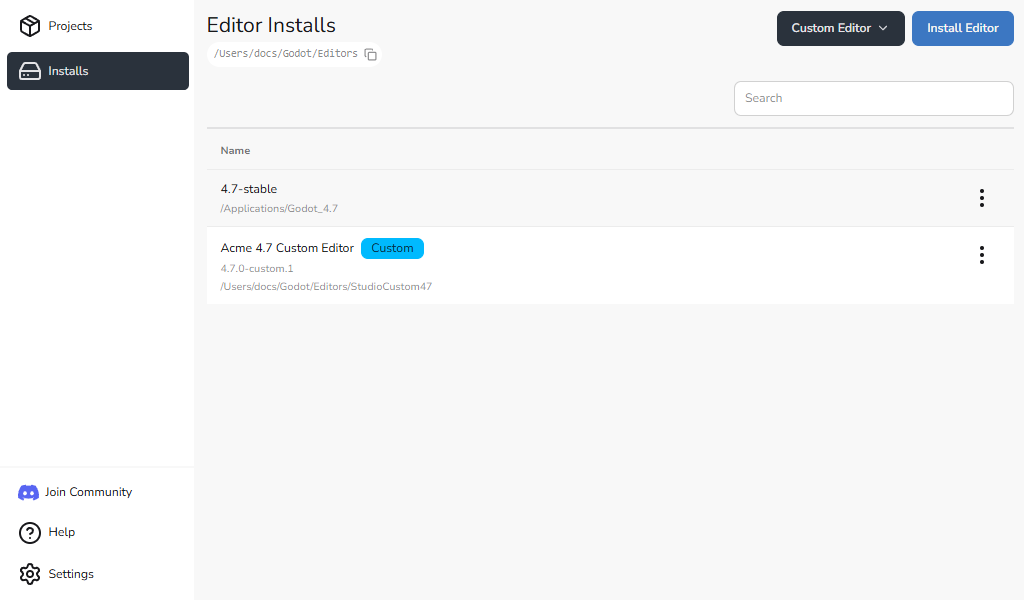
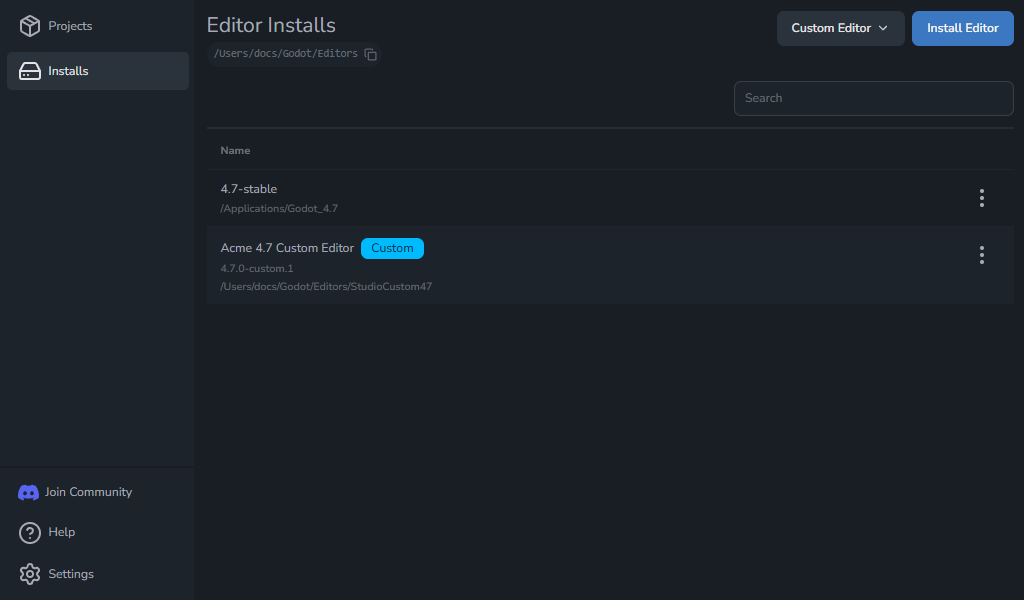
After a custom-built Godot editor is registered, Godot Launcher shows it in Installs with a Custom badge and lets you select it for projects like any other installed editor.
For official releases, install a Godot editor from the release list.
Create a custom editor manifest
The output folder must already exist. If it contains godotlauncher-editor-manifest.json, creating a manifest replaces that file. Choose another folder to keep the existing manifest.
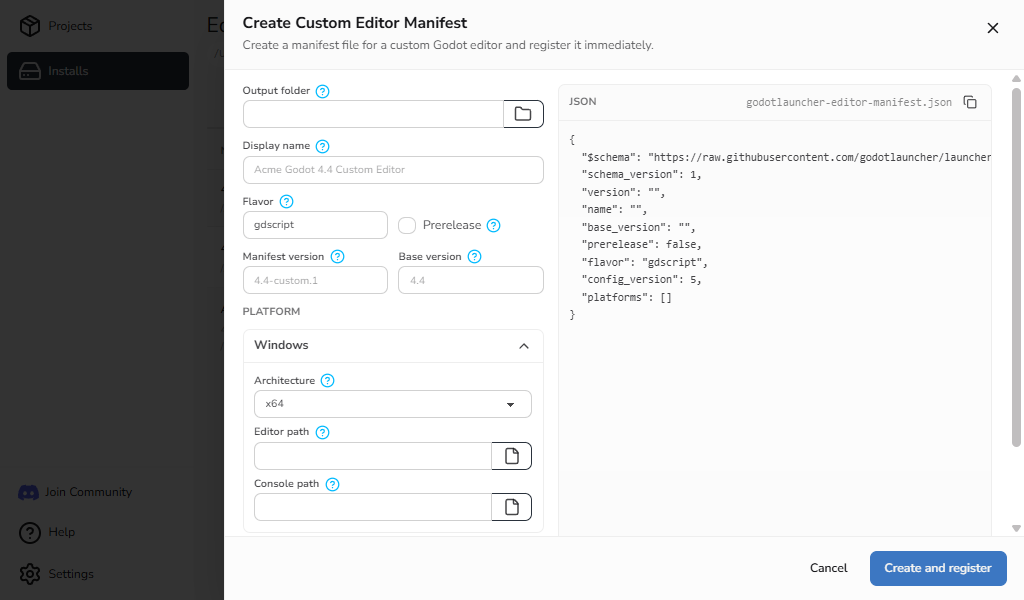
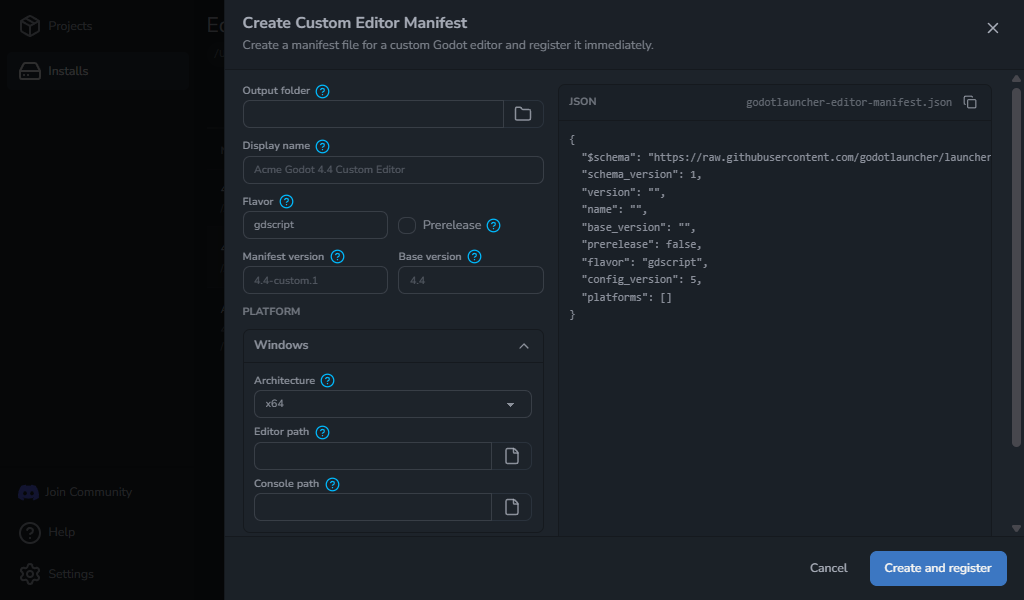
- Open Installs > Custom Editor > Create custom editor manifest.
- Choose an Output folder and enter the Display name, Manifest version, and Base version. Use a unique manifest version such as
4.4-custom.1, and a Godot major/minor base version such as4.4. - Set Flavor to
gdscriptordotnetfor the corresponding build, or enter your custom value. Enable Prerelease if appropriate. - Expand the relevant Platform, choose Architecture, and select the Editor path. Add a Console path only if your build provides a separate console executable.
- Select Create and register.
The launcher writes godotlauncher-editor-manifest.json to the output folder and adds the editor to Installs.
See the custom editor manifest reference for field definitions and examples.
Register an existing manifest
- Open Installs > Custom Editor > Select manifest file.
- Select the
godotlauncher-editor-manifest.jsonsupplied with the editor and open it.
The editor appears in Installs with a Custom badge. You can also drop the manifest onto Installs. If the launcher rejects it, check the manifest format and confirm that its editor paths exist.
Replace a registered custom-built Godot editor
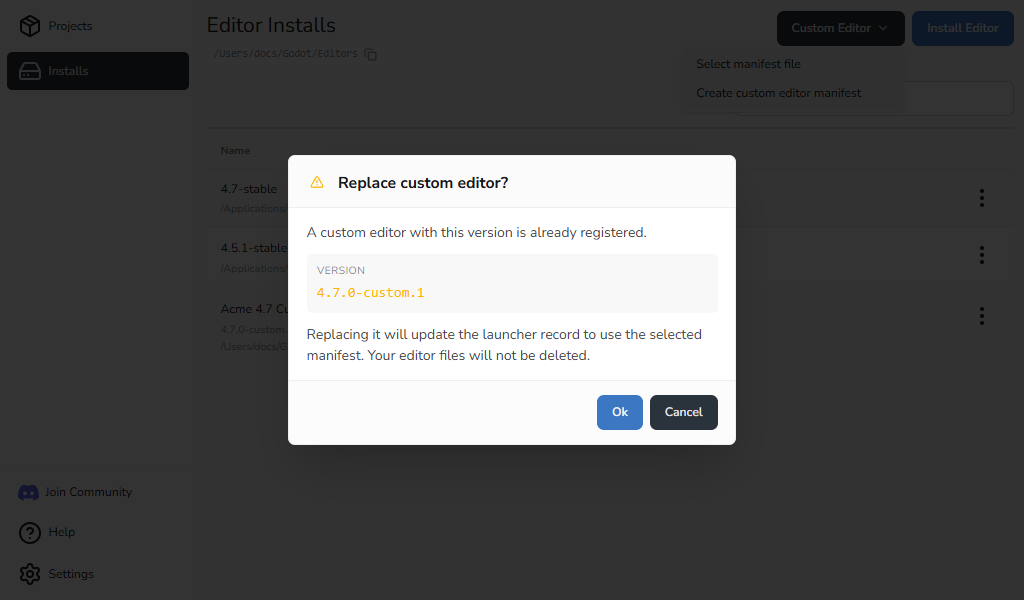
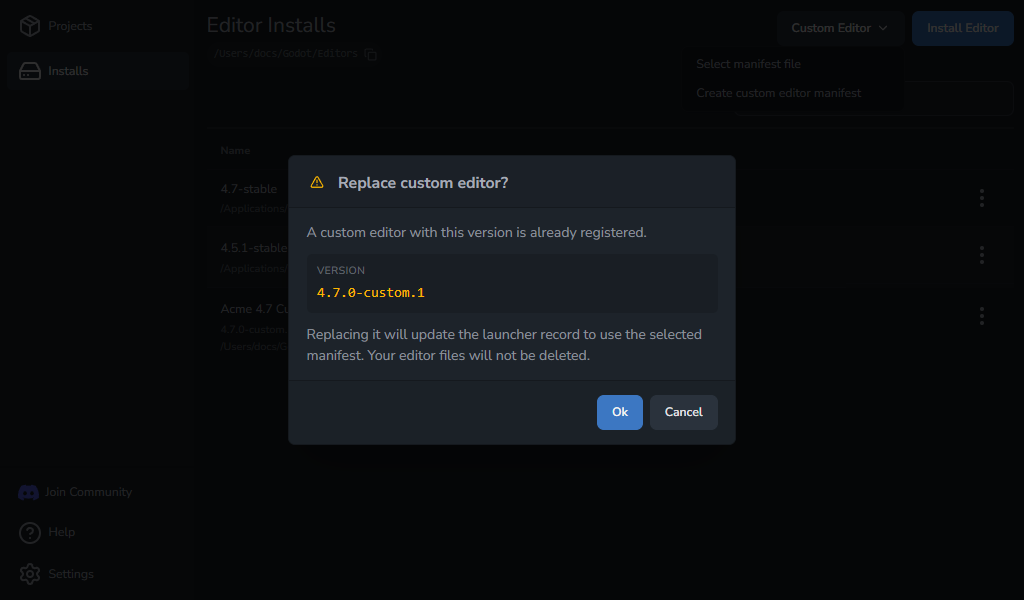
Use replacement when a custom editor has moved or its binary has changed while its manifest version stays the same.
- Choose Installs > Custom Editor > Select manifest file and open the replacement manifest.
- Check the version in Replace custom editor?.
- Select Replace.
The registered editor now uses the selected manifest. Replacement does not delete the editor files.
Use a custom-built Godot editor for a project
Registered custom-built Godot editors appear in the same project editor selector as official editor installs.
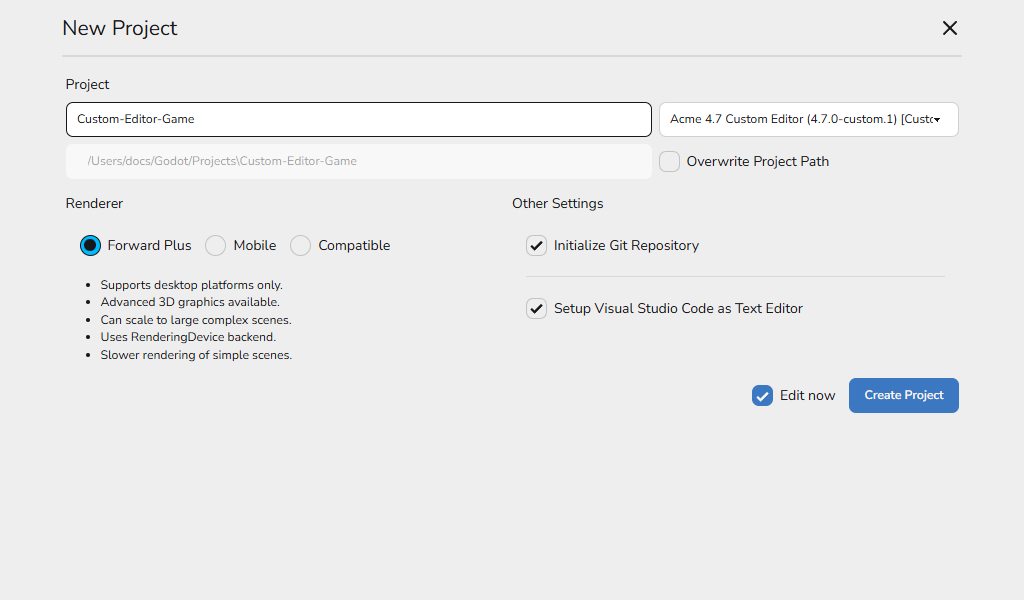
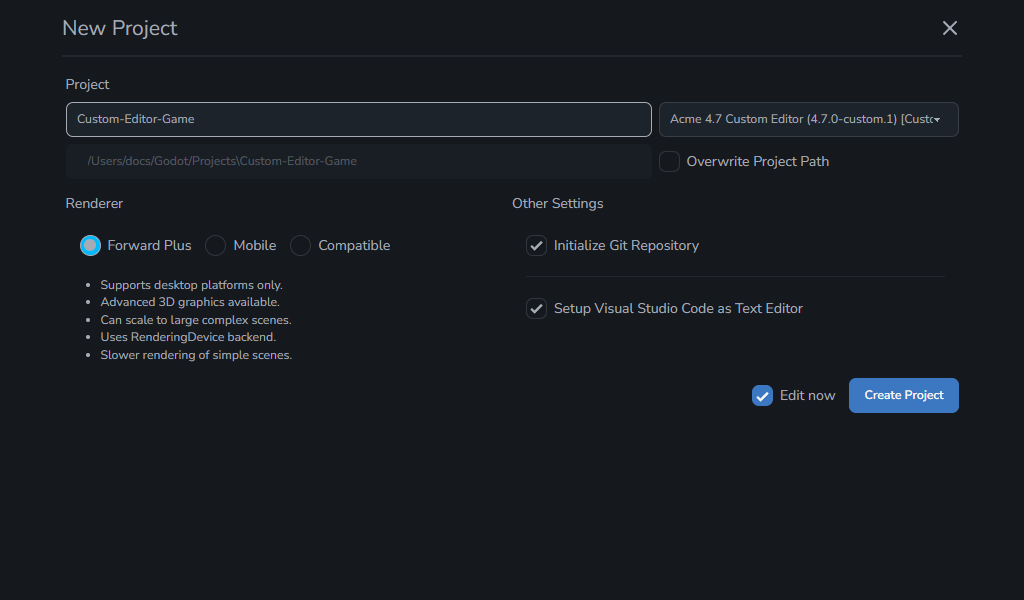
Choose the custom editor when creating a project. For an existing project, open Project settings > Project, select it under Godot Editor, and select Update. See Change a project's Godot version for compatibility limits.
Remove a custom-built Godot editor
In Installs, select the custom editor's Remove Custom Editor button, then confirm with Remove. This unregisters the editor from Godot Launcher; its binary and source folder remain on disk.
To unregister several custom editors at once, use multi-select in Installs. Select all includes custom editors; Select unused editors excludes them.
If projects still reference the removed editor, they will show a missing editor state until you register the editor again or choose another compatible editor.
Troubleshooting
- The editor path is unavailable: restore or mount the location that contains the custom-built Godot editor, then select Retry in Installs.
- The wrong editor is registered: register a corrected manifest with the same version and select Replace.
- A project cannot launch: select an available compatible editor, or register the missing custom-built Godot editor again.
- A manifest is rejected: recreate it from the in-app drawer or ask your team for a manifest that matches the editor binary you are using.