Use the Godot Launcher System Tray
The Godot Launcher system tray lets you reopen the launcher window, launch a recent Godot project, or quit the application. Godot Launcher can keep running in the tray while its main window is hidden.
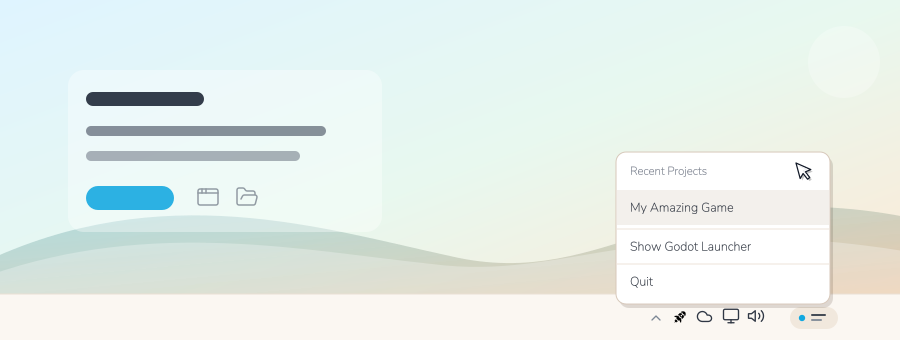
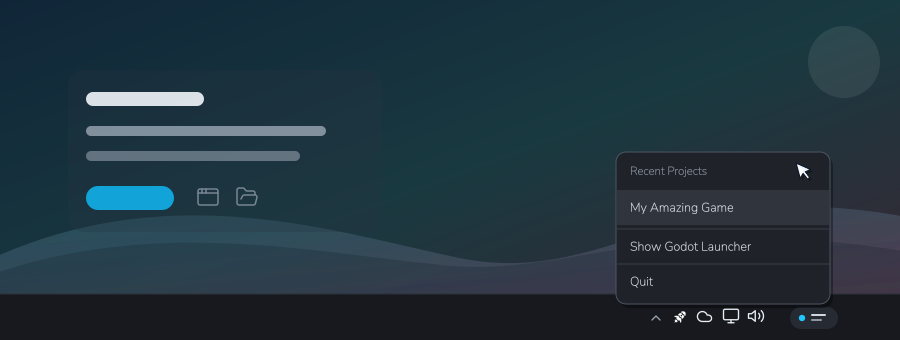
Open the tray menu
- Windows: Left-click opens the launcher window. Right-click opens the tray menu.
- macOS: Left-click or right-click opens the tray menu. Select Show Godot Launcher to reopen the window.
- Linux: Open the tray icon's context menu, then select Show Godot Launcher to reopen the window.
Select Quit to stop Godot Launcher completely.
Choose what happens when closing the window
By default, closing the Godot Launcher window hides it to the tray when a usable tray is available.
To quit when closing the window, open Settings > Behavior and select Quit Godot Launcher under Window Close. The choice is saved automatically. See Window closing options for details.
Choose what happens after opening a project
Open Settings > Behavior and select Close to system tray under Project Launch Action. After a project opens, Godot Launcher hides its window if a usable tray is available.
To keep the window visible or minimise it instead, see Behaviour Settings.
When the tray is unavailable on Linux
Some Linux desktops do not provide a usable system tray. If no usable tray is available, Godot Launcher leaves its window visible after opening a project. Closing the launcher window quits the application. See Linux system tray troubleshooting for details.
Start with your computer
On Windows and macOS, you can start Godot Launcher in the tray when you sign in. Enable Start when computer starts. and Start in tray. in Settings > Behavior. See Startup settings for details and platform support.
Quick-launch recent projects
The tray menu lists up to the last three projects opened through Godot Launcher on this computer. Select one to open it in its chosen Godot editor.
The project's launch settings also apply when opening it from the tray. See Launch Godot in a Terminal to keep editor output visible after Godot closes.