Use the Godot Launcher System Tray
The Godot Launcher system tray lets you open pinned and recent Godot projects, reopen the launcher window, or quit the application. Godot Launcher can keep running in the tray while its main window is hidden.
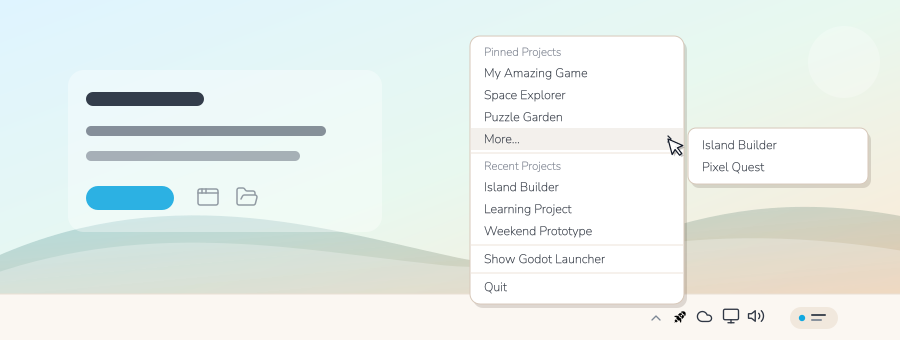
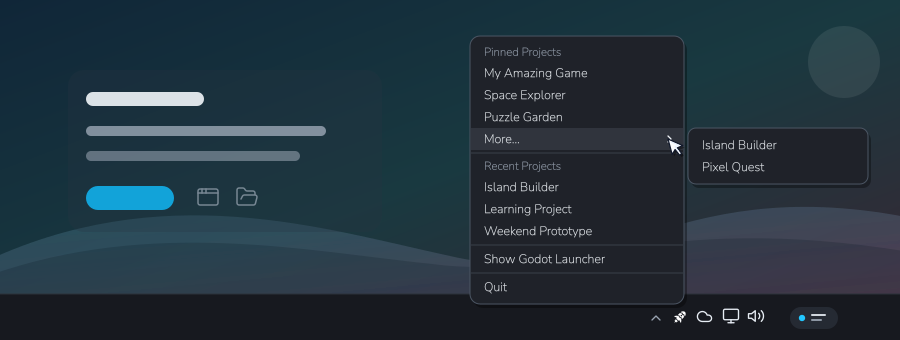
Open the tray menu
- Windows: Left-click opens the launcher window. Right-click opens the tray menu.
- macOS: Left-click or right-click opens the tray menu. Select Show Godot Launcher to reopen the window.
- Linux: Open the tray icon's context menu, then select Show Godot Launcher to reopen the window.
Select Quit to stop Godot Launcher completely.
Choose what happens when closing the window
By default, closing the Godot Launcher window hides it to the tray when a usable tray is available.
To quit when closing the window, open Settings > Behavior and select Quit Godot Launcher under Window Close. The choice is saved automatically. See Window closing options for details.
Choose what happens after opening a project
Open Settings > Behavior and select Close to system tray under Project Launch Action. After a project opens, Godot Launcher hides its window if a usable tray is available.
To keep the window visible or minimise it instead, see Behaviour Settings.
When the tray is unavailable on Linux
Some Linux desktops do not provide a usable system tray. If no usable tray is available, Godot Launcher leaves its window visible after opening a project. Closing the launcher window quits the application. See Linux system tray troubleshooting for details.
Start with your computer
On Windows and macOS, you can start Godot Launcher in the tray when you sign in. Enable Start when computer starts. and Start in tray. in Settings > Behavior. See Startup settings for details and platform support.
Quick-launch pinned and recent projects
Pinned Projects shows your first three pinned projects in their saved order. If you have more pins, select More... to see the rest in the same order. To choose which projects appear first, reorder your pinned projects.
Below the pins, Recent Projects lists up to three projects last opened through Godot Launcher on this computer. The three pins already visible in the main menu are omitted from recents. A project inside More... can also appear in Recent Projects.
Empty sections are hidden. If neither section has projects, the tray keeps its Show Godot Launcher and Quit commands. Unavailable projects are disabled; open Projects to check the project or choose an available editor.
The project's launch settings also apply when opening it from the tray. See Launch Godot in a Terminal to keep editor output visible after Godot closes.