Using Git With Godot Launcher
Git keeps a history of changes to your project. Godot Launcher can prepare Git when you create a project or add a repository later from Project Settings.
The result depends on when you add Git:
- A new project gets the recommended Git files, a
mainbranch, and an initial commit. - An existing project gets an empty repository when it is not already inside a Git work tree. The launcher does not change or commit its files.
Set up Git for a new project
Open Projects > New Project and keep Initialize Git Repository enabled.
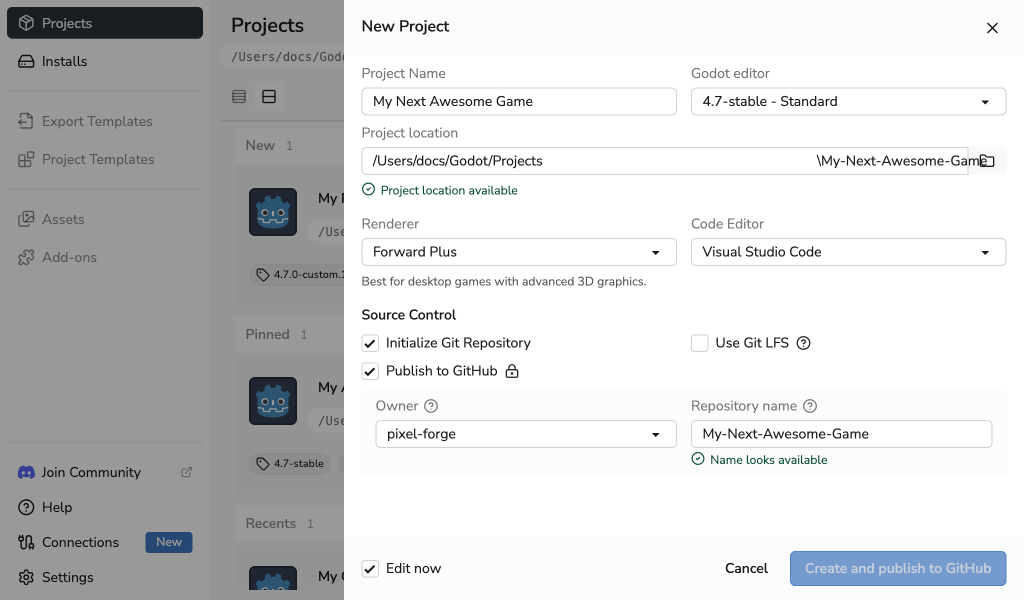
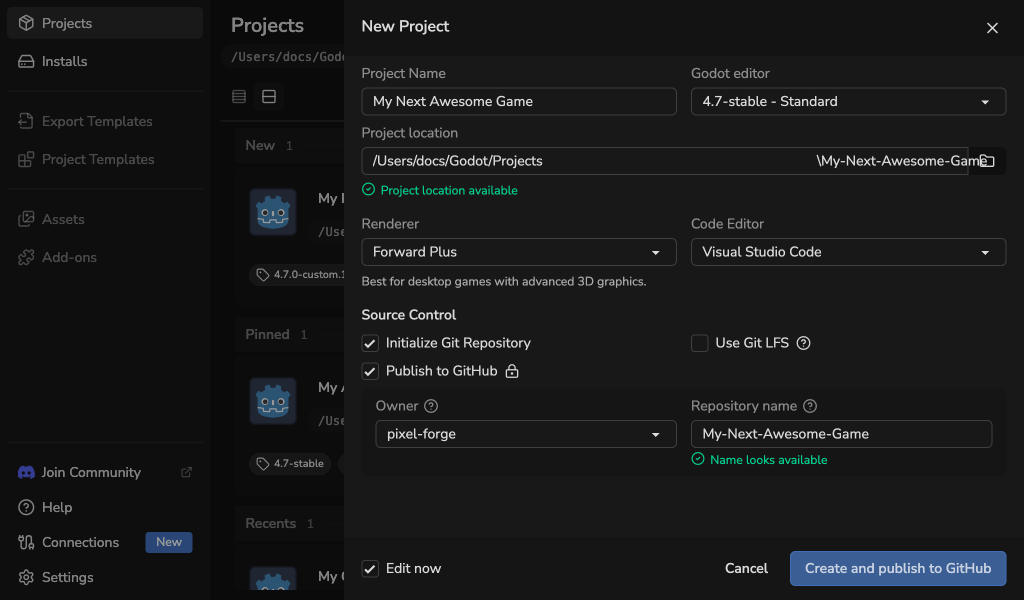
The launcher creates .gitignore and .gitattributes, initializes the repository on a main branch, and creates an Initial commit.
Track large assets with Git LFS
When both Git and Git LFS are available, enable Use Git LFS for large assets before creating the project. The help panel lists the fixed policy's tracked patterns for 3D models, images, audio, fonts and icons, and Godot binary resources.
Godot Launcher runs the repository-local Git LFS setup, adds those patterns to .gitattributes, and verifies the result before it can rename the branch or create the initial commit. The existing text normalization rule remains in the file. If setup fails or the project path becomes part of another work tree, project creation stops and the launcher rolls back only the files it created.
Git LFS replaces matching files in Git with small pointer files while their content is stored by the configured Git LFS host. The launcher selects file types, not individual files by size, and does not manage your host's storage or bandwidth allowance.
This option applies only when Godot Launcher creates a new, standalone repository. It does not run for an existing repository, parent repository, submodule, or linked worktree, and it does not migrate tracked files or rewrite history.
The first commit needs your Git name and email. Godot Launcher can use Git's global identity or write an explicit identity only to the new repository.
Open Settings > Tools > Git to inspect or edit the global Git identity and save one separate project identity preset. A preset has no effect until you confirm it during project creation or enable automatic use for new repositories. Automatic use writes the preset as a repository-local identity before the initial commit, so it does not replace the global identity.
If no usable identity is available, you can enter one and choose whether Godot Launcher should ask again, save it as the automatic local preset, or write it to Git's global configuration. You can also skip the first commit. See Troubleshooting for this recovery flow.
Understand the generated Git files
The generated .gitignore is designed for Godot 4.3 and later. It ignores:
- Godot cache and generated build directories such as
.godot/and/android/. - Generated translations and .NET output.
- Godot Launcher-managed
.vscode/configuration, which can contain local paths. - Common local
build/andbuilds/output.
The file also contains commented compatibility rules for older Godot project layouts. Enable only the rules your project needs.
The generated .gitattributes treats detected text files as text and normalizes their repository line endings to LF.
Godot 4.0 may store sensitive credentials in export_presets.cfg. The generated template does not ignore this file by default. Read the compatibility warning in .gitignore and uncomment its export_presets.cfg rule before committing that file when it can contain credentials.
If the file is already tracked, follow the git rm --cached -- export_presets.cfg guidance in the generated file. Removing it from the current index does not remove it from Git history. Rotate credentials that may already have been committed.
Add Git to an existing project
- Open Projects.
- Click the project's settings button.
- Open Source Control.
- Click Initialize Git.
If the project is not already inside a Git work tree, this action creates an empty Git repository in the project folder. It does not add template files, change the branch name, or create a commit.
Project Settings does not configure Git LFS. To add or migrate Git LFS in an existing repository, follow the Git LFS documentation and review the repository's history and hosting limits before making changes.
After setup, Source Control remains selected and shows a checked Active state so you can see that Git is ready for the project.
The Commit identity section shows the effective name and email, including values inherited from Git's wider configuration. Select Update to write both values as a repository-local identity when the project is the exact repository root. Parent repositories and linked worktrees remain read-only in Godot Launcher.
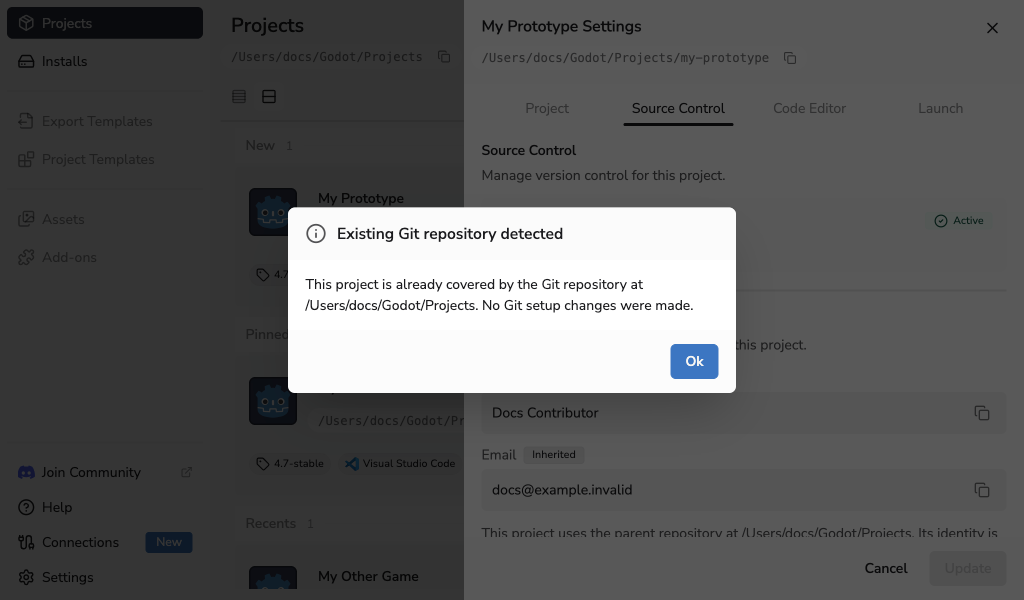
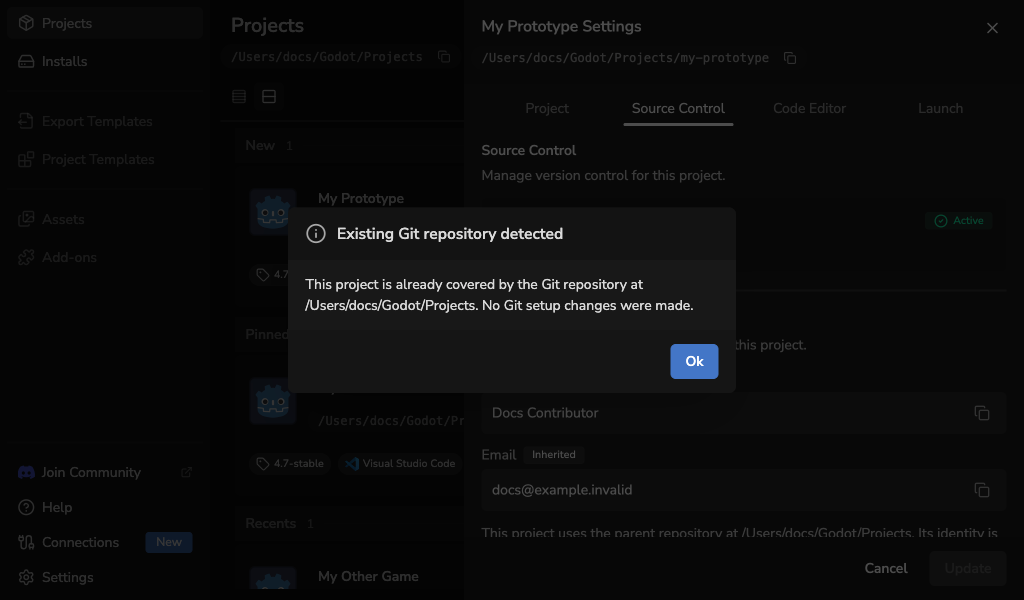
If the project already belongs to a repository, including a parent repository, linked worktree, or submodule, Godot Launcher recognises the existing work tree and makes no Git setup changes. It does not create a nested repository, add metadata, change Git identity, rename a branch, stage files, or create a commit.