Project Badges and Tooltips
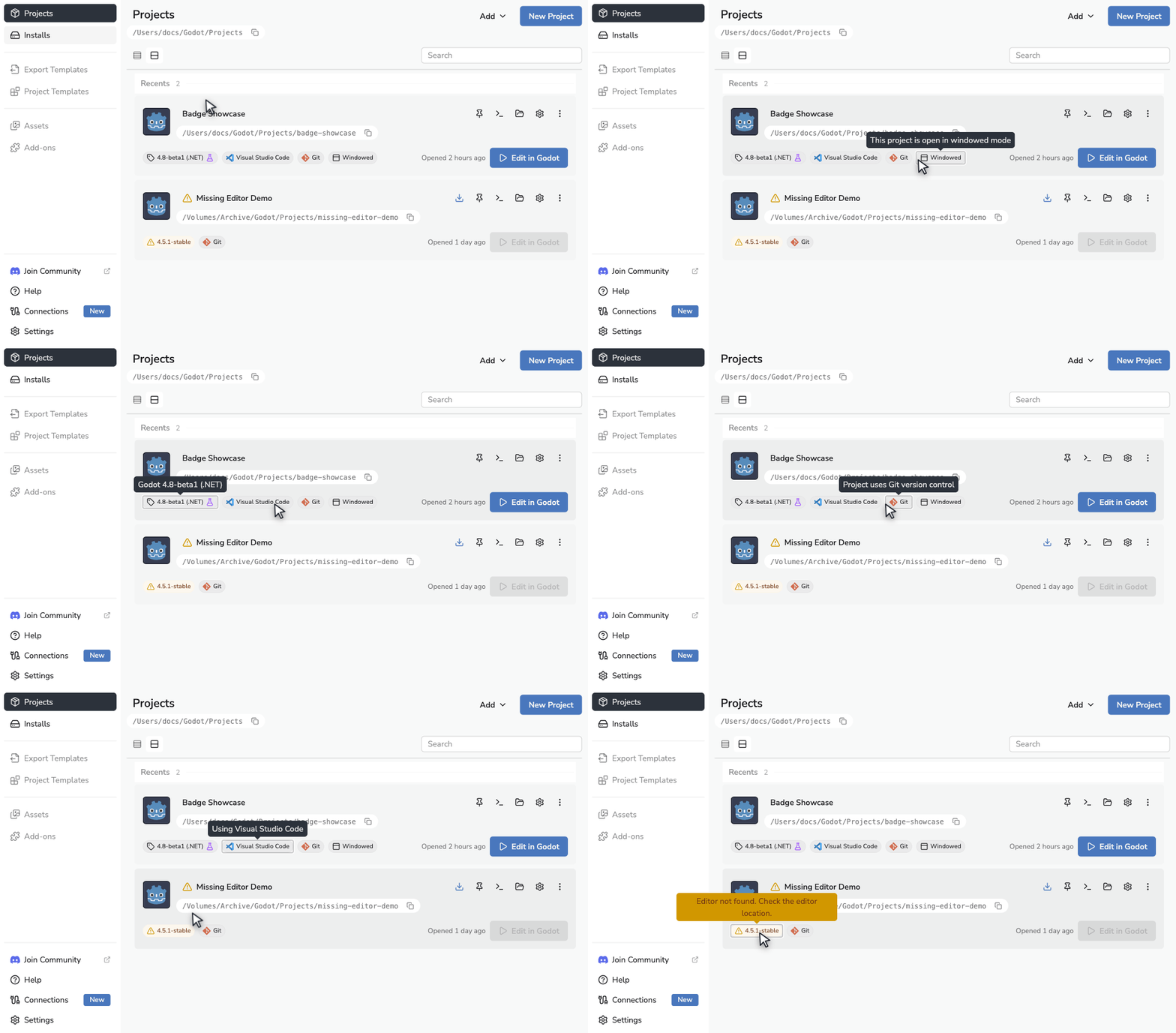
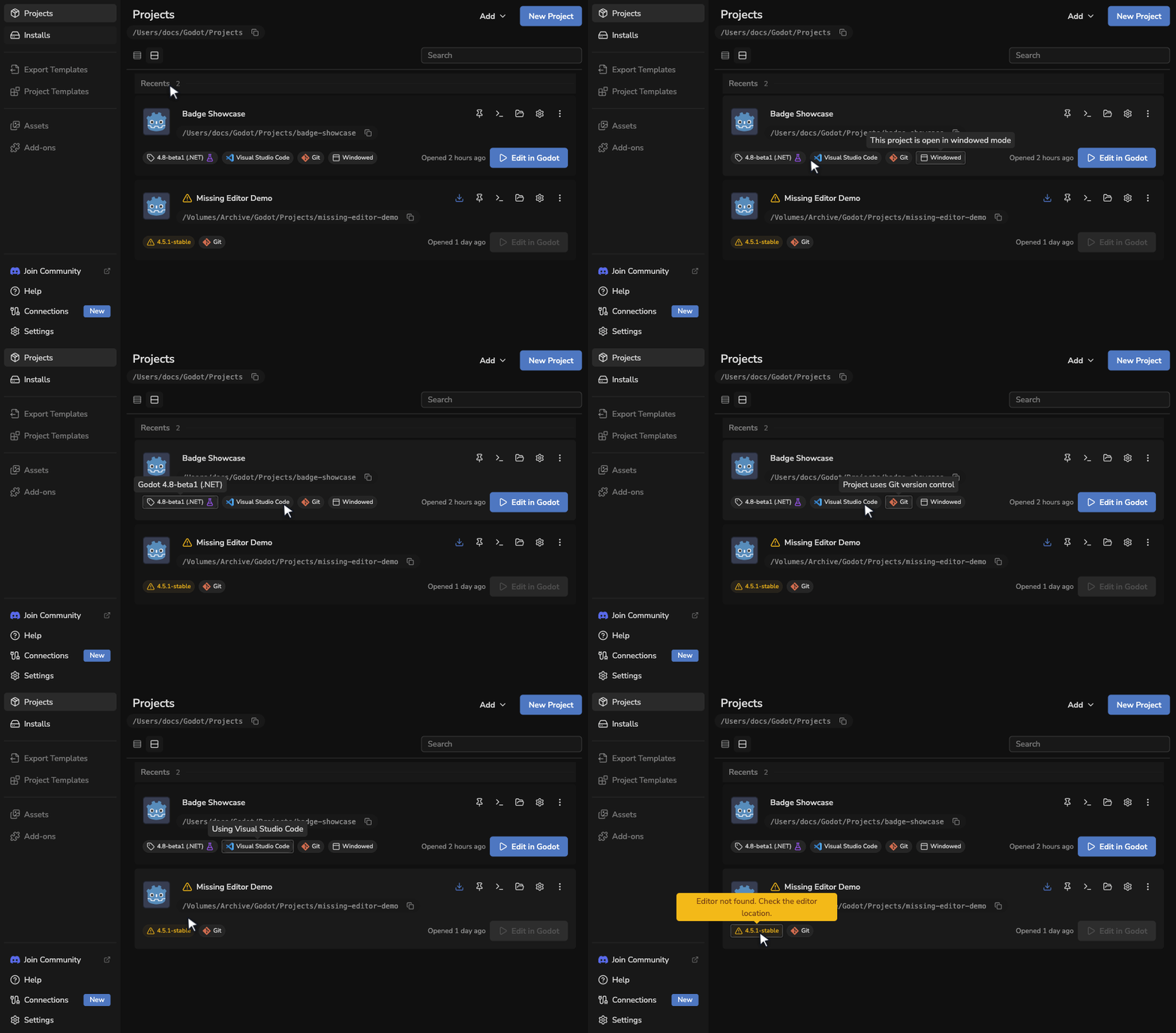
The Godot Launcher project list displays badges next to each project entry. These icons communicate configuration details at a glance and assist in identifying projects that require special attention.
Each badge includes a tooltip that provides a short description when hovered.

Badge Types
(c#) - .NET Project Indicator
Condition: Displayed when the project is using the .NET (C#) variant of the Godot editor.
Purpose: Indicates that the project uses C# scripts and has a .NET Godot Editor version.
Tooltip: This is a .NET project
(pr) - Pre-release Version Indicator
Condition: Displayed when the selected Godot version is labeled as a pre-release (e.g. alpha, beta, or release candidate).
Purpose: Helps identify projects running potentially unstable or experimental builds.
Tooltip: Using a pre-release Godot Editor version
(w) - Windowed Launch Mode Indicator
Condition: Displayed when the "Open Windowed" setting is enabled for the project.
Purpose: Indicates that the Godot Editor will be launched with the -w flag, forcing windowed mode.
Tooltip: This project is opened in windowed mode
VS Code Badge - External Editor Integration
Condition: Appears when the project has Use Visual Studio Code as Text Editor enabled.
Purpose: Confirms that the launcher manages .vscode workspace files and will open VS Code for script editing.
Tooltip: VS Code integration enabled (localized).
Git Badge - Version Control Status
Condition: Displayed when the project directory contains a Git repository or the launcher initialized Git from the overflow menu.
Purpose: Signals that version control is active so collaborators can quickly spot tracked projects.
Tooltip: Git repository detected (localized).
- Missing or Invalid Editor
Condition: Shows when the assigned Godot editor is missing, moved, or fails validation.
Purpose: Highlights projects that cannot launch until the editor is repaired or reassigned. A matching warning appears in the Installs view with Retry and Remove actions.
Tooltip: Editor unavailable - retry or choose a new version (localized).
Badge icons
The VS Code and Git badges shown above use the same artwork as the launcher UI, ensuring the documentation matches what you see in-app.
Badge Placement
Badges appear in the following locations:
- In the Project View within the Godot Launcher main interface.
- Inline with each project entry.
Tooltips are accessible by hovering over the badge.
Use Cases
Badges improve workflow clarity and reduce configuration guesswork. They are especially useful when:
- Managing mixed language environments (GDScript and C#)
- Working with experimental Godot versions
- Highlighting projects that use/not use Git
- Highlighting projects that are set up to use VS Code as the external editor
Related Documentation
- Launch Godot Project in Windowed Mode
- Managing Godot Editor Versions
- Download Godot Launcher
- Add an Existing Project
Badges are a lightweight but effective tool to communicate project-specific configurations directly from the project list.