Manage Projects
Use the Projects view in Godot Launcher to find and open projects or change how they are organised.
Choose a project view
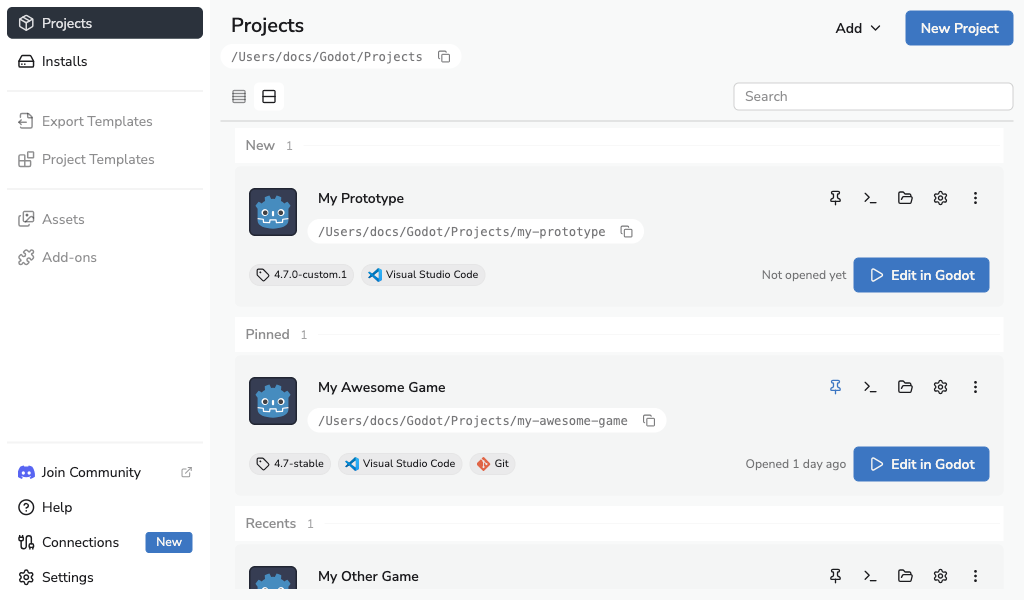
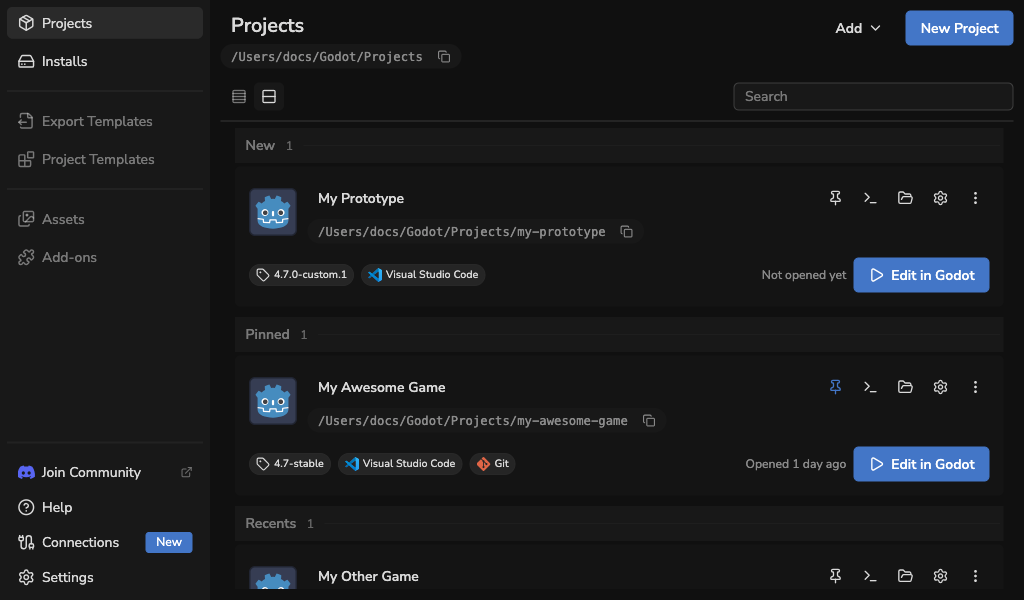
Cards are the default view. They show each project's details and its Edit in Godot button together.
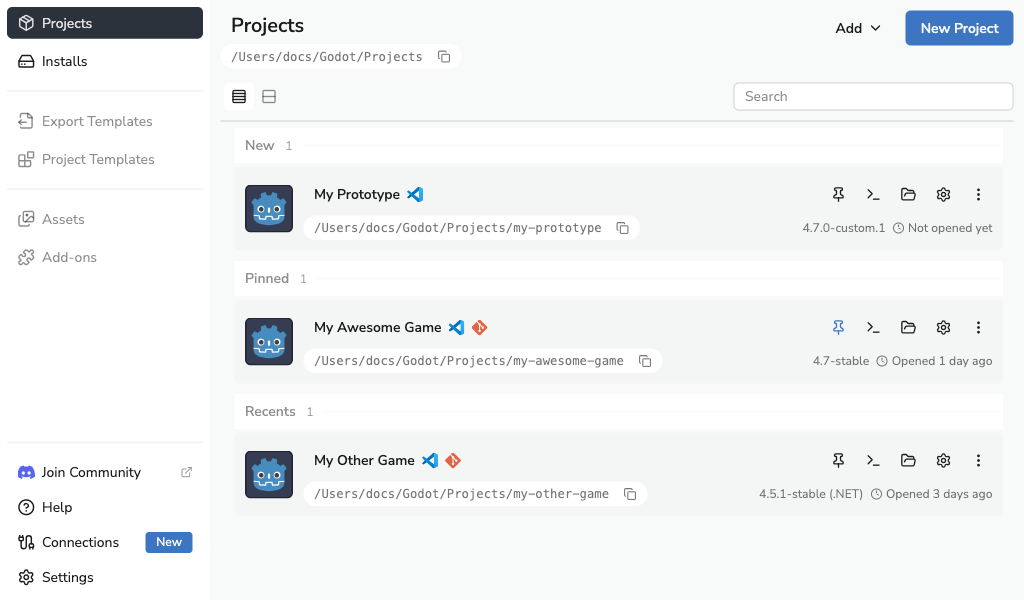
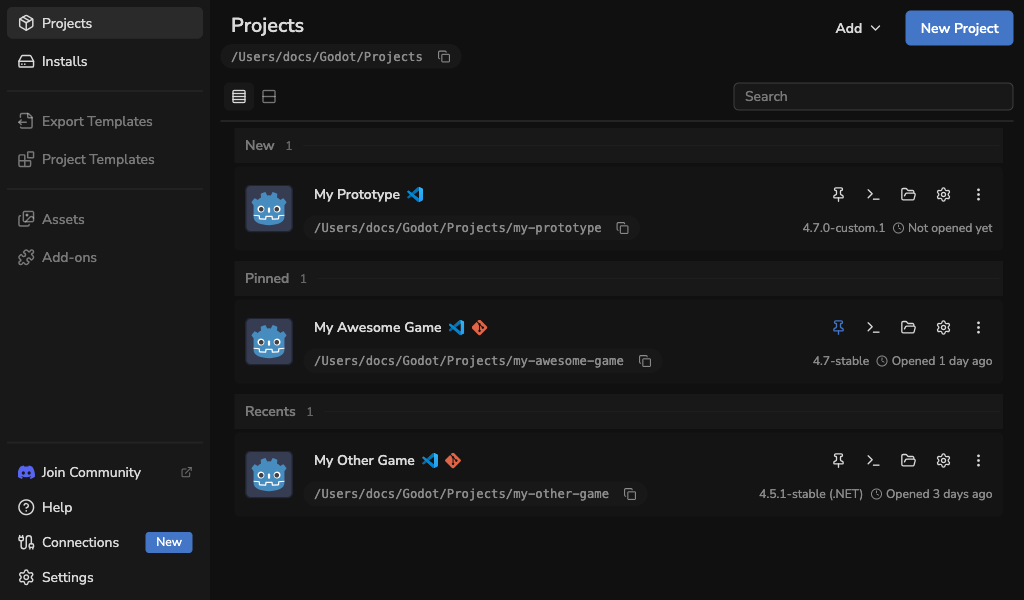
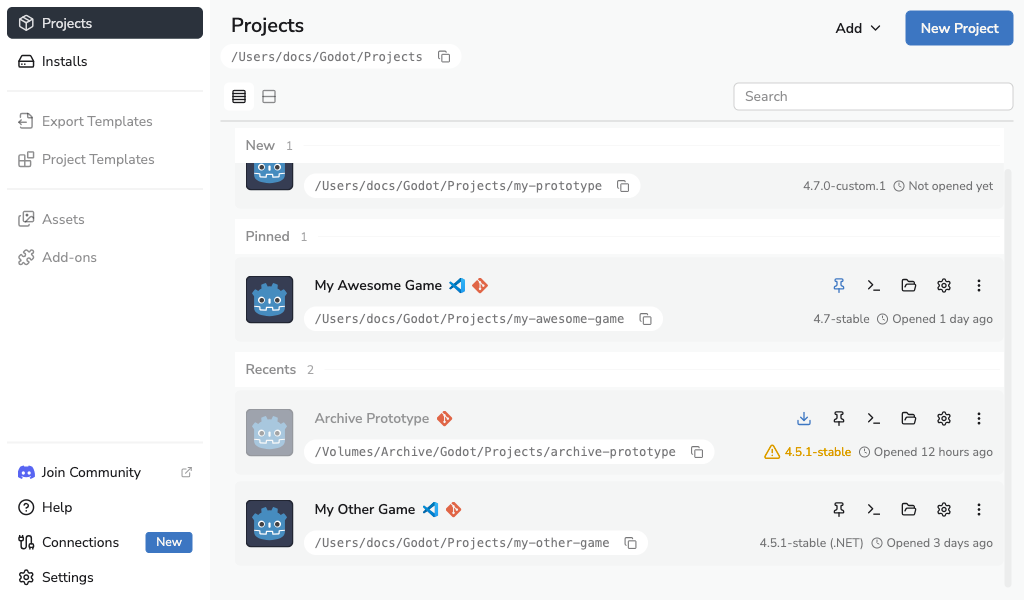
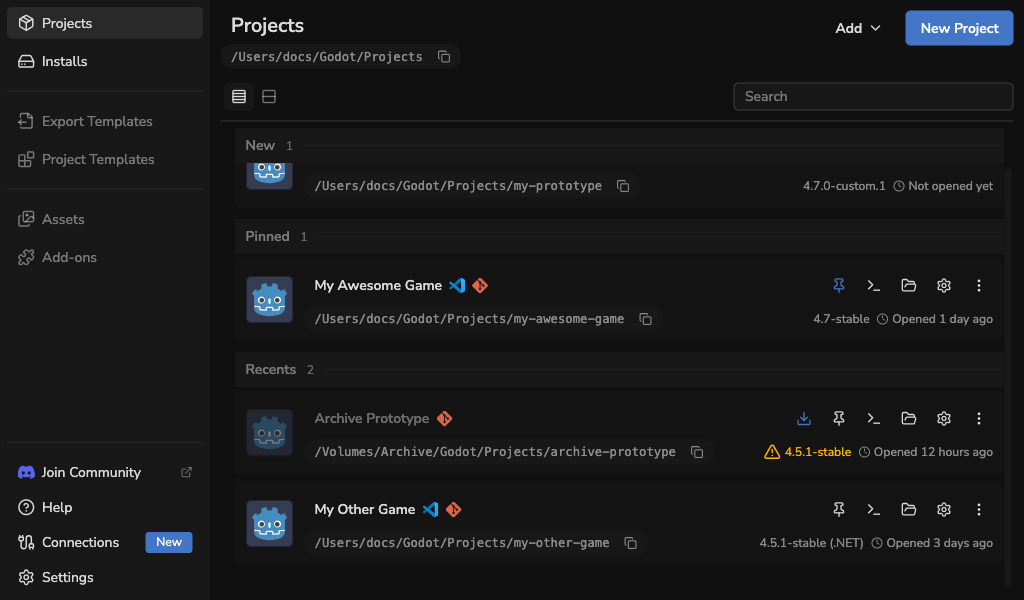
To see more projects at once, select the List icon to the left of Search. List rows keep the same groups, order, search results, pinning, and project actions. Select the project icon or name to open it in Godot; use the copy control beside its path to copy the path without opening the project.
Godot Launcher remembers your selected view after you close and reopen the app. Select the Cards icon to return to the card layout.
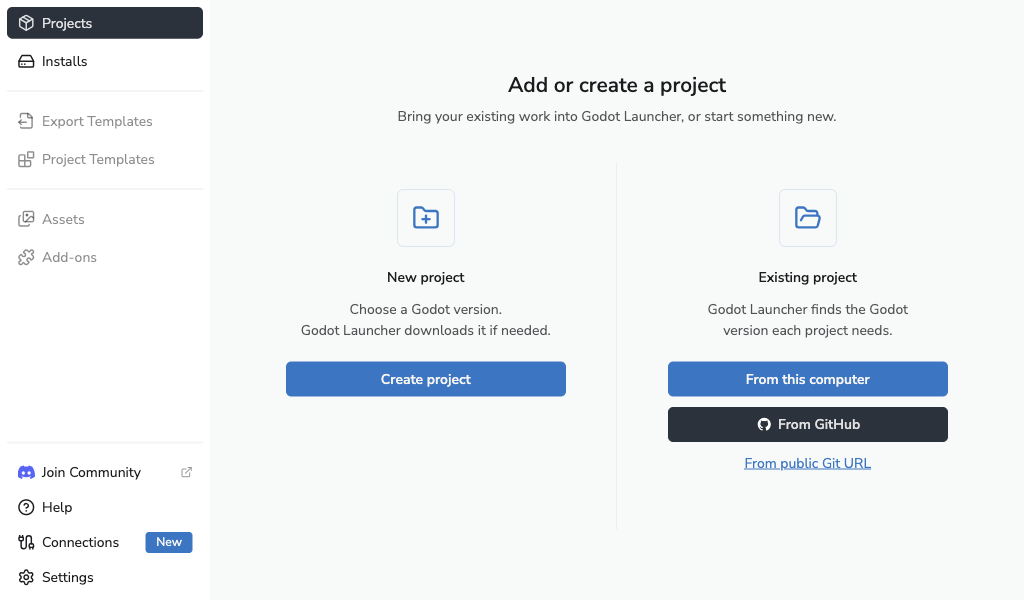
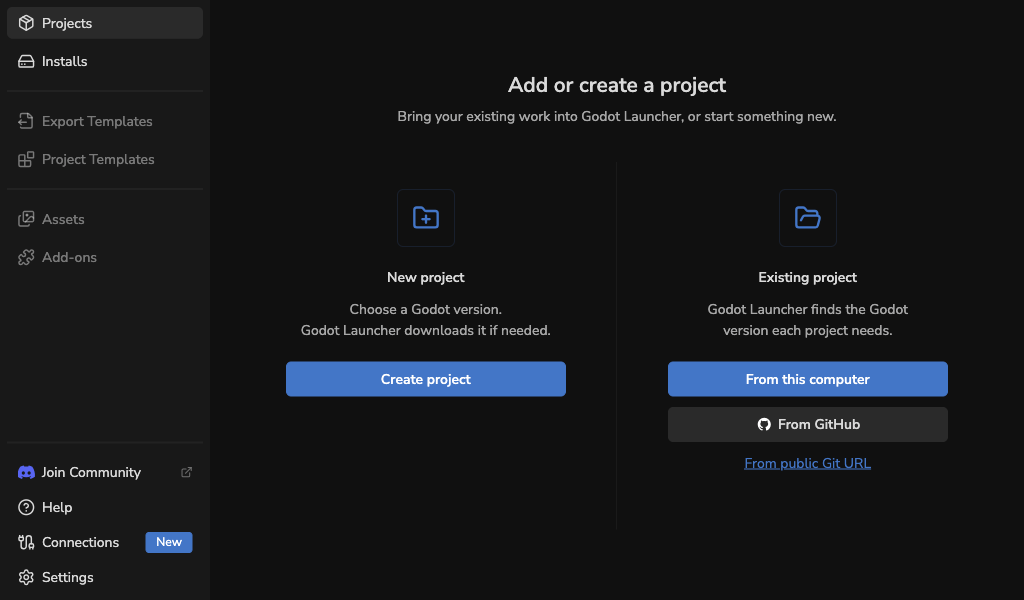
Start with an empty Projects view
You can start creating or adding projects before installing an editor. Select Create project to choose an editor and start a new project. Select From this computer to add a project already on your computer, or From GitHub to connect GitHub and import a repository. When Git is unavailable, From GitHub stays visible but disabled with an explanation; local import remains available.
Find a project
Projects appear in one of three groups:
- New contains projects you have not opened from the launcher.
- Pinned keeps chosen projects in the order you set.
- Recents contains projects you opened recently.
The order is based on projects opened from this computer. Activity on another computer does not change it.
Enter part of a project name in Search to filter all three groups.
Open or manage a project
Each project shows its folder, selected tools, and status. In Cards view, use the card actions to:
- Click Edit in Godot to launch the project with its selected Godot editor.
- Use the pin button to move the project into or out of Pinned.
- Select Open Terminal Here to open the project folder in your selected terminal.
- Use the folder button to open either the project folder or its Godot editor settings folder.
- Use the settings button to open Project Settings.
- Use the more-actions button to import or export Godot editor settings, or remove the project from the launcher.
Removing a project from the launcher list does not delete its project folder.
Open Terminal Here
Select Open Terminal Here in a project's actions in either Cards or List view to open that project's folder in a terminal. Before using it, enable Terminal and choose a detected terminal in Tool Settings.
If the action reports that Terminal is disabled, enable it in Tools. If no supported terminal is available, install one in its system location and select Rescan in the Terminal drawer. See Tool Settings for supported terminals and limitations.
In List view, small icons beside the project name show the selected code editor, Git repository, and windowed-mode setting. The Godot version and last opened time appear below the actions. Hover an icon for its description.
See Project Badges and Tooltips for the status shown on each project. See Troubleshooting when a project shows a warning.
Install a missing editor
When a project needs an official editor that is not installed, its Godot version shows a warning and the project cannot be opened. Select the download icon labelled Install required editor to download that exact editor. The launcher repairs every listed project that is waiting for the same editor when the download finishes. Custom-built editors cannot be downloaded this way; register the build instead.
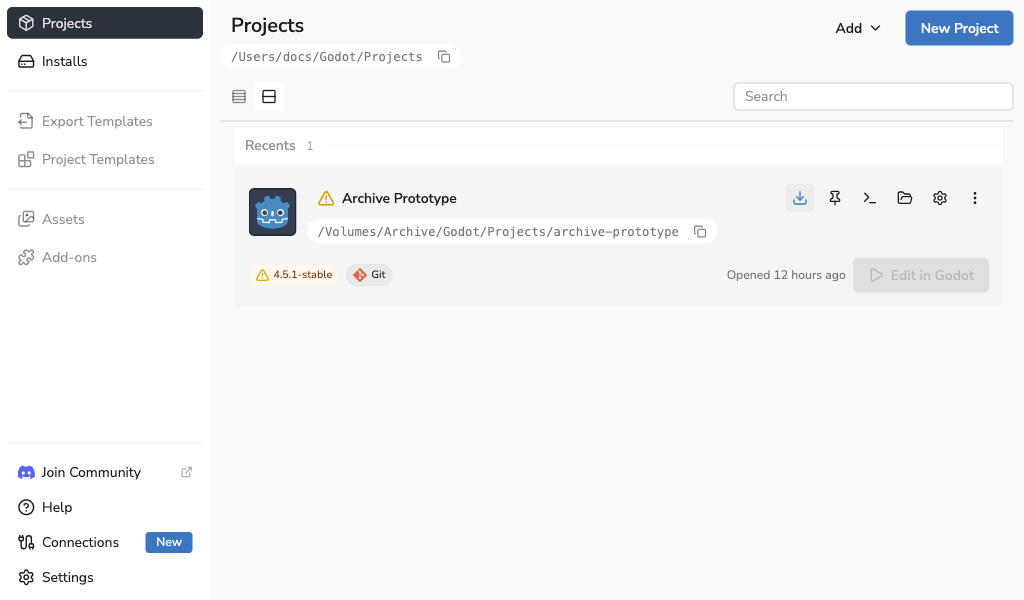
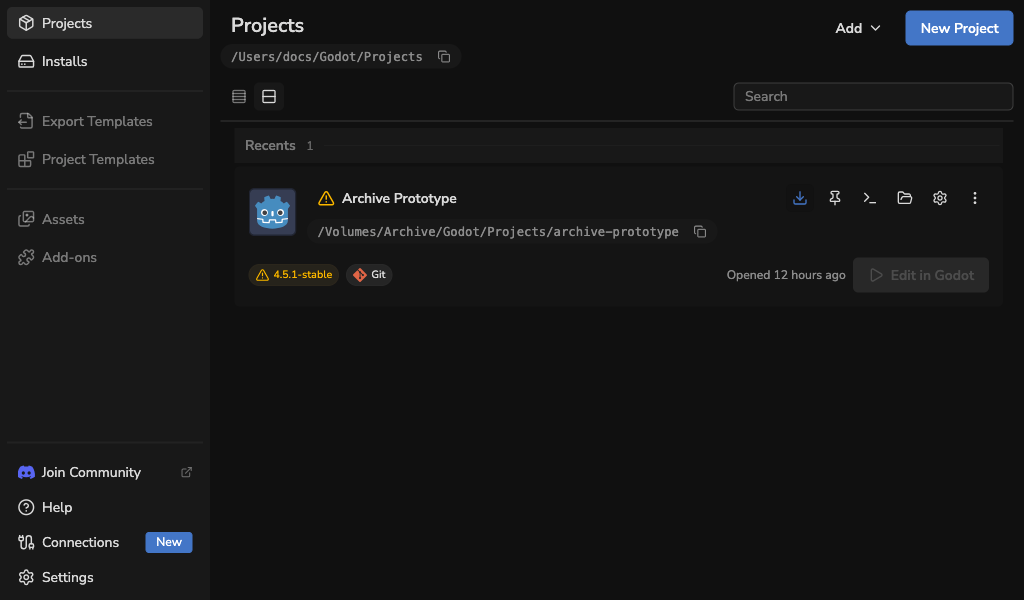
In List view, the same warning appears beside the required Godot version. The download action remains available in the row so you can recover without changing views.
Reorder pinned projects
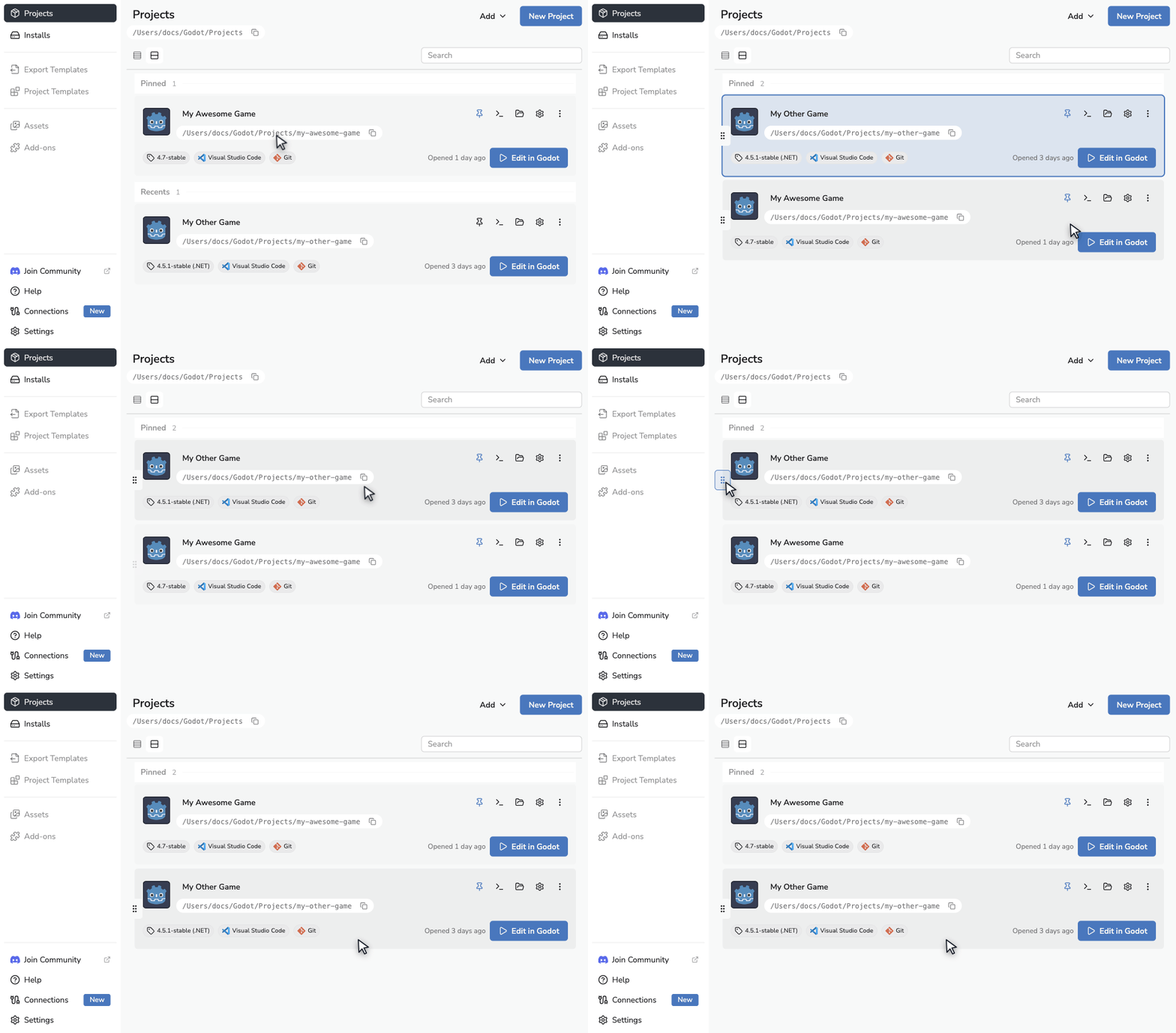
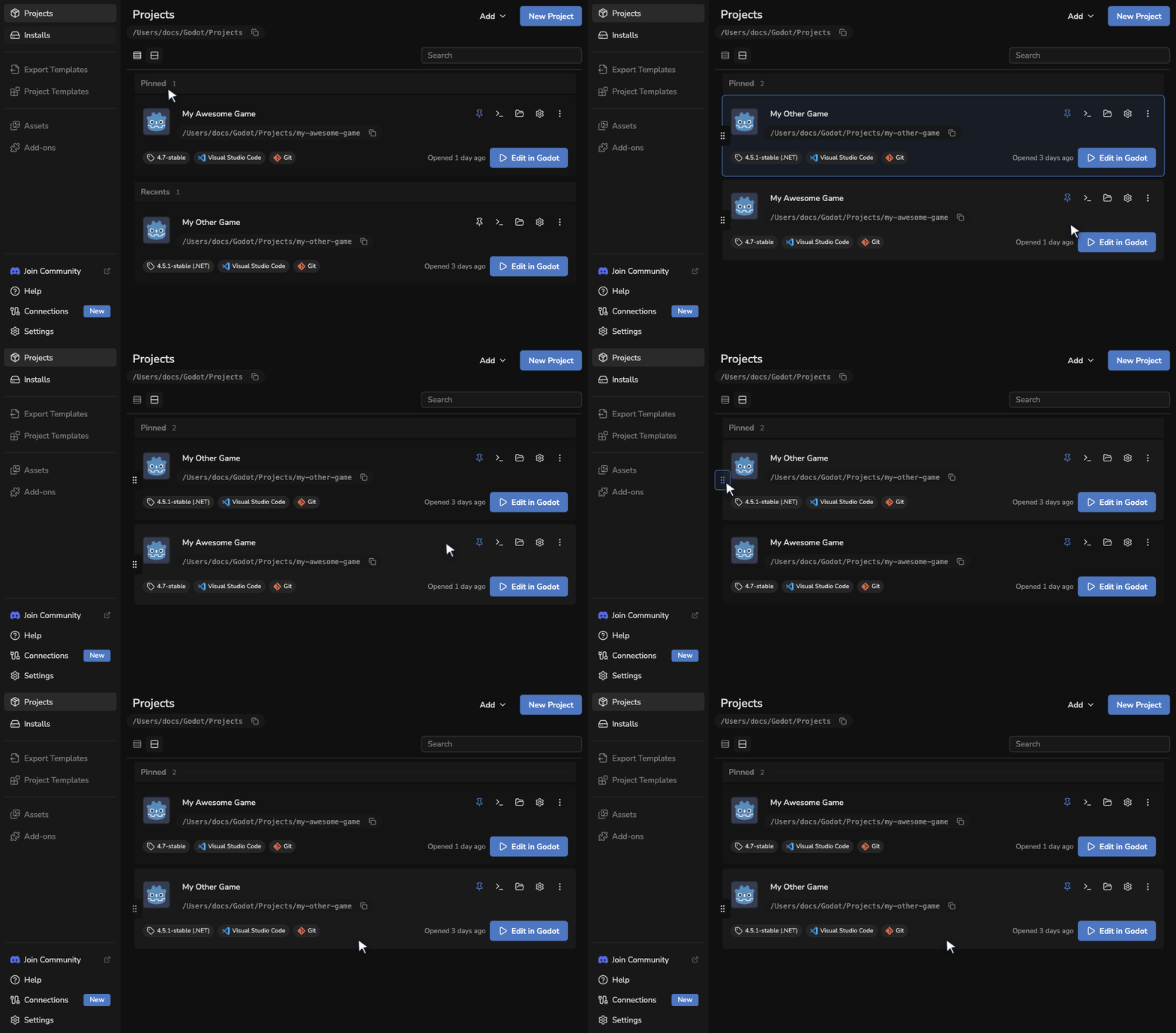
Drag a pinned project's reorder handle to move it. The handle appears when you hover over the project or focus it with the keyboard. The new order is saved on this computer.
You can also reorder with the keyboard:
- Focus the reorder button for a pinned project.
- Press Space or Enter to pick it up.
- Use the arrow keys to move it.
- Press Space or Enter to drop it, or Escape to cancel.
Clear any search before reordering pinned projects.