Duplicate a Godot Project
Godot Launcher can create a new project from an existing project's files. The original stays in place. The copy has its own folder, Godot editor preferences, and local game save data.
Use duplication to start a variation of a project or reuse your own starting project. The copy keeps the source's exact Godot version, build flavour, and renderer. Duplication does not upgrade or convert the project.
Choose the copy
- Save your work in the source project. Avoid changing its files while copying.
- In Projects, open the project's more-actions menu and select Duplicate.
- In Project copy, enter the new Project Name and choose its Parent folder. Check the full New project folder preview.
- Use the tag icon beside the name to review the source project's tags. Add or remove tags for the copy without changing the source.
- Under Include, choose whether to copy Godot editor preferences and Game save data.
- Select Continue to open More options. This checks the name and destination; it does not start copying.
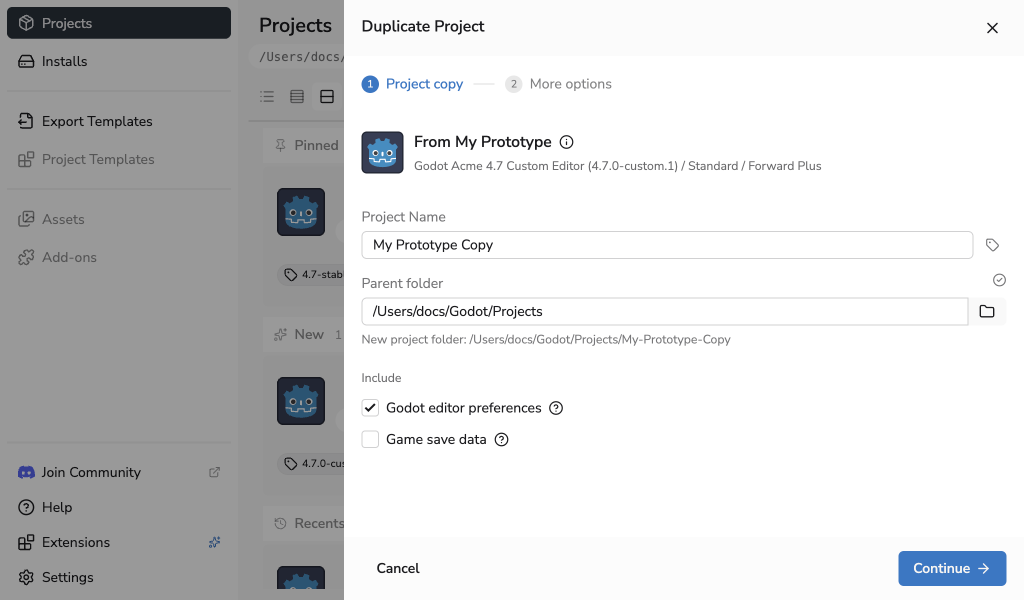
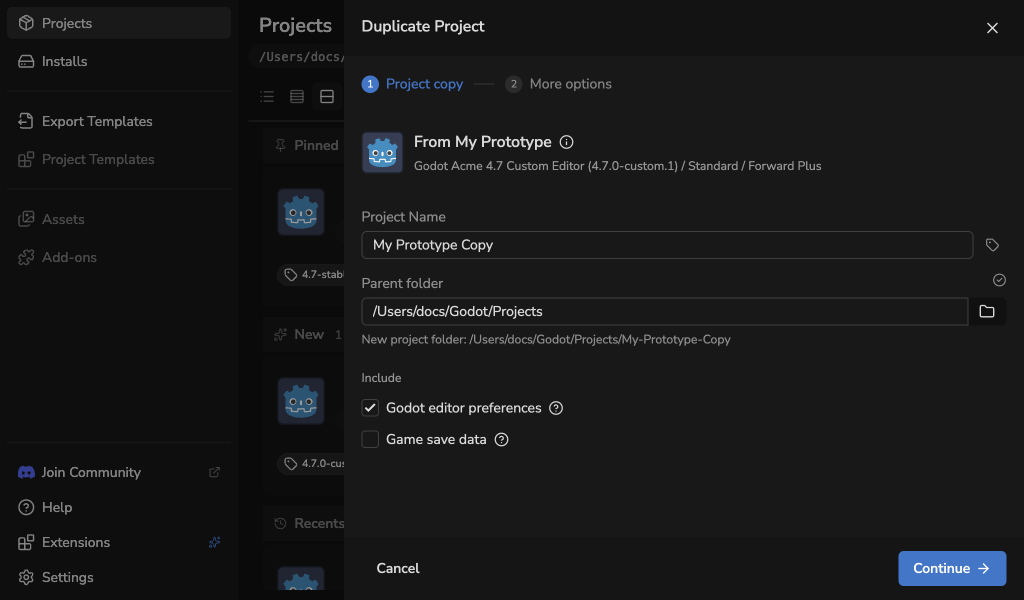
The new name, project folder, and editor settings must be available. The destination cannot overlap the original project or its local save data. Choose another location if the launcher reports a conflict.
Godot editor preferences
Godot editor preferences is enabled by default. It copies the source's main editor preferences, such as its theme, into the copy's separate editor environment. It does not copy every file in the source editor's data folder.
Turn this off to use fresh preferences. Missing preferences use defaults. If the preferences cannot be read, correct the source file or turn this option off before trying again.
Game save data
Game save data is off by default, so the copy starts fresh. Enable it to copy local persistent data, such as saved progress and player settings, from the source project's Godot user:// folder.
Supported custom Godot save folders are included. The copy uses its own save location, and runtime save data is not included in GitHub publication. Files saved through arbitrary paths outside Godot user:// are not copied by this option.
Choose tools and create the copy
- In More options, choose the Code Editor. Its integration is applied to the copy.
- Leave Create a new Git repository enabled to start a new repository and initial commit. Enable Use Git LFS if needed.
- Optionally enable Publish to a private GitHub repository, then choose the owner and repository name. See publishing requirements and recovery.
- Leave Open in Godot enabled to open the copy when it is ready.
- Select Duplicate project, or Duplicate and publish when publishing is enabled. If the matching official Godot editor needs downloading, the action includes Install.
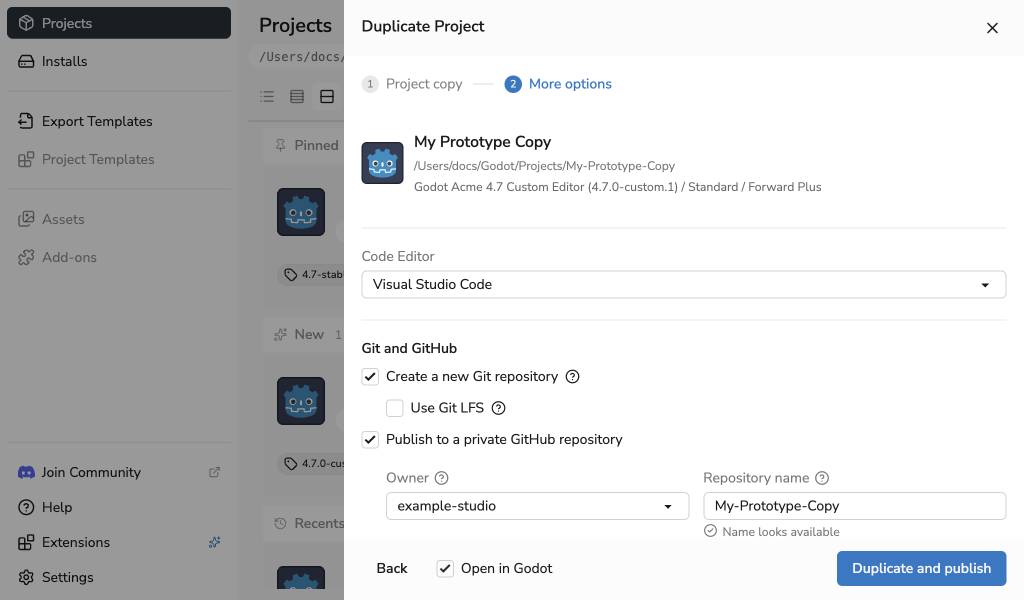
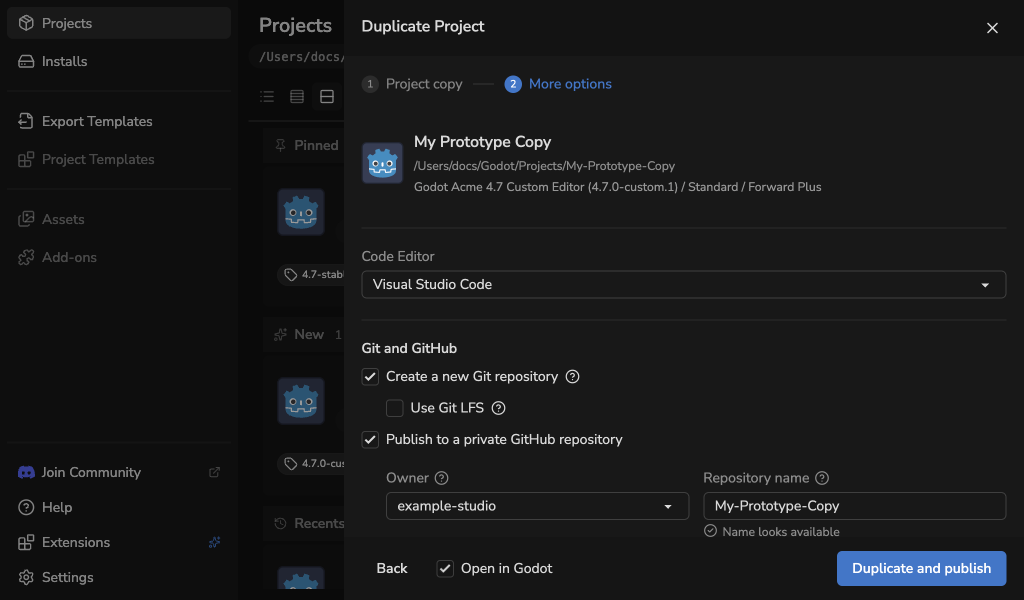
If the destination is inside another Git repository, the launcher asks before continuing. Continuing uses that repository without creating a separate repository or initial commit, configuring Git LFS, or publishing to GitHub.
Back preserves your choices. Closing the drawer discards them; reopening starts a new copy.
If the source Godot editor is missing, the launcher installs the matching official version before copying. If it is unavailable, install or register that exact build in Installs first. The launcher does not substitute another version.
The copy includes scenes, scripts, assets, and project settings. Generated Godot caches and the source Git repository are omitted. A new Git repository has no source history or remotes. C# assembly names and rendering settings are preserved.
Follow progress and recover
Progress shows copying, selected Git setup, final project setup, selected GitHub publication, and opening Godot. The copied file count remains visible through the later stages. Cancel is available while copying can still be stopped safely.
The new project is added to Projects once local setup succeeds. If publishing fails, the local copy remains available. Follow the existing recovery options to retry or Continue locally; do not create another copy just to retry publication.
After the copy's drawer and any result dialogs close, Godot Launcher scrolls to the new project and briefly highlights it. This works in every project view. If the current search or tag filters would hide the copy, it stays visible until you change those filters. Your saved filters and project order stay unchanged.
If copying fails, review the error before trying again. Unsupported file links, nested Git repositories, submodules, or missing Git LFS asset content must be resolved first. If another application changed copied files during recovery, the launcher keeps those files and reports their locations for review.