Import a Godot Project from Git
Godot Launcher clones a repository onto your computer, then finds the Godot projects inside it. You choose which projects to add and the editors they use.
To start, make sure Git is available in Settings > Tools. Use a public HTTPS clone URL, or connect GitHub to choose a repository you have access to, including private repositories.
Clone a public repository
- Open Projects > Add > Clone public Git repository.
- Enter the public HTTPS clone URL.
- Select Continue to choose its destination.
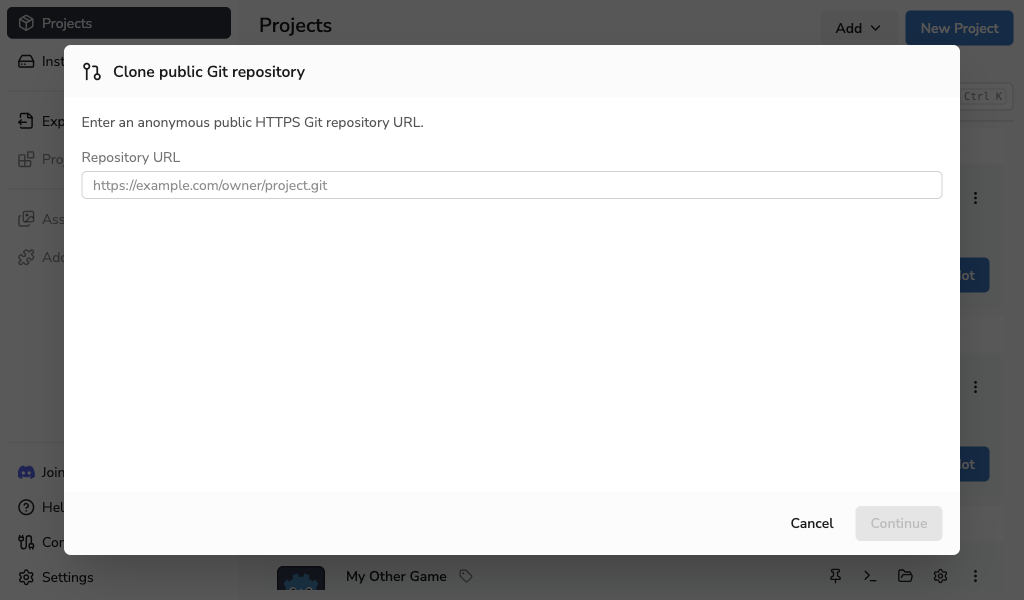
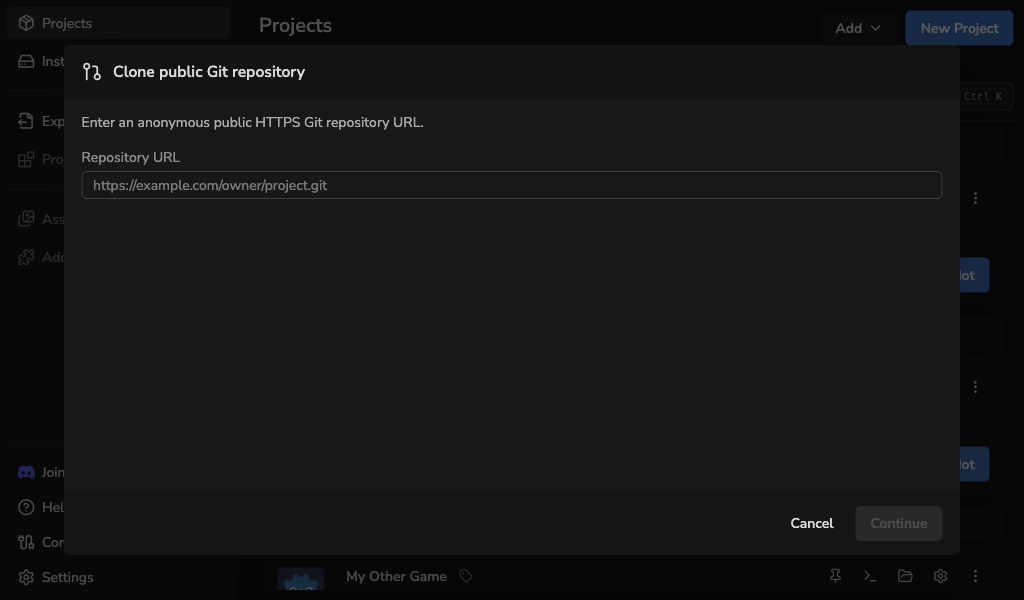
Public imports require anonymous access over HTTPS. URLs containing credentials, queries, or fragments are not supported. SSH URLs, redirects, and destinations on a private network are also rejected. To import a private GitHub repository, use From GitHub below.
Choose a connected GitHub repository
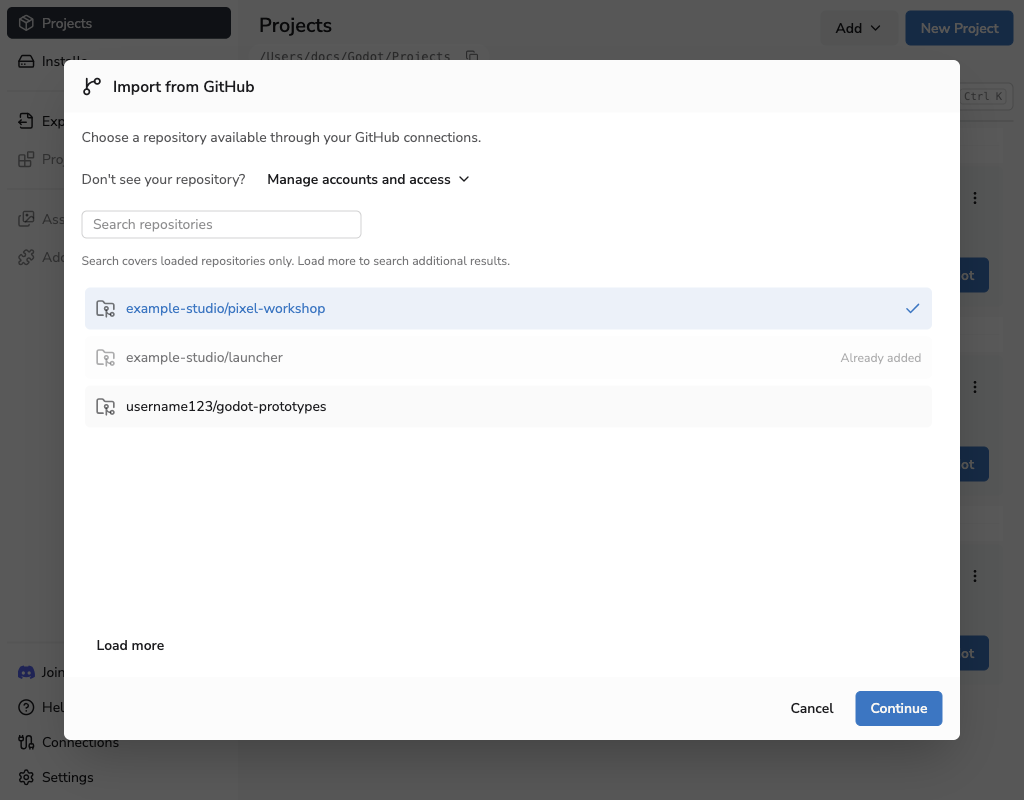
- Select From GitHub on the empty Projects screen, or open Projects > Add > From GitHub.
- If prompted, connect GitHub and allow access to the repositories you want to import. See Connections for the browser steps.
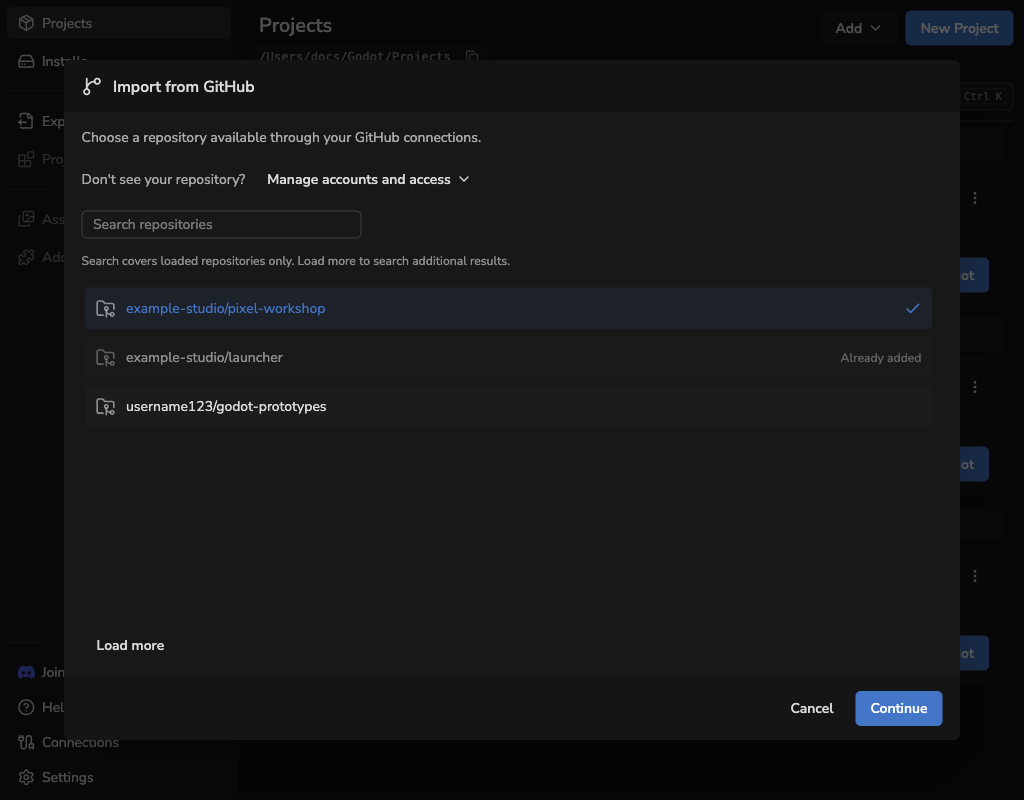
- Select a repository, then select Continue.
Search covers the repositories already loaded. Select Load more to search further results. Repositories already represented by a project in the launcher are disabled.
If a repository is missing, select Manage accounts and access above the list. Reconnect, add an account, or update repository access, then return to the refreshed list.
Choose the clone destination
- Check the full destination path. Edit or browse for a different parent folder if needed. The repository name remains the final folder name, and the destination must not already exist.
- Select Clone repository.
- Wait for cloning to finish. You can cancel while the current stage allows it.
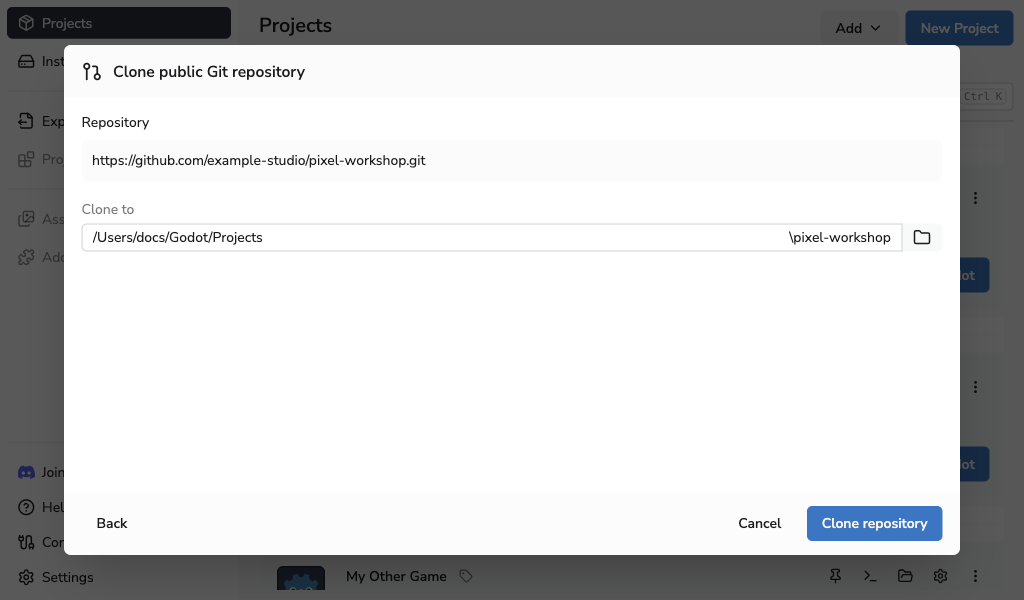
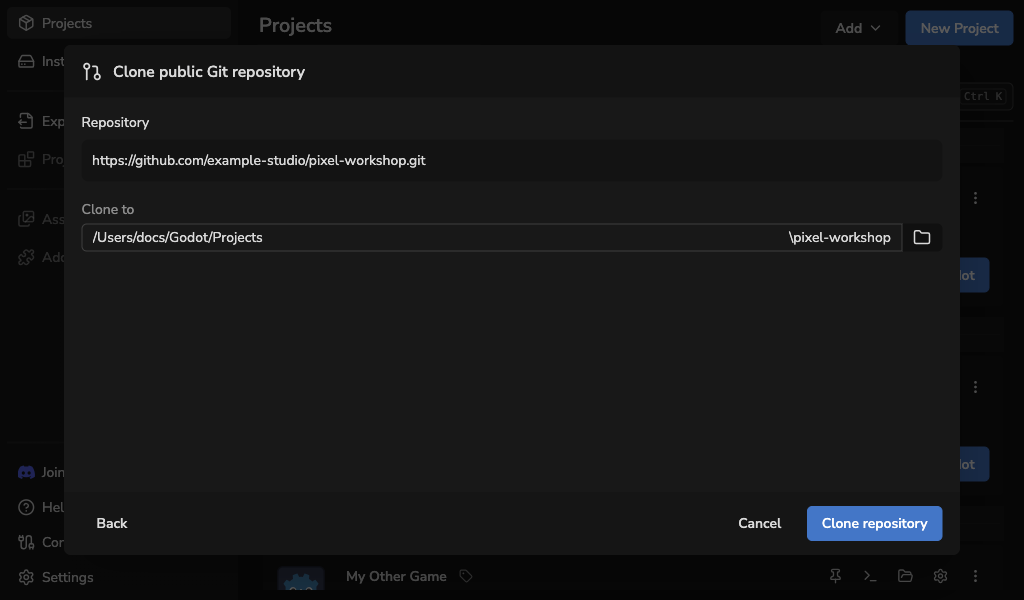
If cloning fails before the destination is created, check the error and retry. If cloning has finished but a later stage fails, the repository stays on disk; see Recover a retained clone.
Set the commit identity
After cloning, the launcher uses your configured Git identity or asks you to choose one for future commits. Select Add Git identity to enter a name and email, or Continue without identity to set it up later. Importing does not create a commit.
If saving an identity fails, the clone is kept and import can continue with a warning. See Using Git With Godot Launcher for repository identities, global identities, and saved presets.
Initialise public submodules
A repository can use Git submodules to include files from other repositories. If submodules are detected, choose:
- Initialise submodules to download supported submodules, including nested ones, before reviewing projects.
- Continue without submodules to use the files already present. Projects or dependencies inside uninitialised submodules may be missing.
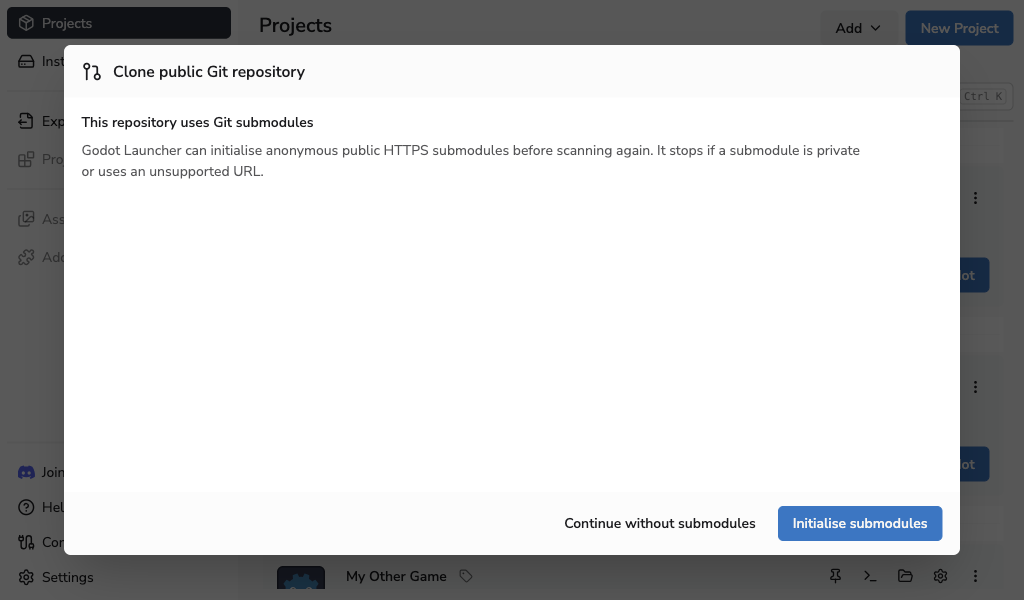
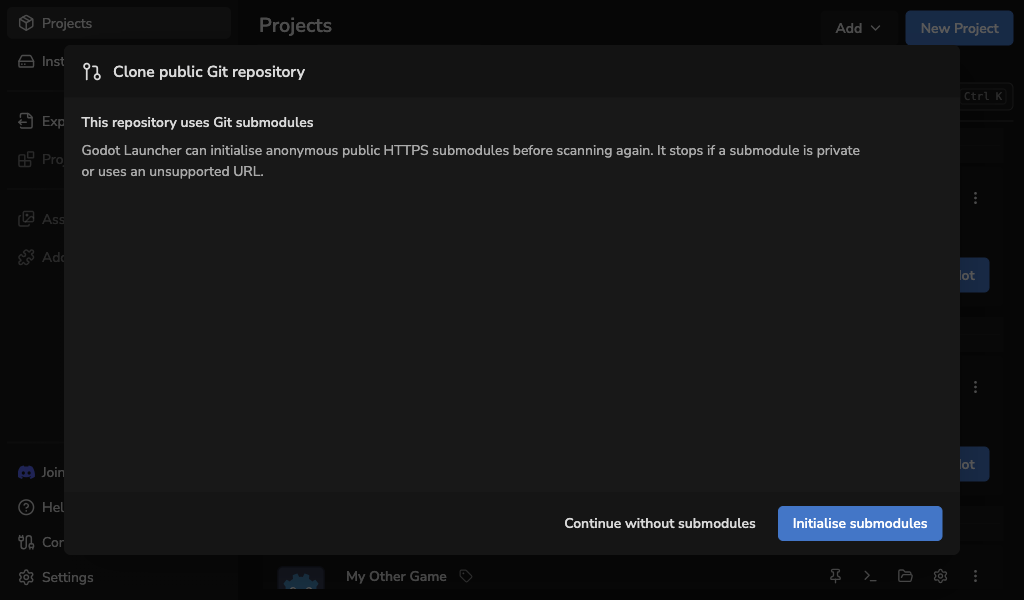
Only anonymous public submodules with absolute HTTPS URLs are supported, including when the main repository comes from connected GitHub. Private submodules, relative or SSH URLs, redirects, and private network destinations stop initialisation. Continue without the remaining submodules, or open the clone folder and complete their setup with Git before adding the projects.
If initialisation fails, the partially initialised clone is kept. Use the offered recovery action to retry or continue without the remaining submodules. If you cancel, you can open or keep the clone, or remove it as described below.
Choose Godot projects and editors
- Review the discovered projects. Clear the selection for any project you do not want to add.
- Check each name and editor choice. Rename entries with conflicting names, and skip folders already registered in the launcher. Renaming an entry does not rename its Godot project or folder.
- Choose an installed or downloadable Godot editor for each project, or Add With Missing Editor to add it before its editor is available.
- Choose a code editor if needed. The available choices include automatic detection, None, and configured code editors.
- Select Add selected projects, which also shows the number selected.
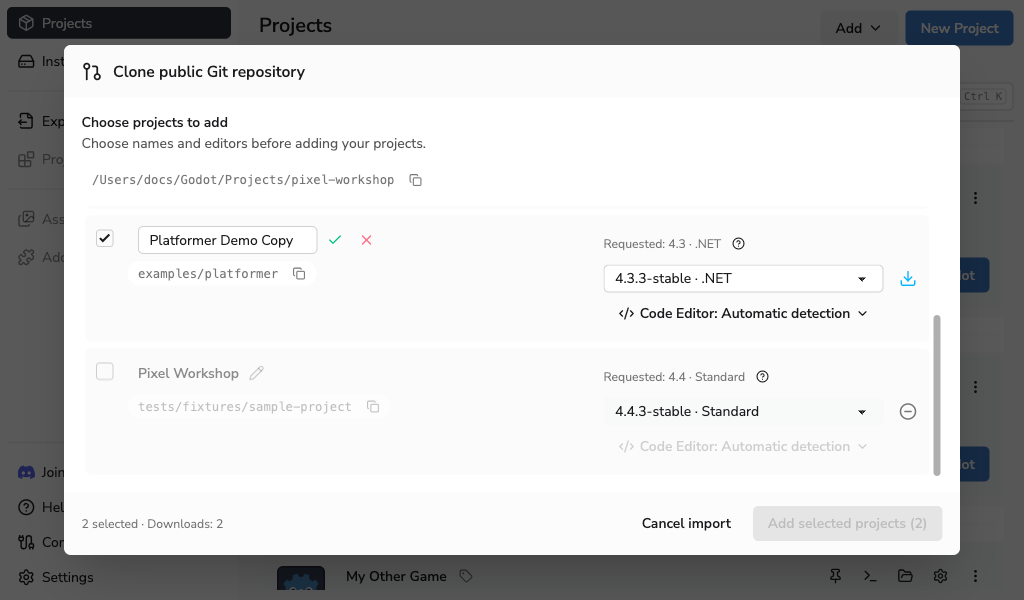
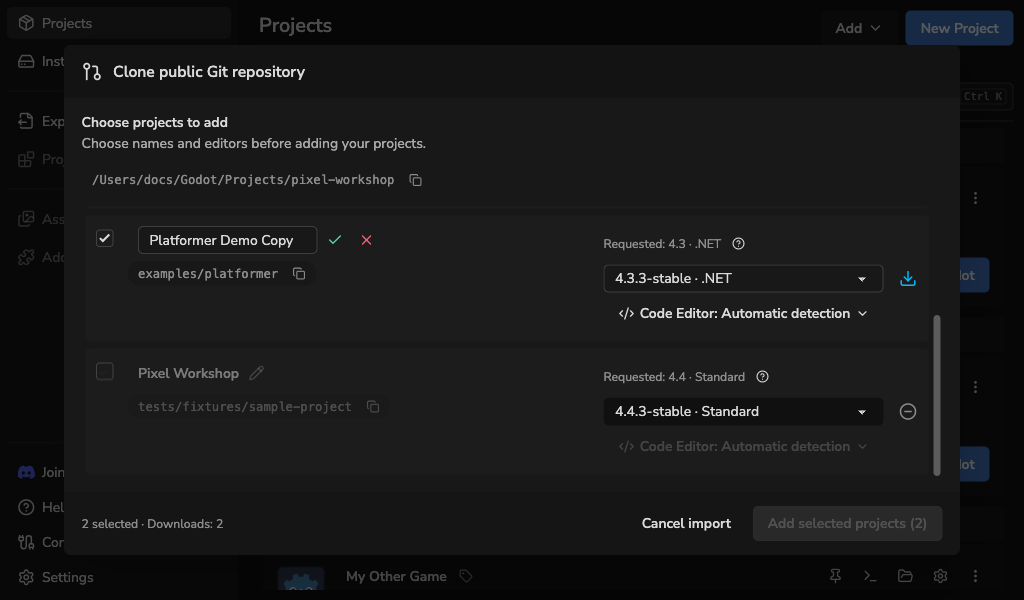
For projects without a saved editor choice, the launcher recommends a matching stable release. Projects with a .godotlauncher file keep their saved editor unless you choose another. See Add an Existing Godot Project for editor choices.
The projects appear in Projects. Any selected editor downloads continue in the background; follow their progress in Installs. A project becomes available when its editor is ready.
If a download fails, the selected editor stays saved. Select Install required editor on the affected project to retry, or see editor selection troubleshooting.
The import result lists added, renamed, skipped, and failed projects. Successfully added projects stay added. Select Review and retry to return the failed projects to review.
Recover a retained clone
The cloned repository stays at the displayed location if discovery fails, no valid Godot project is found, or you close project review. You can open the folder and add its projects from this computer later.
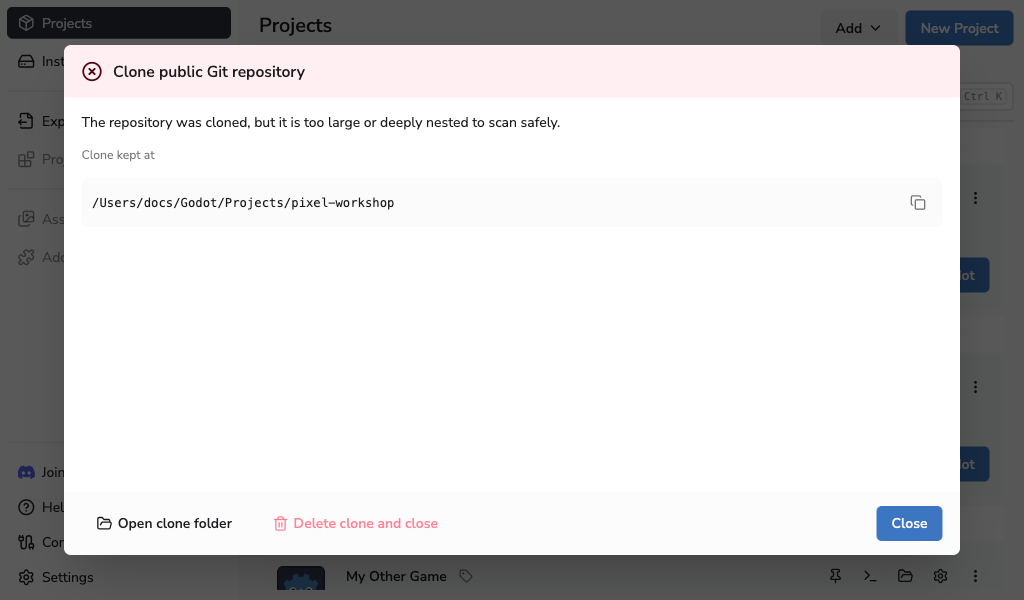
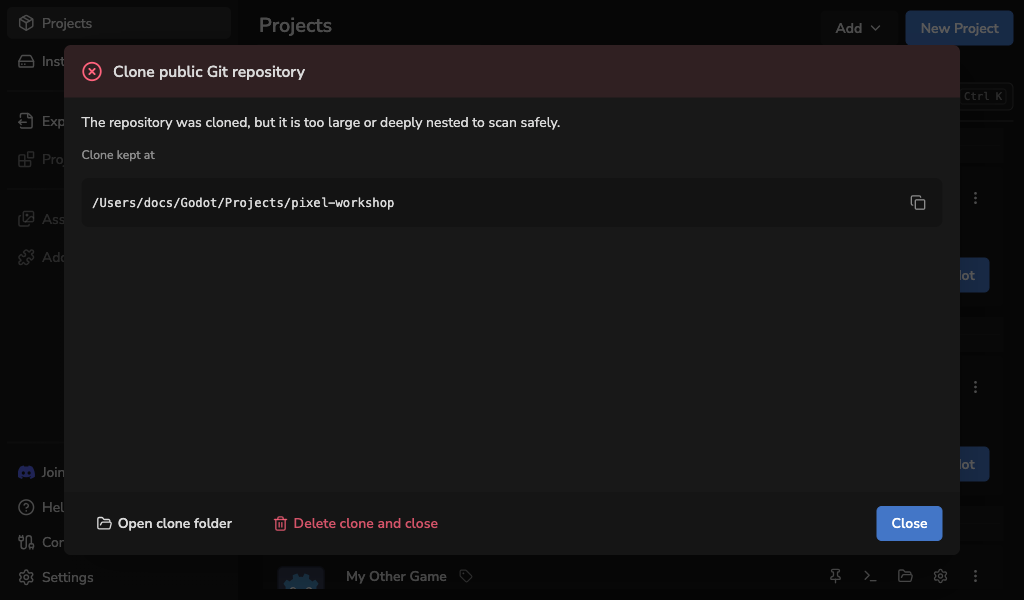
Delete clone and close permanently removes the repository folder created by this import, including any files you added there. It does not move the folder to the Trash or Recycle Bin. Copy out any work you want to keep before using it.
- Open clone folder opens the repository location.
- Close keeps the repository at that location.
- Delete clone and close removes it. This action is available only when no project from the clone was added successfully.
If even one project was added, the launcher keeps the clone because that project uses its files. If deletion fails, open the clone location and check which files remain before trying again.
See repository import troubleshooting for destination, discovery, and connection problems, or How GitHub Connections Are Protected for credential details.