Save Disk Space with Godot Editor Links on Windows
On Windows, Godot Launcher can use symbolic links to share an installed Godot editor between projects that select it. This reduces duplicate editor files and avoids copying them when preparing a project editor. Symbolic links are optional and off by default.
Each project's editor copy or links are stored in a separate environment under .editor_config in the editor install location. They are outside the Godot project folder, so enabling links does not change that folder's contents or size.
Enable editor links
- Open Settings > Behavior in Godot Launcher.
- Under Editor symlinks, select Use symbolic links for Windows project editors.
- Confirm with Enable symlinks. The preference saves automatically.
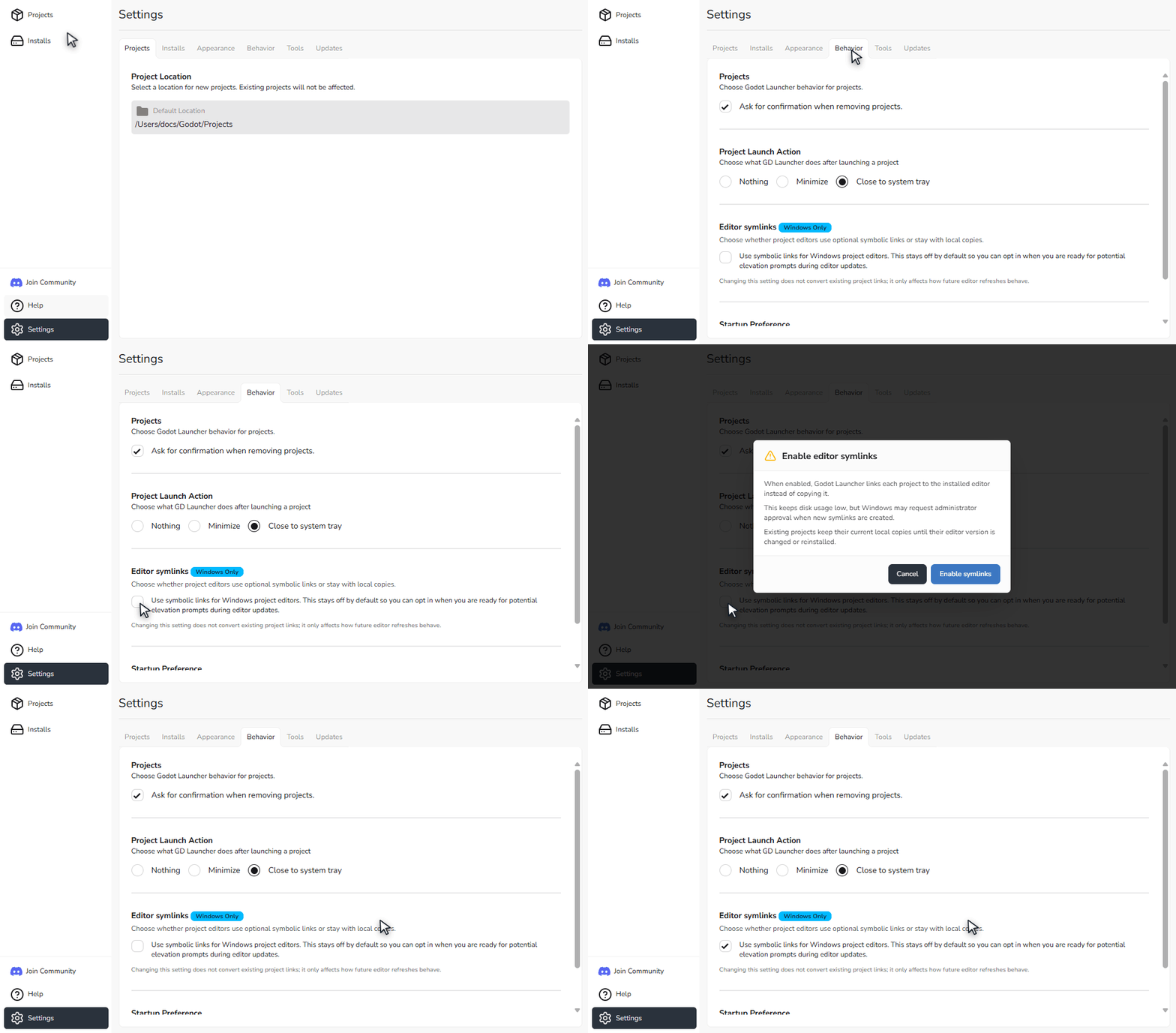
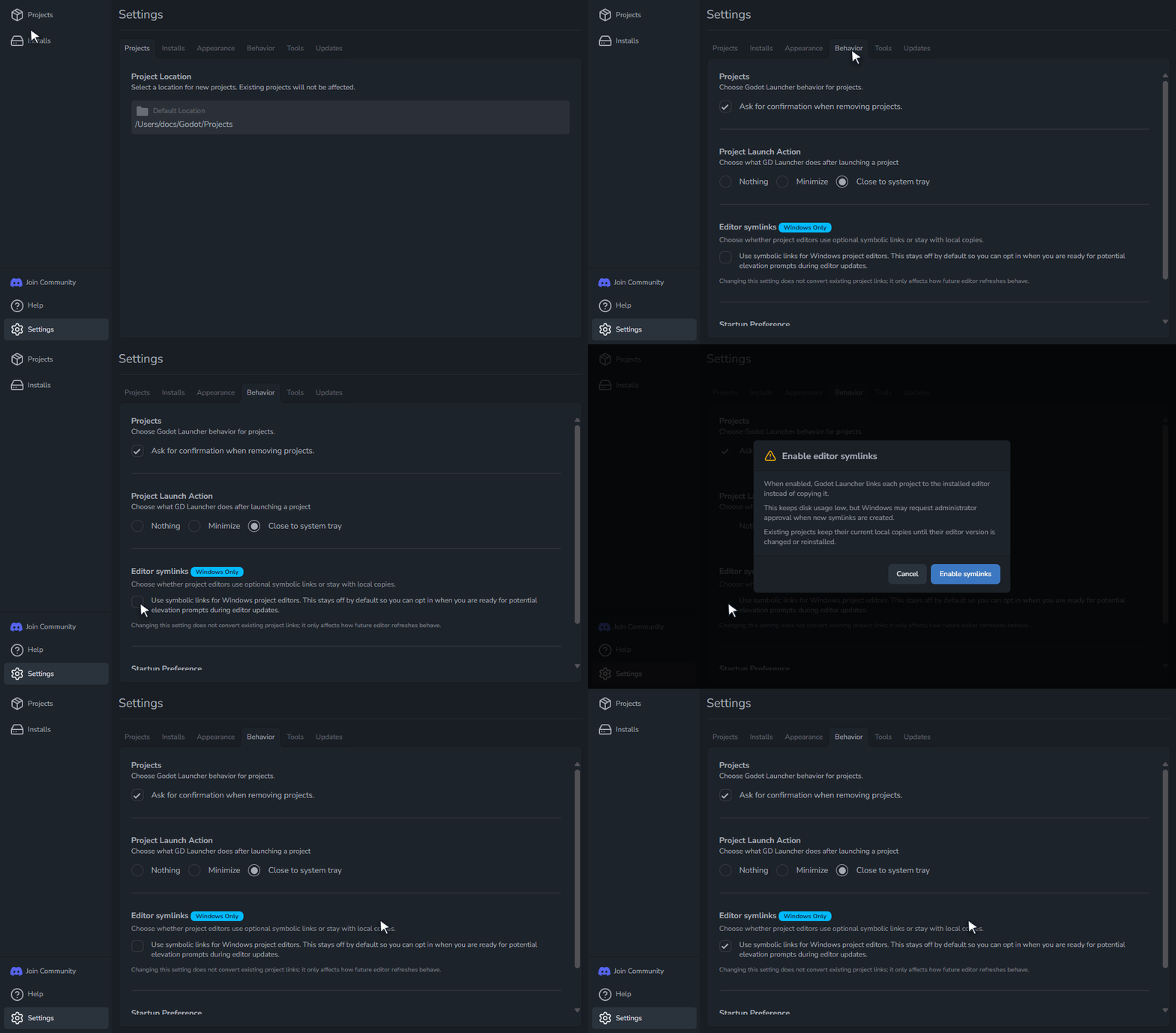
Changing the preference does not convert existing copies or links. It applies when the launcher prepares an editor for a new or added project, or when a project's editor is changed or reinstalled.
To return to editor copies, clear the same checkbox and confirm with Disable symlinks. Existing links remain until the project's editor is changed or reinstalled.
Windows permissions
The launcher first tries to create links without administrator approval. If Windows denies permission, it requests approval through User Account Control (UAC). If link creation fails, the launcher falls back to copying the editor files.
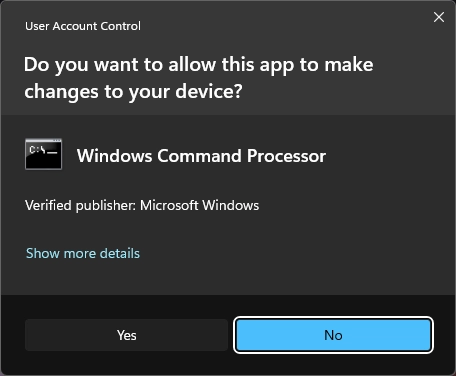
Windows Developer Mode can allow link creation without an administrator prompt. On a managed device, ask your administrator whether Developer Mode or elevation is permitted. You can leave editor links off and use copies.
Enable Windows Developer Mode
- Open Windows Settings and search for Developer Mode.
- Turn on Developer Mode and confirm the Windows prompt.
On Windows 11 25H2 and later, the setting is under System > Advanced > For developers. Earlier versions use a For developers page. Enabling Developer Mode requires administrator access, and device policies may restrict it.
Check whether an editor uses links
The Projects list does not indicate whether an editor uses copies or links. To check:
- In Projects, open the project's folder menu and select Open Editor Settings Folder.
- In File Explorer, go up one folder from
editor_datato the project's editor environment. - Type
cmdin File Explorer's address bar and press Enter. - Run
dir /a:l *.exein Command Prompt.
The command lists executable files with the reparse-point attribute, including symbolic links. A linked Godot executable appears with its target path. See Microsoft's dir command reference for the listing options.
If the executable appears with dir *.exe but not with dir /a:l *.exe, it is a copy. This may be an existing copy or the fallback after link creation failed. You can continue using it. If you want future editor changes to use links, check the Windows permissions.
Troubleshooting
- Windows keeps requesting administrator approval: Enable Developer Mode if your device permits it, approve the requests, or turn editor links off to use copies for future editor changes.
- Security software blocks the launcher or a Godot executable: Check its protection history to identify the file. Follow the Windows release signing guidance for the launcher, and verify that a blocked Godot editor came from the official release you installed before allowing it.
To select another editor version for a project, see Change a Project's Godot Version.