Using Git With Godot Launcher
What is Git?
Git is a distributed version control system. It helps you track changes to files over time. Whether you're working alone or in a team, Git makes it easier to manage your work, recover from mistakes, and collaborate smoothly.
Why Use Git With Godot?
Using Git with Godot projects makes your development safer and more efficient. When you add Git to a Godot project, you can:
- Track changes in both code and assets
- Revert to earlier versions when needed
- Collaborate with others without overwriting work
Even if you're working solo, it's a good idea to use a Git hosting service like GitHub to store backups of your Godot projects.
Git in Godot Launcher
Godot Launcher automatically detects Git and gives you the option to initialize the new Godot project with Git when created. You can also initialize Git later from any project’s overflow menu, no need to visit the terminal.
Git is detected using this background shell command:
$ git --version
git version 2.39.5 (Apple Git-154)
Create a New Godot Project With Git
When Git is detected the New Project UI shows an option to enable Git:
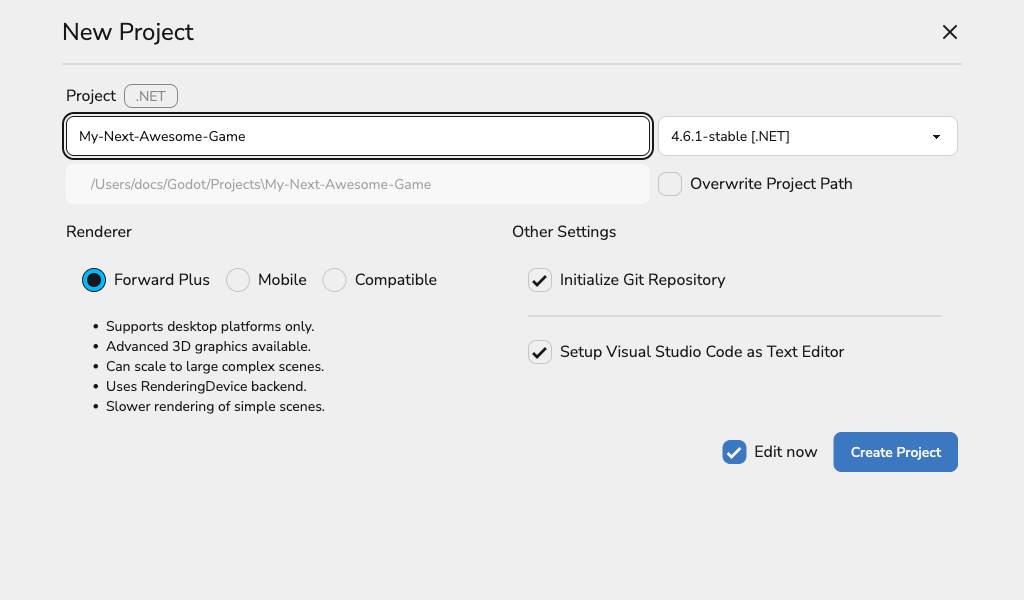
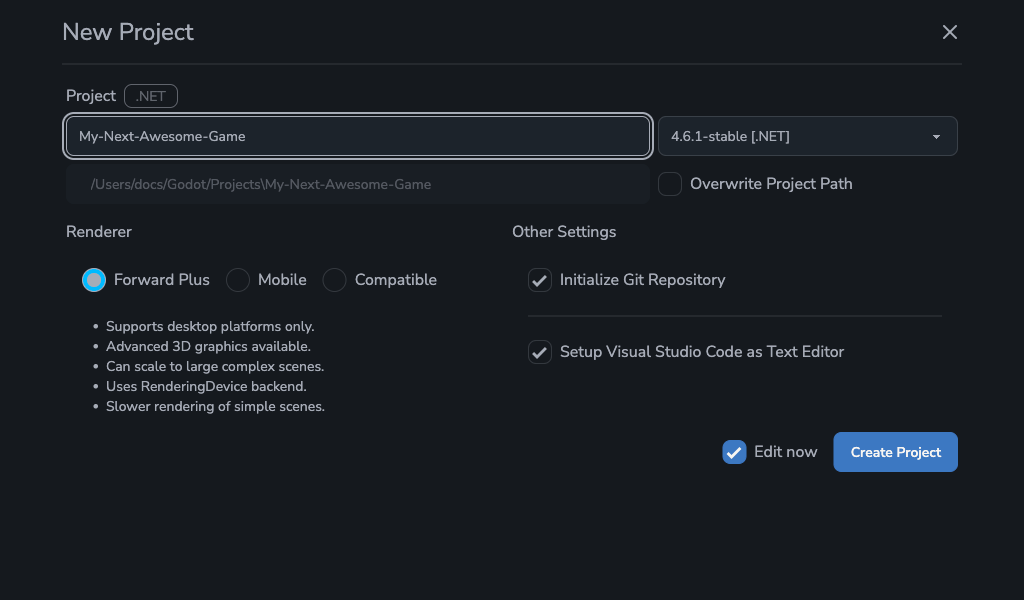
You can see if Git is detected in Settings → Tools. More info here
If you choose to enable Git, the launcher will automatically run the following commands:
git init
git add .
git commit -m "initial commit"
git branch -m main
If you chose to add git to a project later, only git init is run and no commits are created
This sets up your Godot project with Git and creates the first commit. It's a clean starting point that you can use later to reset your project if needed.
If Git is installed but your user.name and user.email are not set, the launcher won’t be able to make the first commit.
No changes are lost, but you’ll need to configure Git to start using it.
Initialize Git from the Project Menu
Existing projects can adopt Git without leaving the launcher:
- Open the Projects list and click the overflow menu beside your project.
- Choose Initialize Git Repository.
The launcher validates that Git is installed (using the cached tool check), runs git init, and marks the project with a Git badge. If Git is unavailable, the menu entry is disabled until you rescan tools in Settings → Tools. Existing repositories keep the action hidden to avoid accidental reinitialization. learn more about settings
 Replace this placeholder with the finalized overflow menu capture when ready.
What Happens if Git Is Not Installed?
If Git is not installed, Godot Launcher still creates your project, but shows a warning. Git features are disabled, and no Git repository is initialized.
This is what the UI looks like when Git is missing:
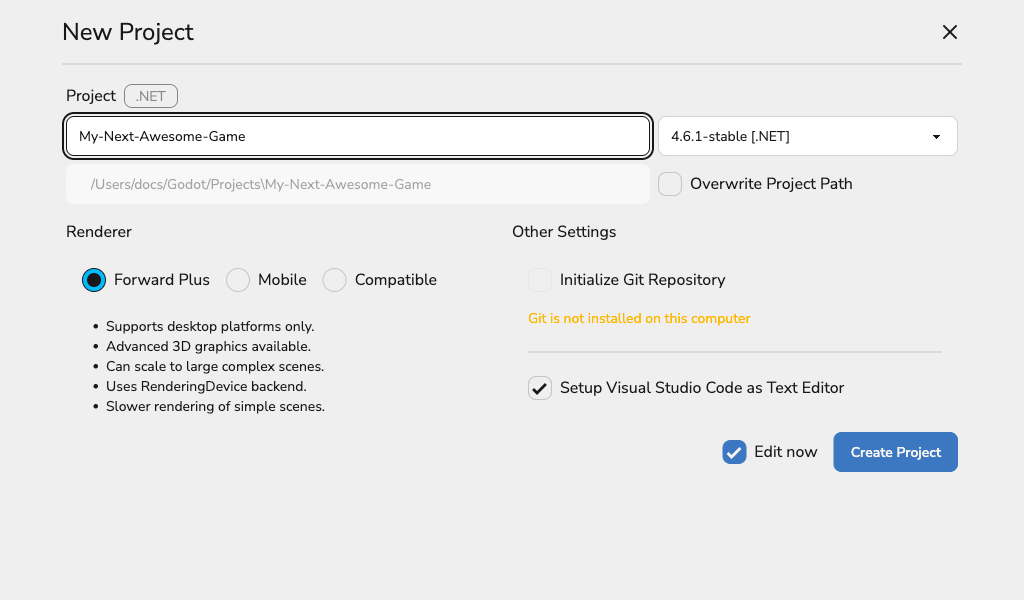
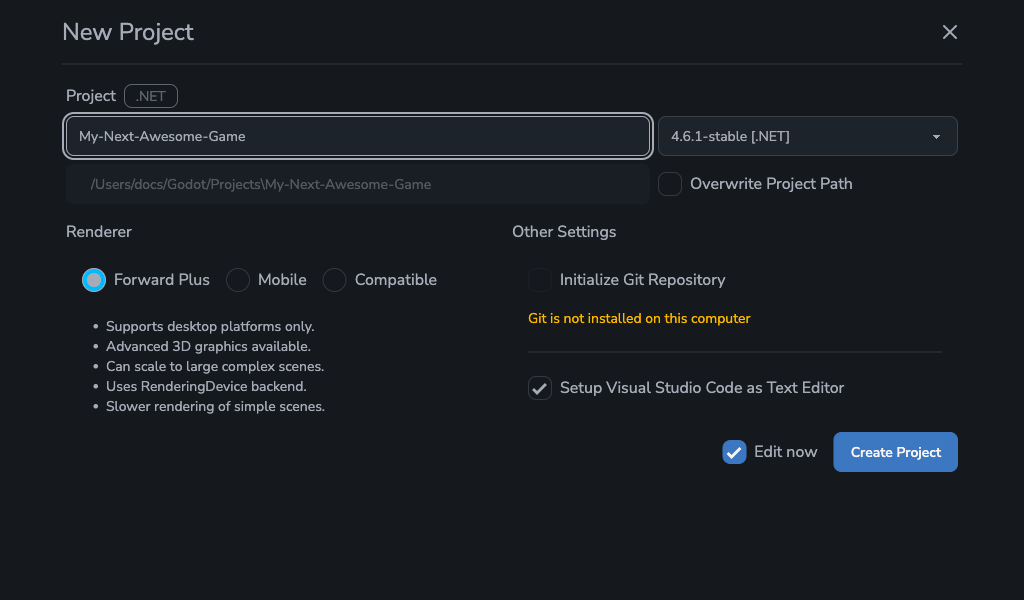
To get the most out of version control in Godot, install Git using this guide.
Git User Not Configured?
If Git is installed but the user.name and user.email values are missing, the first commit in your Godot Git project will fail.
You need to have set a user.name and user.email to create commits.
To fix this, run the following commands from terminal:
cd /path/to/your/project/directory
git config --global user.name "Your Name"
git config --global user.email "your.email@example.com"
You can also set these values for just one project by removing --global.