Manage Launcher Updates
Godot Launcher 1.9.0 uses a clear update flow. The launcher can check for updates automatically in the background, but you decide when to download an update and when to restart to install it.
Where to manage updates
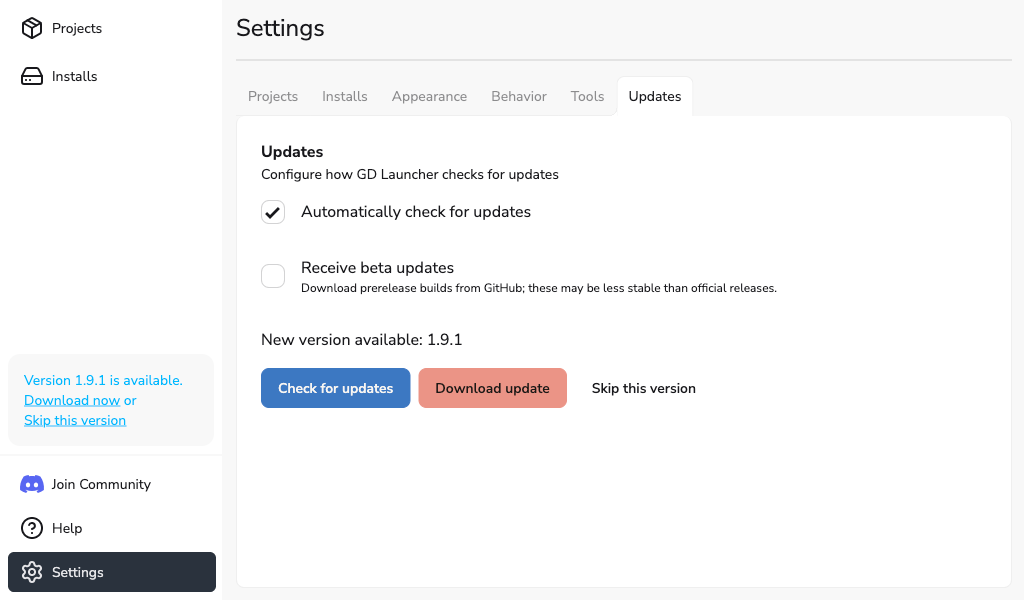
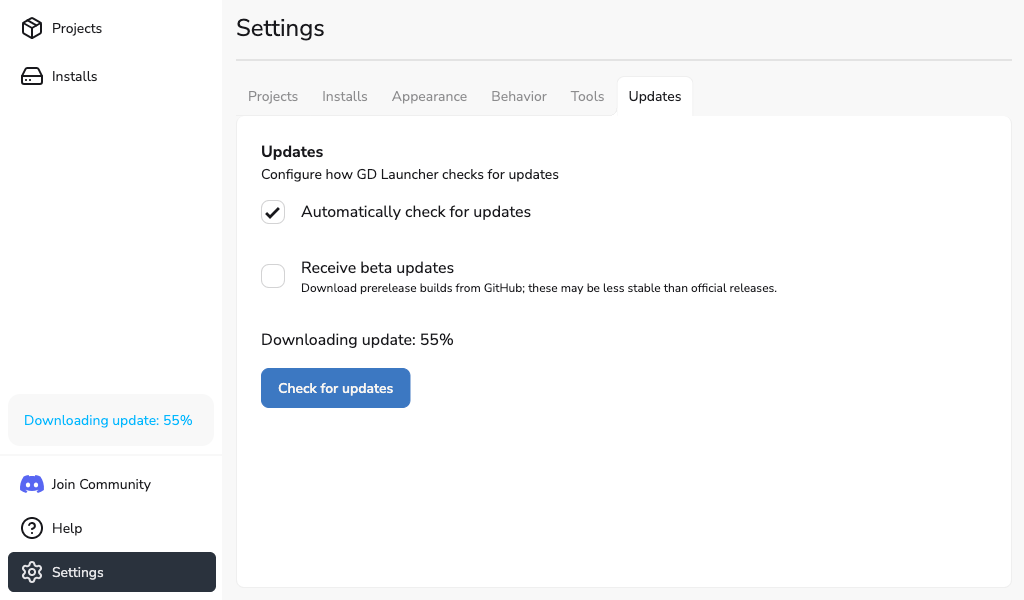
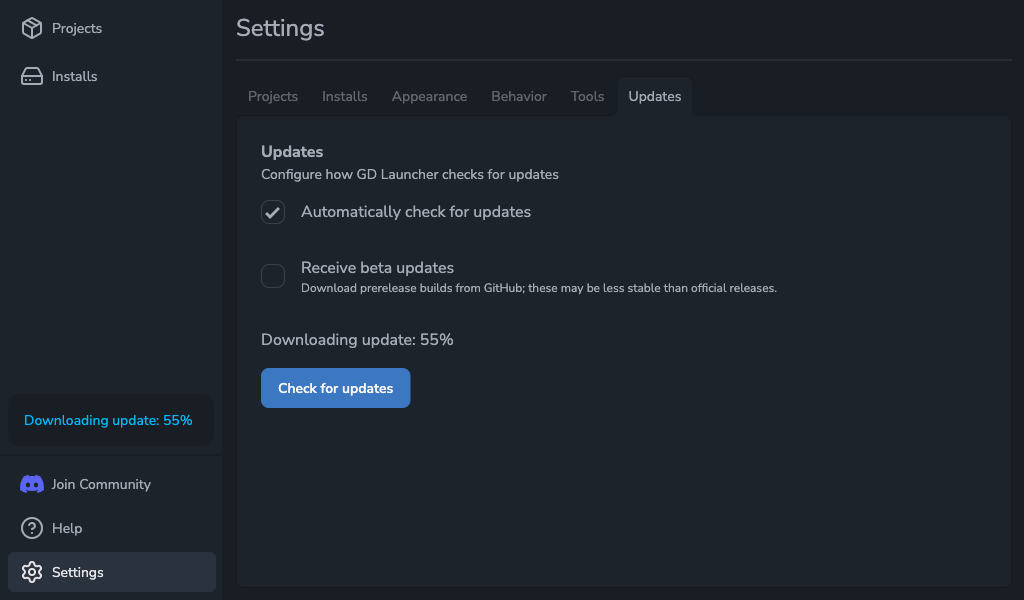
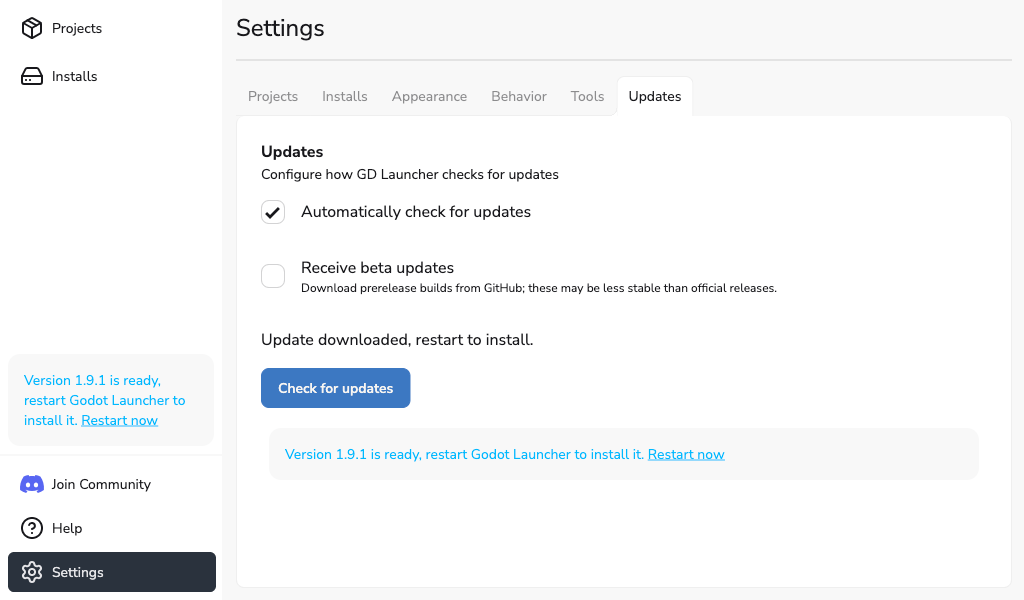
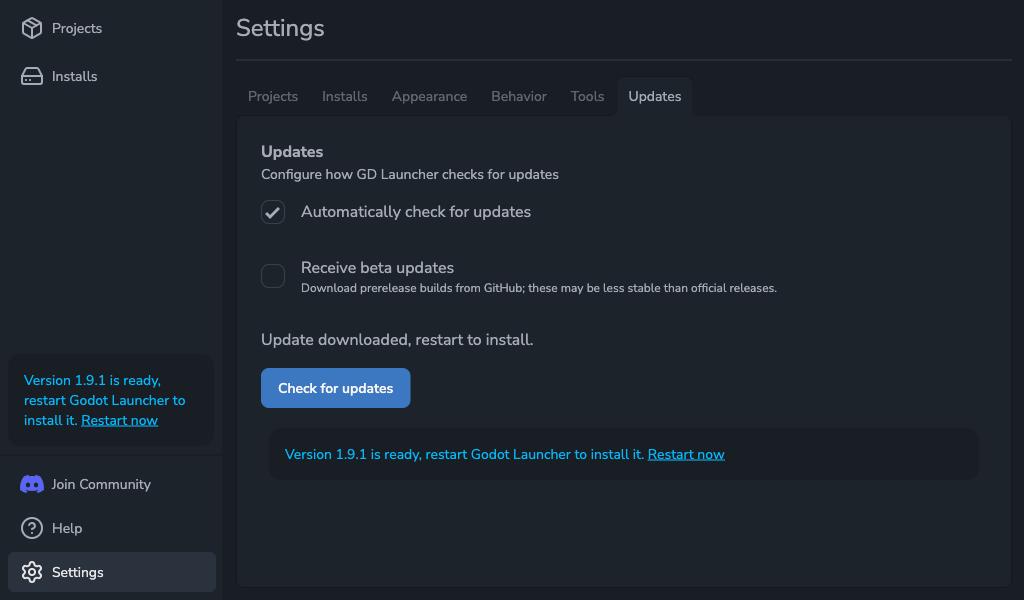
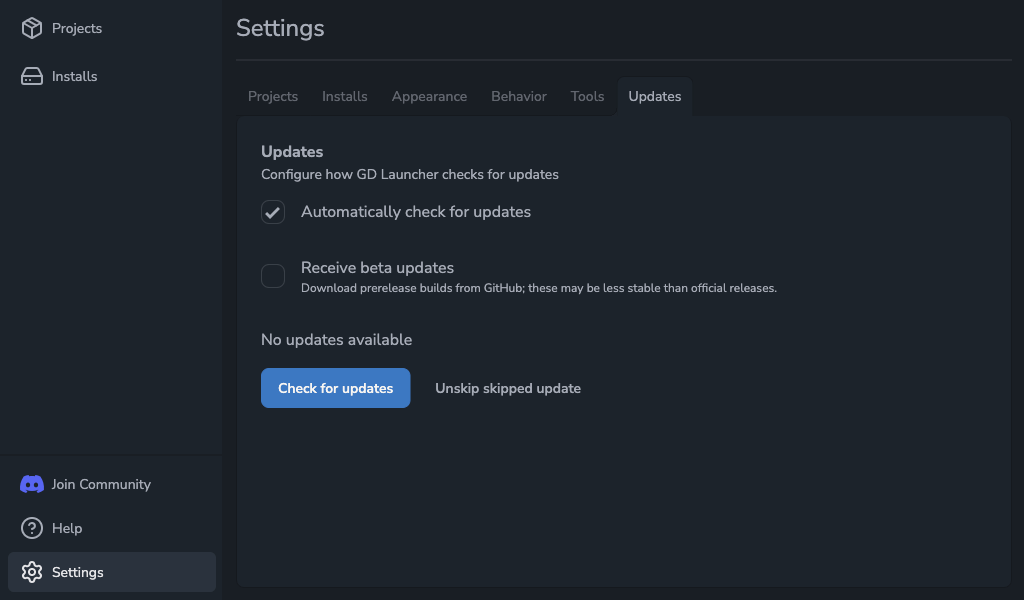
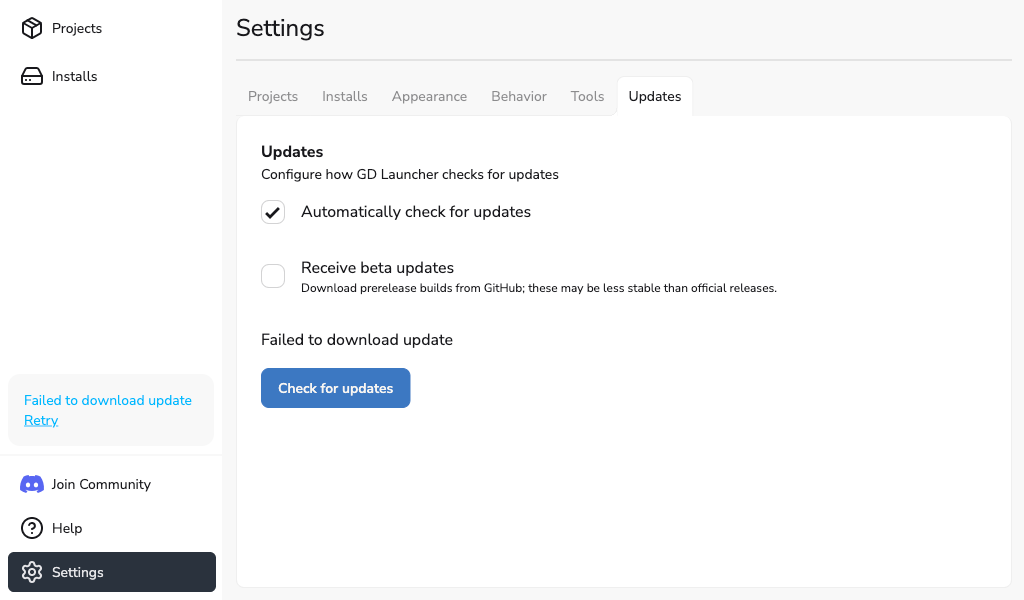
Open Settings -> Updates to control how the launcher checks for new versions.
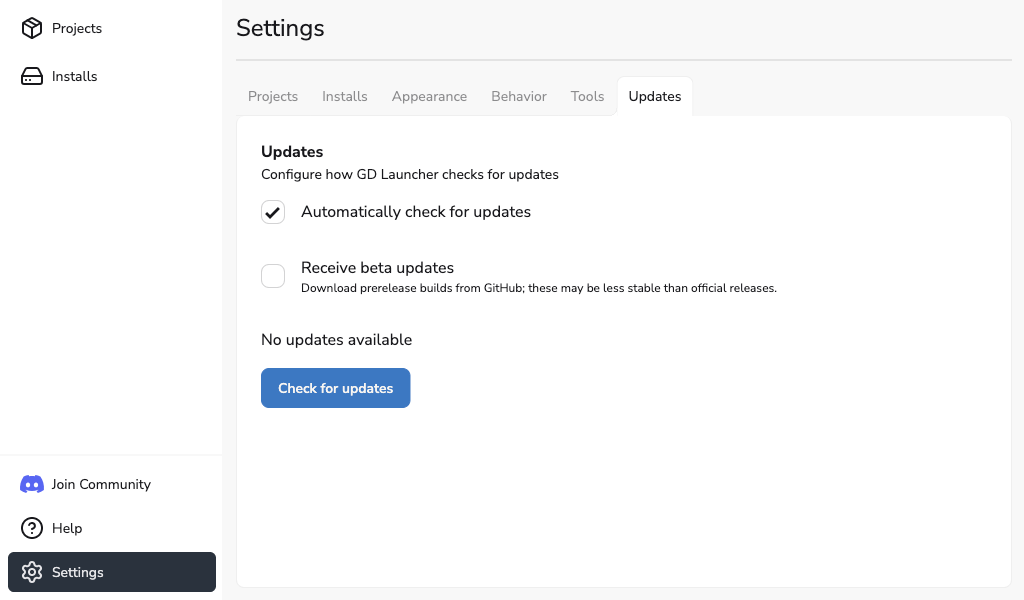
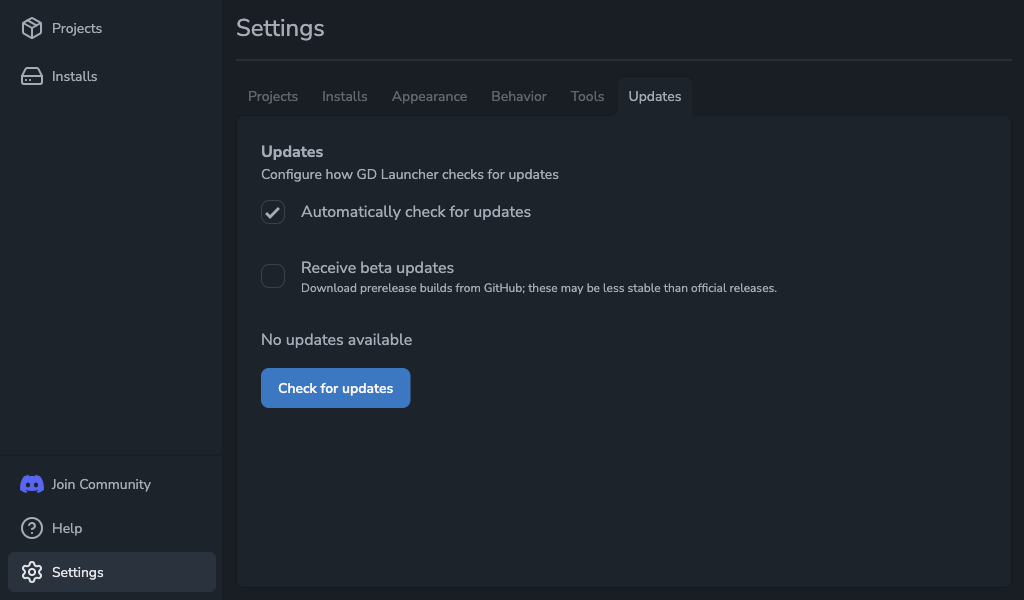
In this tab you can:
- Turn Automatically check for updates on or off.
- Allow Prerelease updates if you want beta builds.
- Run Check for updates manually.
- Download, skip, or install an update depending on the current state.
Automatic checks vs manual updates
Automatic checks are enabled by default. This helps the launcher notice new versions in the background, but it does not download the update for you.
When an update is found, the launcher moves to an available state. From there, you choose whether to download it now or skip that version.
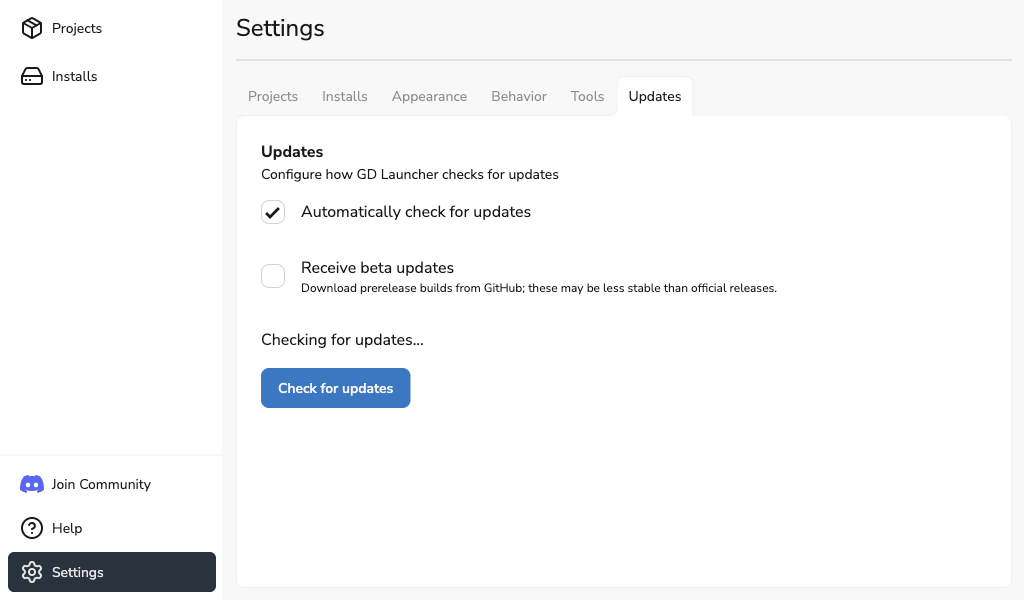
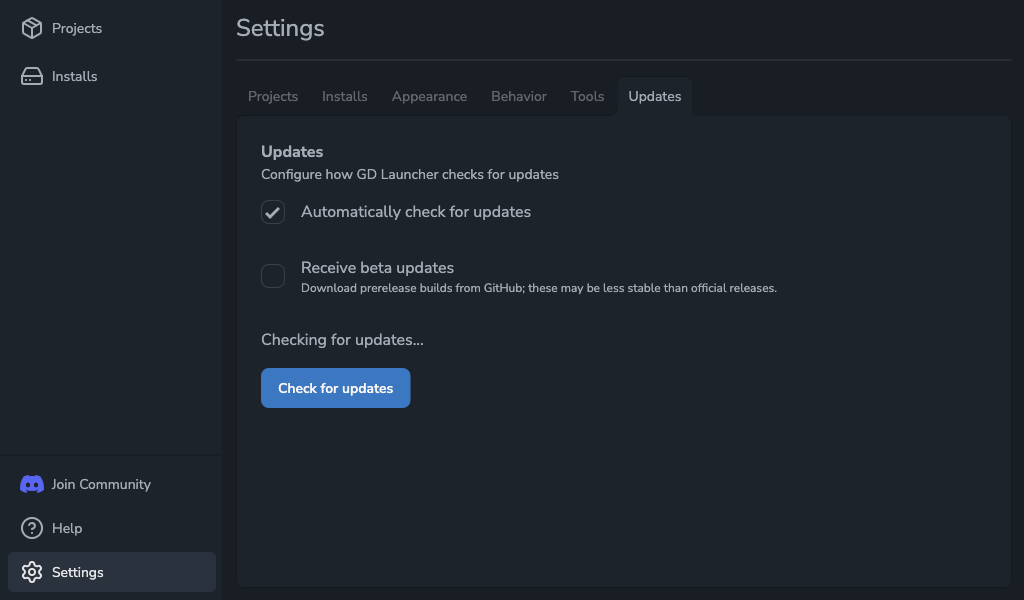
If you want to check on demand, use Check for updates in Settings -> Updates. A manual check can also show a version you previously skipped, so you can still install it later without waiting for a newer release.
Checking for updates
After you start a manual check, the Updates tab shows that the launcher is checking for a newer version.
Update available
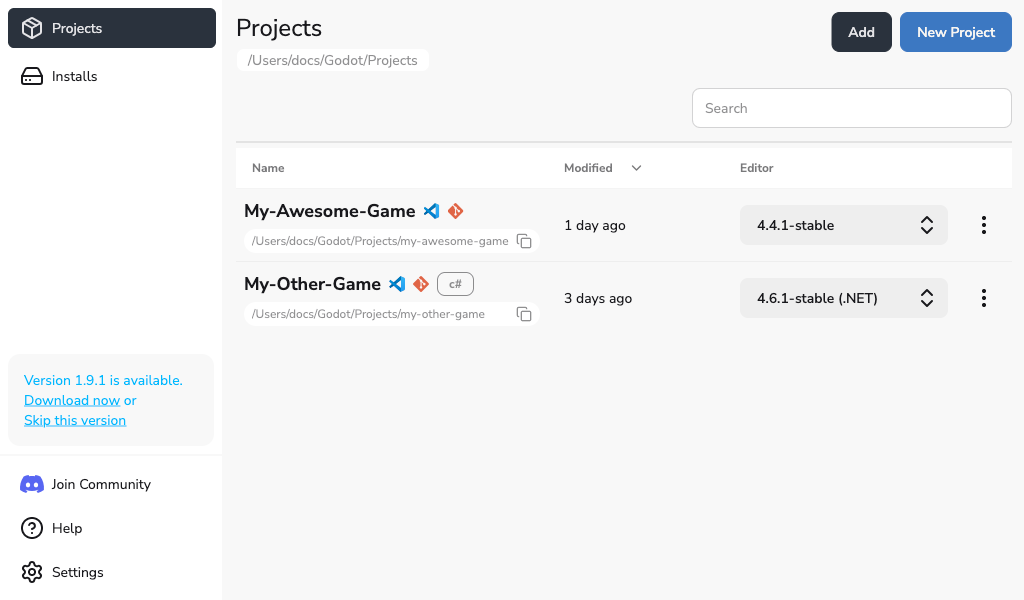
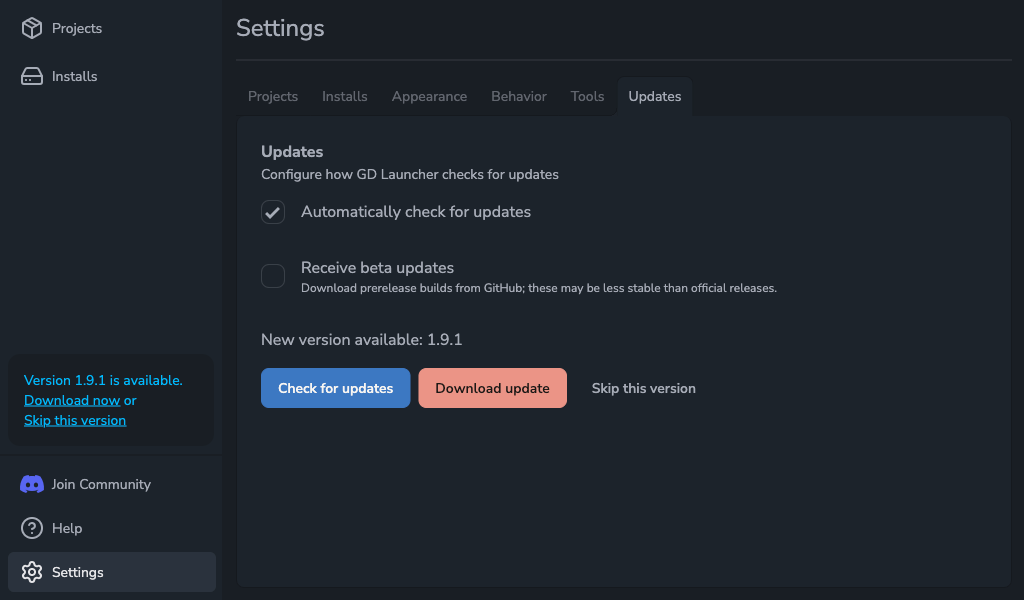
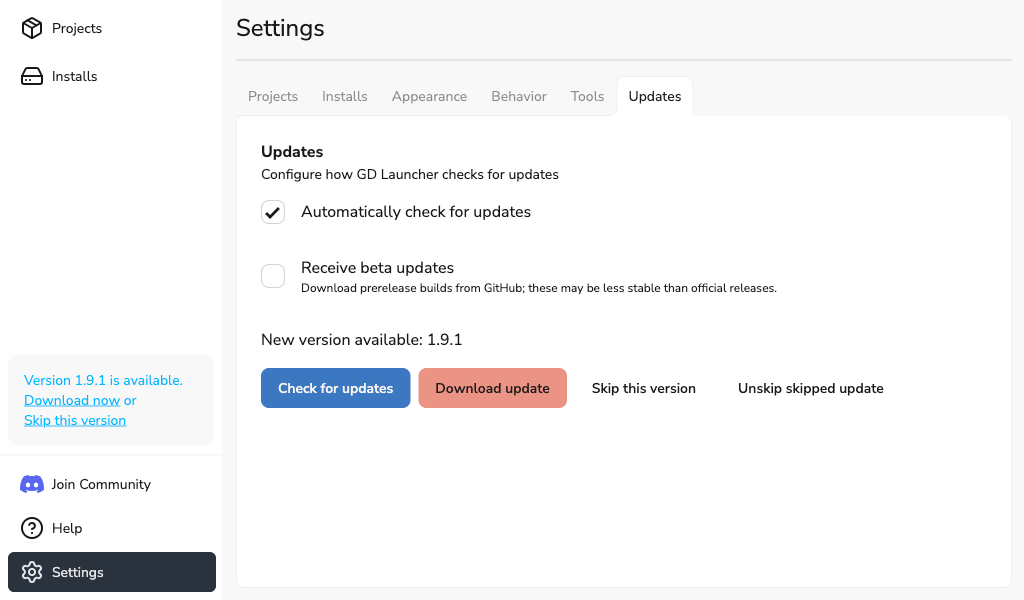
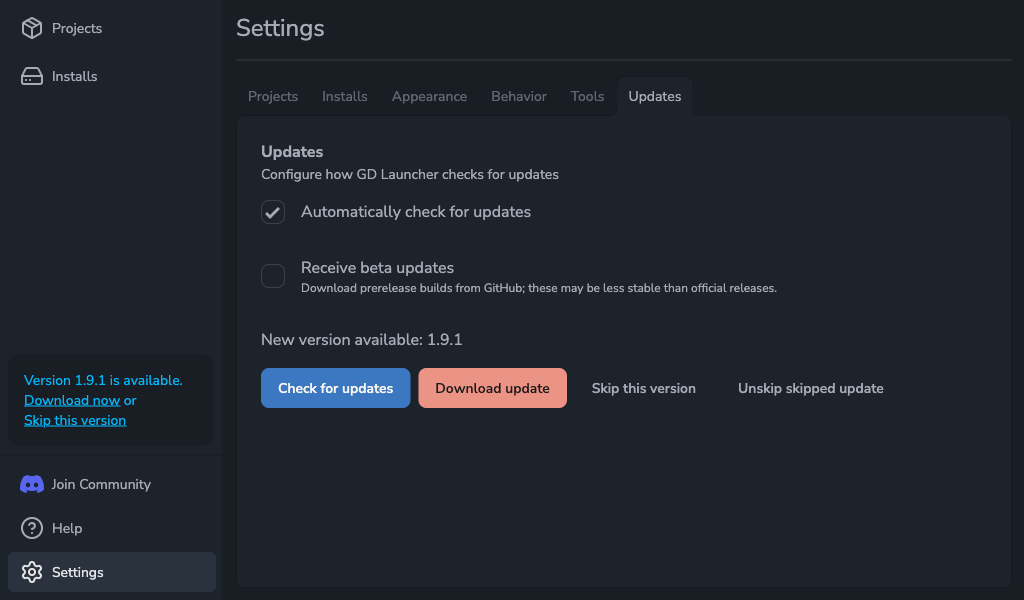
When a new version is available, the launcher gives you two choices:
- Download update to start the update process.
- Skip this version if you do not want reminders for that exact version during regular checks.
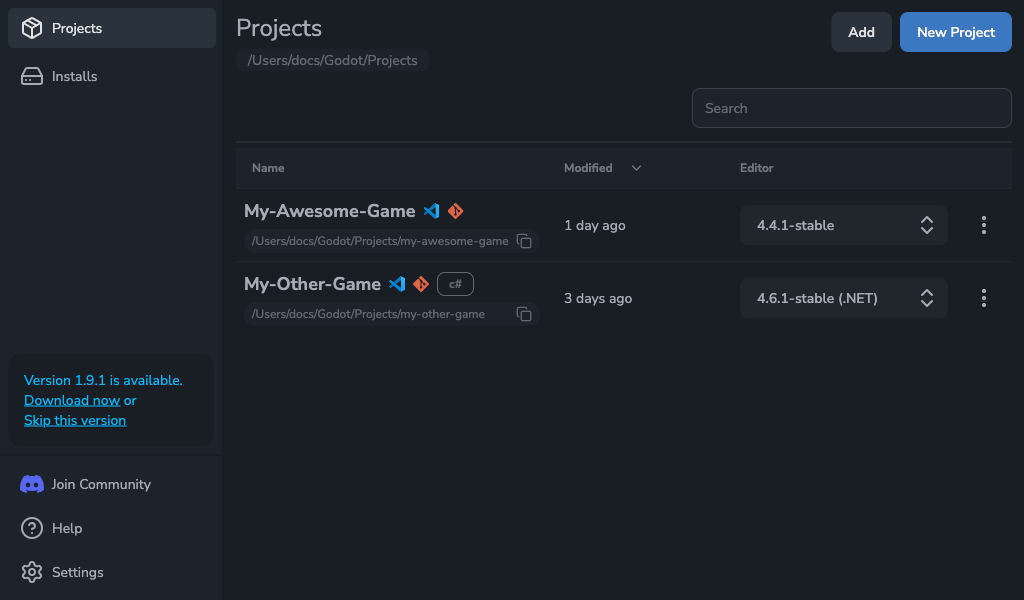
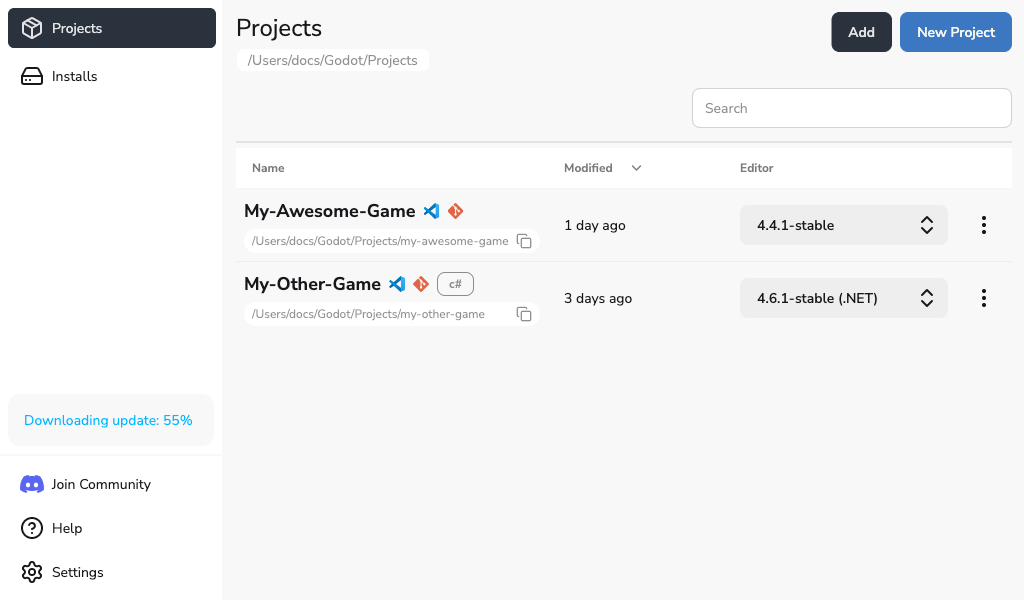
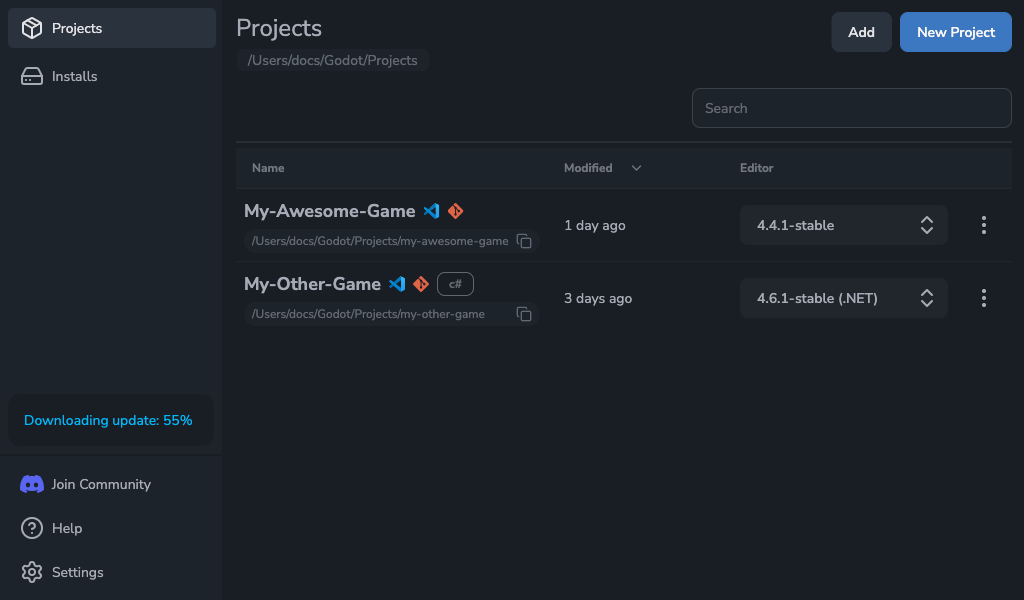
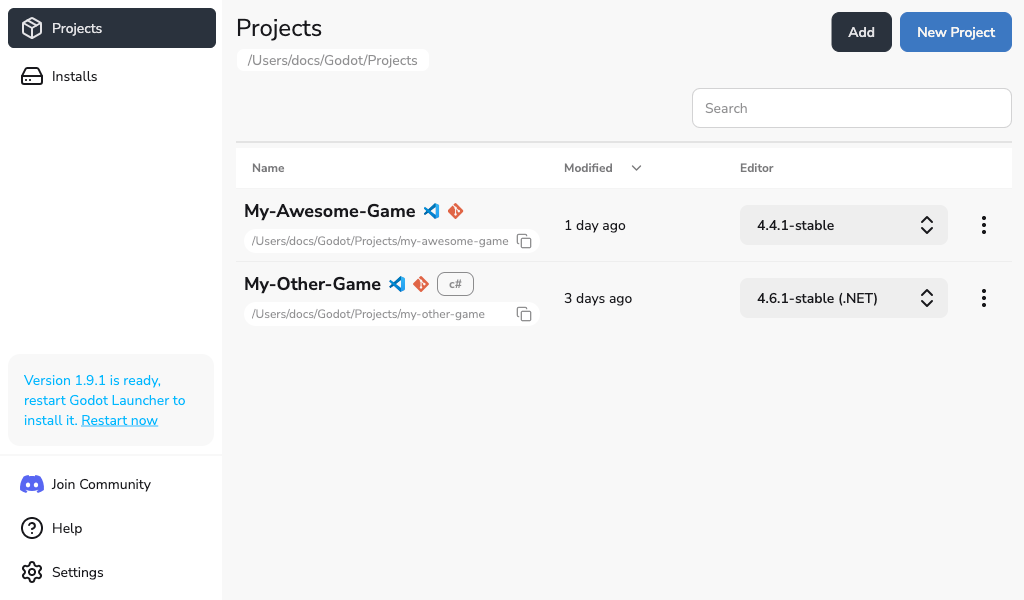
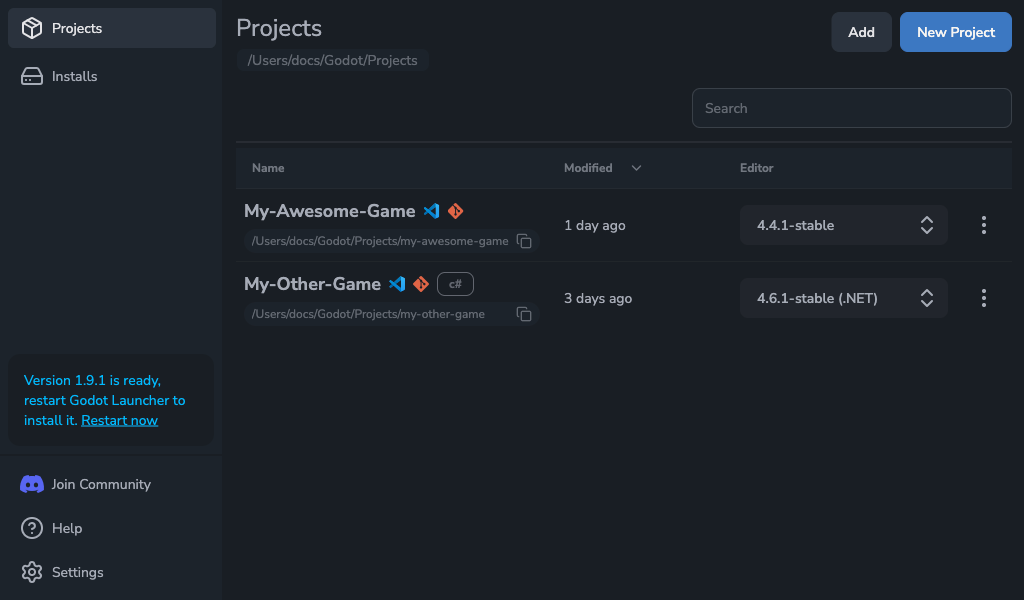
The same status also appears in the main app banner so you can act from the project view without opening Settings.
Downloading the update
Once you start the download, the launcher shows progress in both the Updates tab and the main app banner.
Update ready to install
After the download completes, the launcher switches to a ready state. At this point the update is prepared locally, and you can restart the launcher when you are ready to install it.
- In Settings -> Updates, use Restart now.
- In the main app banner, use the inline Restart now action.
Skip a version
Skipping is version-specific. If you skip one release, the launcher keeps normal background checks quiet for that version only.
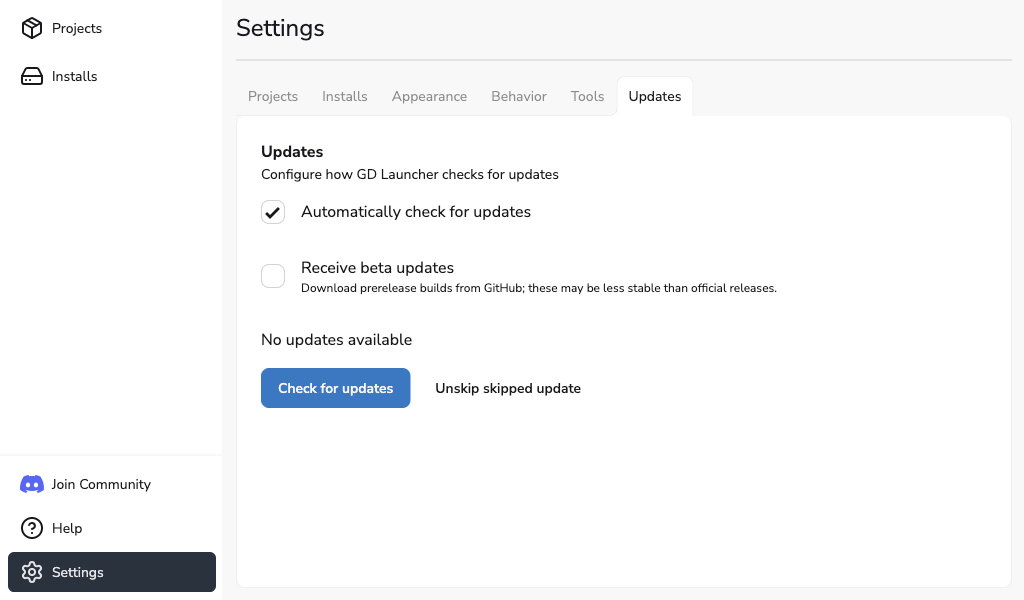
This is useful if you want to stay on your current build for a while without repeated prompts.
Manual override after skipping
A skipped version is not permanent. Go to Settings -> Updates and run Check for updates manually to surface that version again. You can then download it normally, or clear the skip state and come back later.
Errors and retry
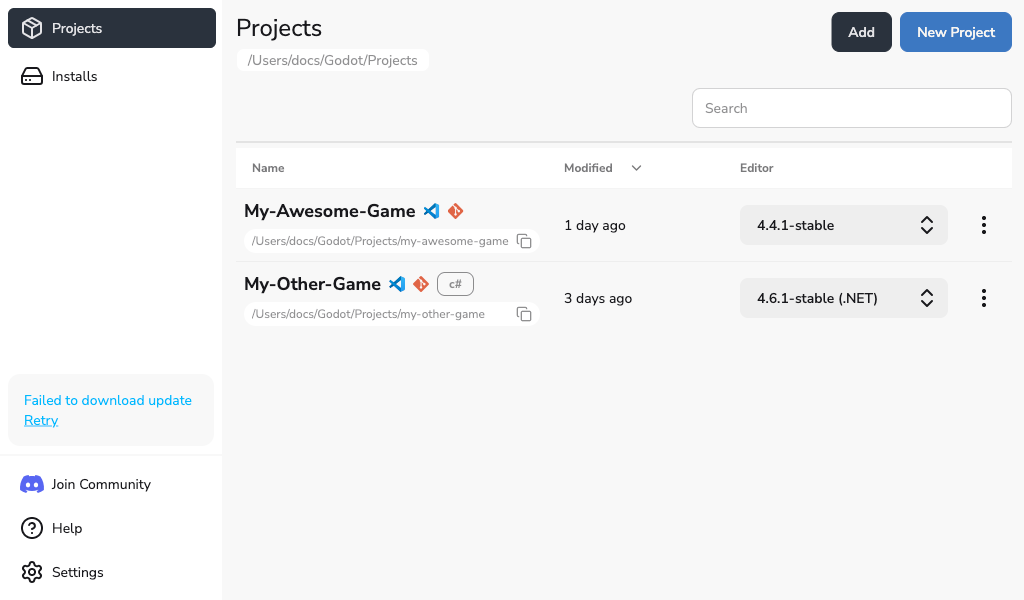
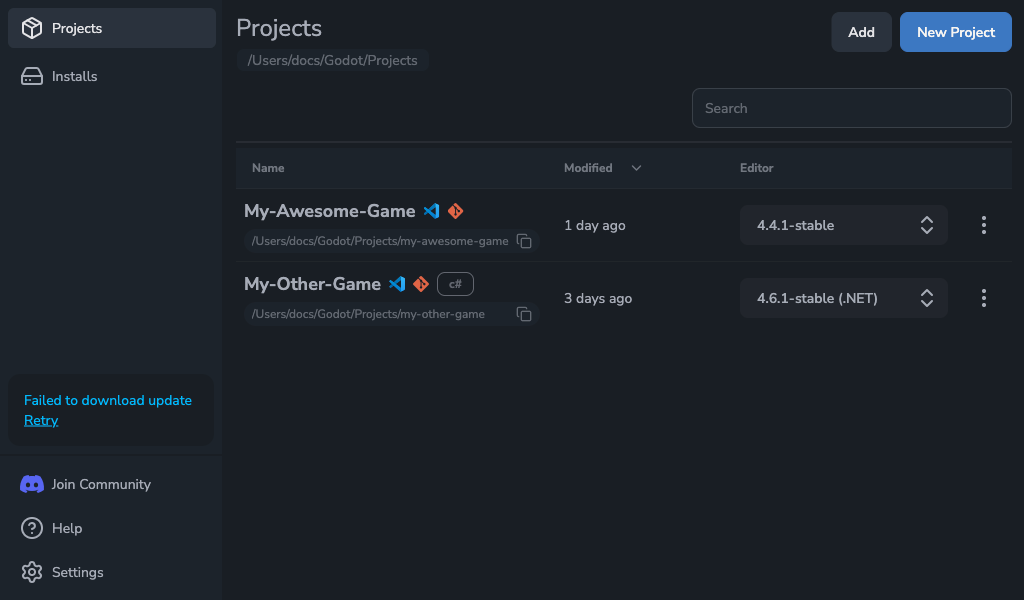
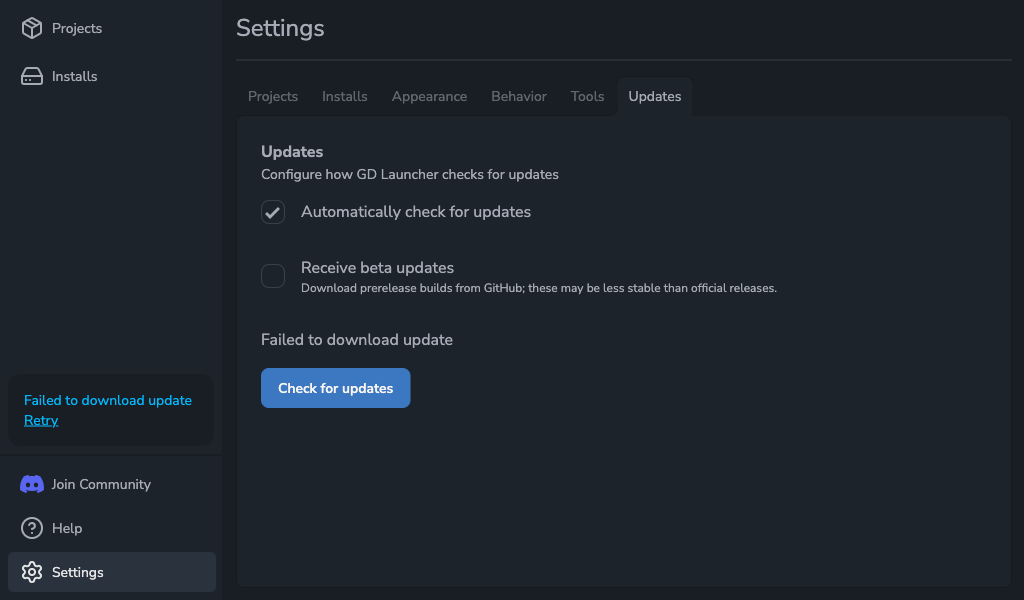
If the launcher cannot download or prepare the update, it shows an error state instead of leaving you without feedback. Use the retry action to try again.
Prerelease updates
If you enable Prerelease updates, the launcher can offer beta builds as well as stable releases. This is useful when you want early access to changes, but prerelease versions may change more often and may be less stable.