Installing a Godot Editor
In Godot Launcher, you can install an official editor from Installs, register a custom-built editor, or choose an official editor to download while creating a project.
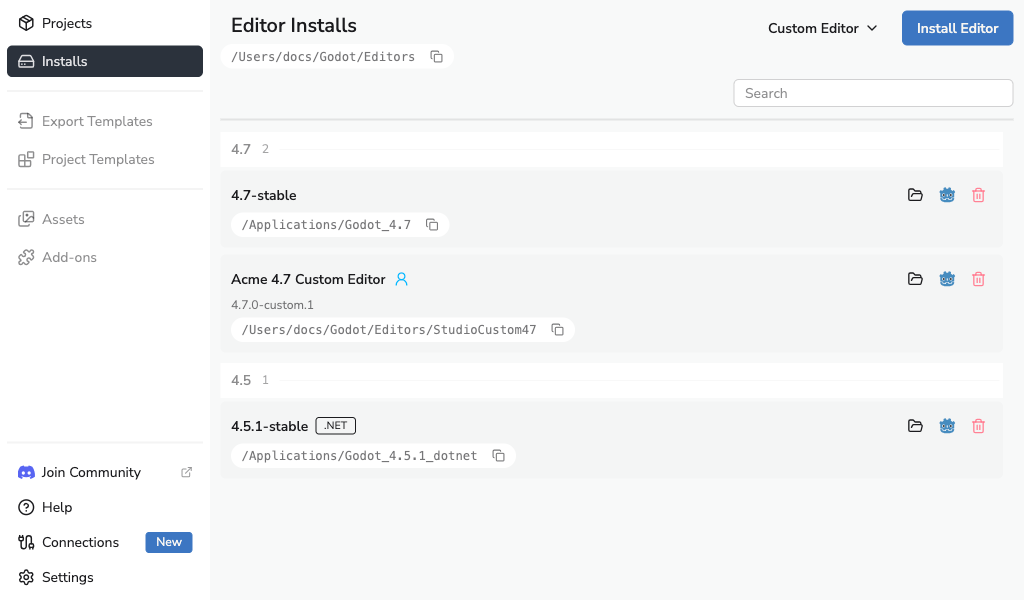
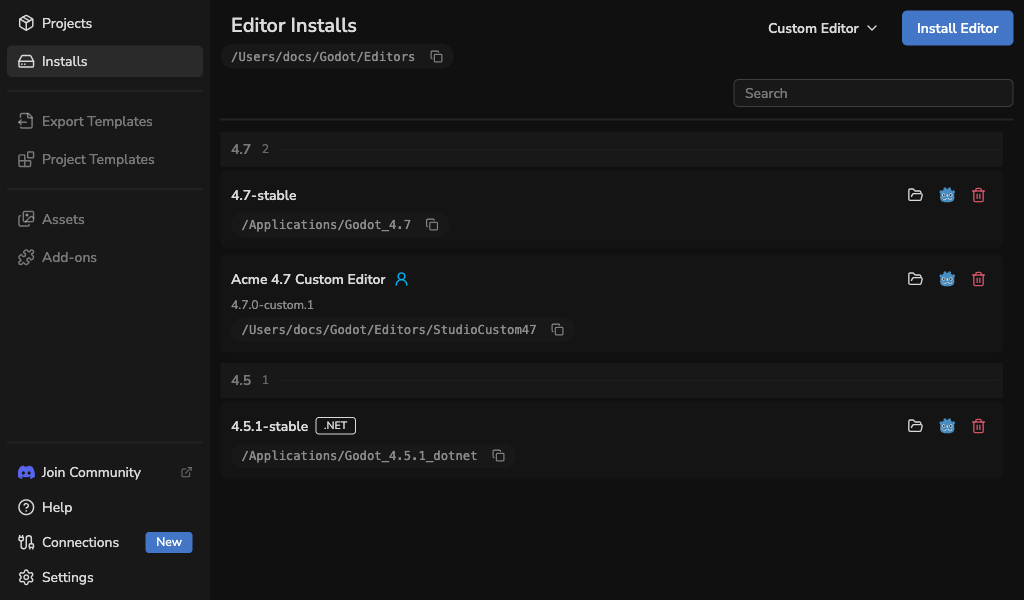
Install an official Godot editor
- Go to Installs from the left-hand navigation menu.
- Click Install Editor.
- Choose Latest for recent releases or All to find an older version.
- Choose Stable or Prerelease.
- Find the release you need and select Standard or .NET.
- Wait for the installation to finish.
Use Refresh to check for newly published releases.
You can install multiple editor releases side by side. This is useful when you maintain projects across different Godot versions or want to test prereleases.
Choose Standard or .NET
- Standard is the usual choice for GDScript projects.
- .NET is required for projects that use C#.
If you are not sure, choose Standard. You can install both variants of the same release.
Godot Launcher works with Godot 4 and newer editor builds.
To use C# in your project, install the .NET SDK from the Microsoft .NET website as well as a .NET-enabled Godot editor. See the Godot Engine C# documentation for current requirements.
The drawer shows queued, download, and installation progress. You can close it while an installation continues. If you started an install from Installs, select the cancel icon while it is queued, preparing, or downloading to stop it and remove its partial download.
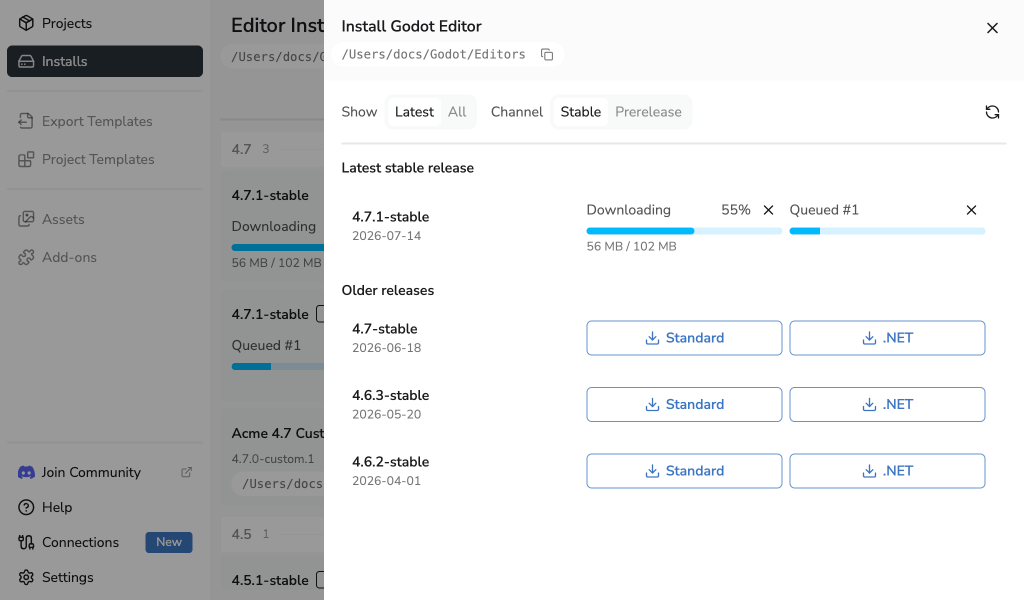
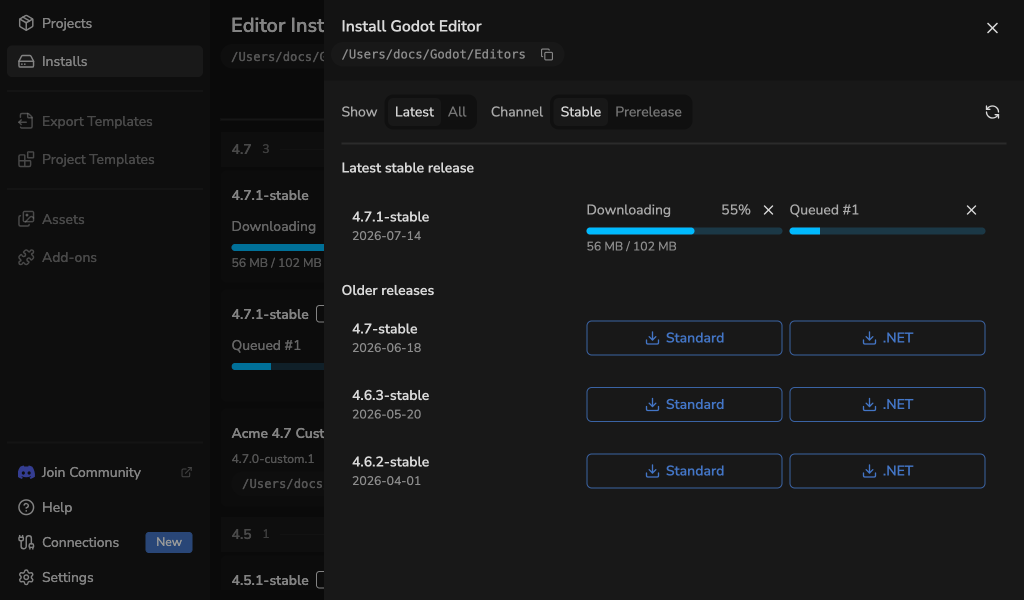
Cancellation is unavailable after extraction starts. An editor install started for a project is also not cancellable, because the project is waiting for that editor. If a project starts waiting for the same editor as a cancellable install, the cancel action becomes unavailable.
Before extracting an official editor archive, Godot Launcher verifies it against checksum information from the same release. The launcher stops the installation and removes partial files if verification or safe extraction fails.
After upgrading Godot Launcher, the release list may perform one complete refresh to add the checksum information needed for existing cached releases. Later checks return to the normal cached refresh behavior.
Manage installed editors
The Installs view groups official and custom editors by Godot version. Standard, .NET, prerelease, and custom entries remain distinct within those groups.
- Install as many editor versions as your projects need.
- If an official editor becomes unavailable, select Retry after restoring its folder or Reinstall to download the same release and variant from the editor catalogue. Projects that used the unavailable editor are repaired to use the recovered installation.
- If a custom editor becomes unavailable, restore its manifest and editor paths, then select Retry. The launcher does not download custom builds.
- Open an editor's more-actions menu and choose Delete Release from This Device to remove an official editor.
- Change the download location from Godot Launcher Settings.
Removing an editor does not delete your projects. See Troubleshooting if an installation or saved editor location is unavailable.
Add a custom-built Godot editor
Open the Custom Editor menu in Installs to register a custom-built Godot editor:
- Select manifest file: register an existing
godotlauncher-editor-manifest.json. - Create custom editor manifest: enter the editor details and create the manifest in the launcher.
Custom editors appear in Installs with a Custom badge. See Custom-Built Godot Editors for the full workflow.